
No signup required • Works in your browser • 100% secure
How to Rearrange, Rotate, and Merge PDF Pages
Modern PDF organization tools offer drag-and-drop interfaces, real-time thumbnails, and batch operations for rotating, inserting, and deleting pages. You can even bring in files from multiple PDFs and combine them into one document in the same session.
The thumbnail drag-and-drop approach is the key feature here — you can see every page before you commit to an order, which makes rearranging and merging far less error-prone than working blind.
Understanding PDF Document Structure and Page Organization
A PDF isn't a flat document like a Word file — each page exists as a separate object in the file's internal structure. When you reorder pages, the tool updates the cross-reference table that links those objects together, without touching the content inside them. That's why reordering is lossless: the page data never changes, only the sequence it's referenced in.
Page rotation works the same way — it stores a rotation angle in the page object's metadata rather than actually rotating the image data. A 300 DPI scan rotated 90° is still 300 DPI after download. No re-encoding, no quality loss.
All processing happens in your browser using a JavaScript PDF library. Nothing is sent to a server, which means your document stays private and speed depends on your device, not a network connection. Files up to 200MB work fine on a modern laptop; very large files on older devices may be slower.
Only need a few pages?
Instead of reorganizing the whole document, pull out just the pages you need with the Extract tool.
| Operation Type | Quality Impact | Notes |
|---|---|---|
| Page Reordering | Zero loss | Metadata only — content untouched |
| Page Rotation | Zero loss | Rotation flag change — no image processing |
| Blank Page Insertion | Zero loss | Adds an empty page object |
| Multi-File Merging | Zero loss | Page objects copied directly without re-encoding |
| Batch Operations | Zero loss | All operations are non-destructive |
Advanced Drag-and-Drop Interface and Visual Organization
The grid layout adjusts automatically to your screen size — more columns on a wide desktop, fewer on a phone. On touch screens, long-press a thumbnail for about half a second to pick it up, then drag. Drop targets highlight to show where the page will land.
Thumbnail size depends on which view mode you're in. Compact view fits more pages on screen at once — useful when you just need to confirm the page order. Large view gives you bigger previews so you can actually read the content and identify the right page before moving it.
Multi-select lets you grab several pages at once — hold Shift or Ctrl/Cmd and click, then drag the group. This is the fastest way to move a block of pages from one position to another rather than dragging one at a time.
| View Mode | Thumbnail Size | Grid Columns | Best For |
|---|---|---|---|
| Compact Mobile | 80×107px | 2–3 columns | Quick reordering on small screens |
| Compact Desktop | 120×160px | 6–8 columns | Seeing many pages at once |
| Large Mobile | 200×267px | 1–2 columns | Reading page content while sorting |
| Large Desktop | 320×427px | 3–5 columns | Detailed review before finalising |
Page Operations and Document Manipulation Features
Rotation operations apply immediately in the thumbnail view — there's no separate confirm step. You can rotate multiple pages at once by selecting them first (Ctrl+click or Shift+click on desktop, long-press on mobile). If you rotate by mistake, Ctrl+Z undoes it without affecting anything else.
Blank page insertion creates new page objects with customizable dimensions matching source document specifications. Blank pages support standard sizes (A4, Letter, Legal) and custom dimensions. They match the formatting of the existing document.
Page duplication creates independent copies — the duplicate is fully editable and doesn't share data with the original. It's useful when you want the same content to appear twice, or when you need a template page to use as a starting point. Memory use increases proportionally, so on large documents duplication of image-heavy pages may add a second or two to final processing time.
- Rotate pages in 90° increments (0°, 90°, 180°, 270°) with immediate visual feedback
- Duplicate any page with all content and formatting preserved independently
- Delete unwanted pages with confirmation dialogs preventing accidental removal
- Move pages to specific positions using numeric input for precise placement
- Insert blank pages between existing pages for annotations or signatures
- Merge multiple PDF files with automatic page number adjustment and indexing
Here's the tool after loading a file — every page shows up as a draggable card. The toolbar at the top handles sort and view-mode switching; the buttons on each card handle per-page actions like rotate or delete.
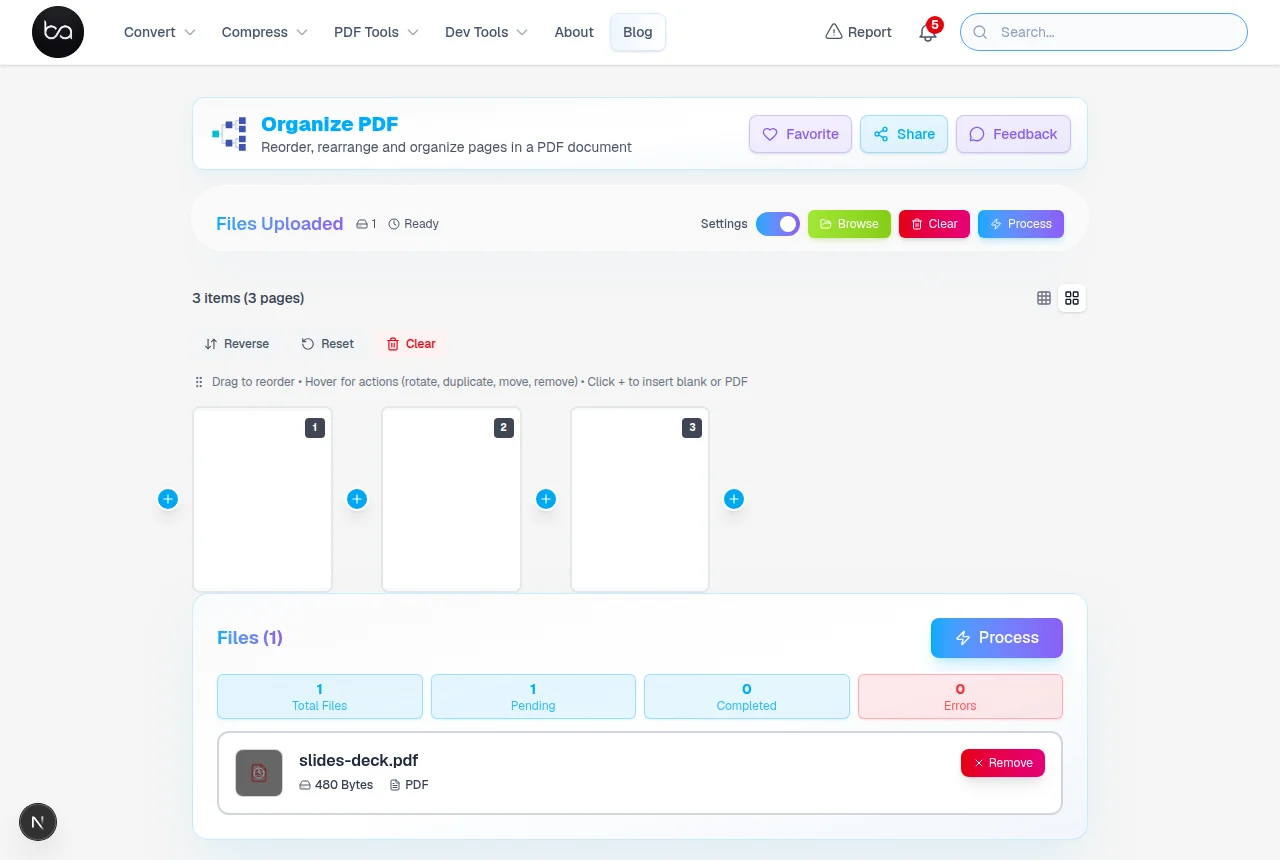
Rotation is the operation I use most on scanned documents. Phone cameras and flatbed scanners both produce pages at odd angles, and fixing them one at a time used to mean a separate editing step. Here each page card has a rotate button — tap it and the thumbnail spins 90° so you can confirm the orientation looks right before downloading.
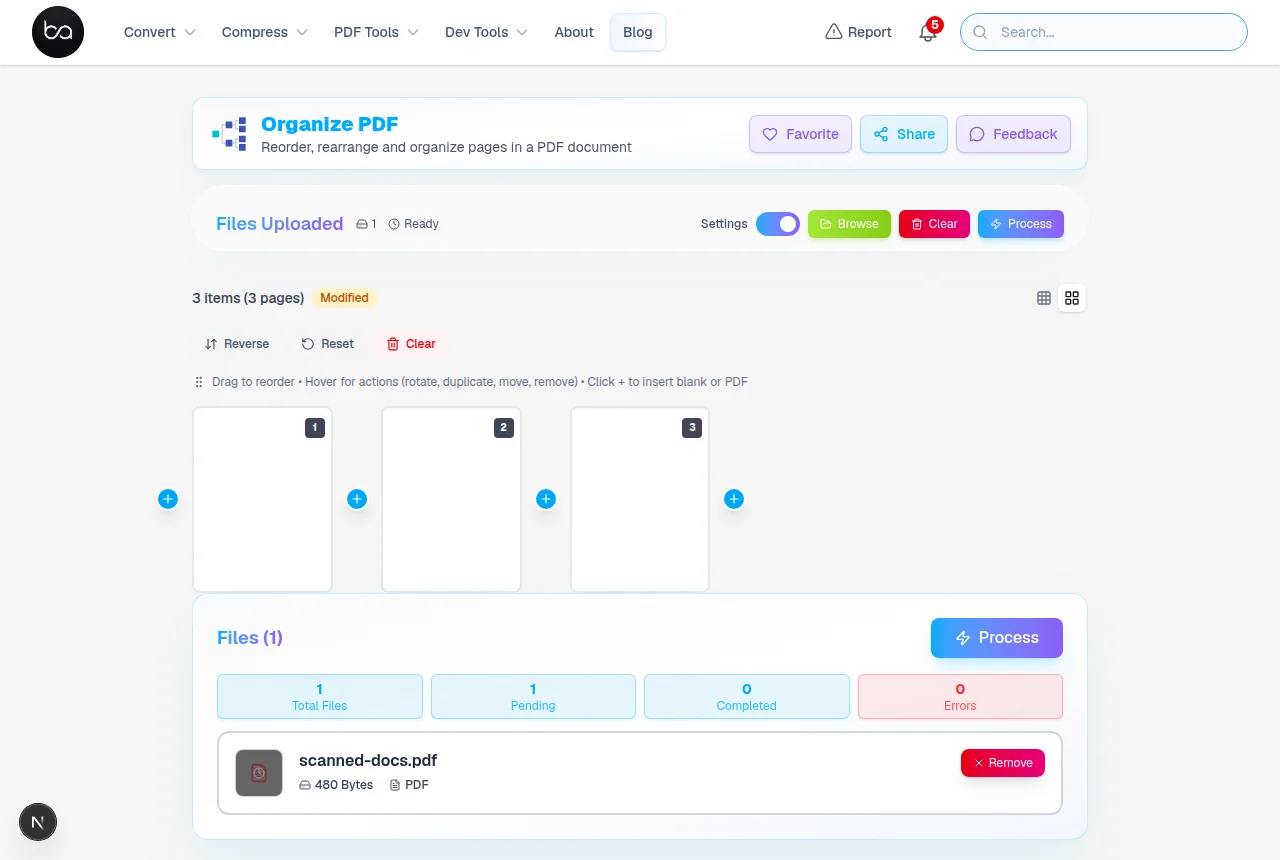
Multi-File Merging and Batch Processing Capabilities
Before dragging pages around across multiple files, it helps to switch to large-view mode. The default compact thumbnails are fine for 5–6 pages but once you're looking at 30+ cards from two or three merged documents, you need bigger previews to tell pages apart. Large-view trades grid density for readability — you get fewer cards per row but you can actually read the content.
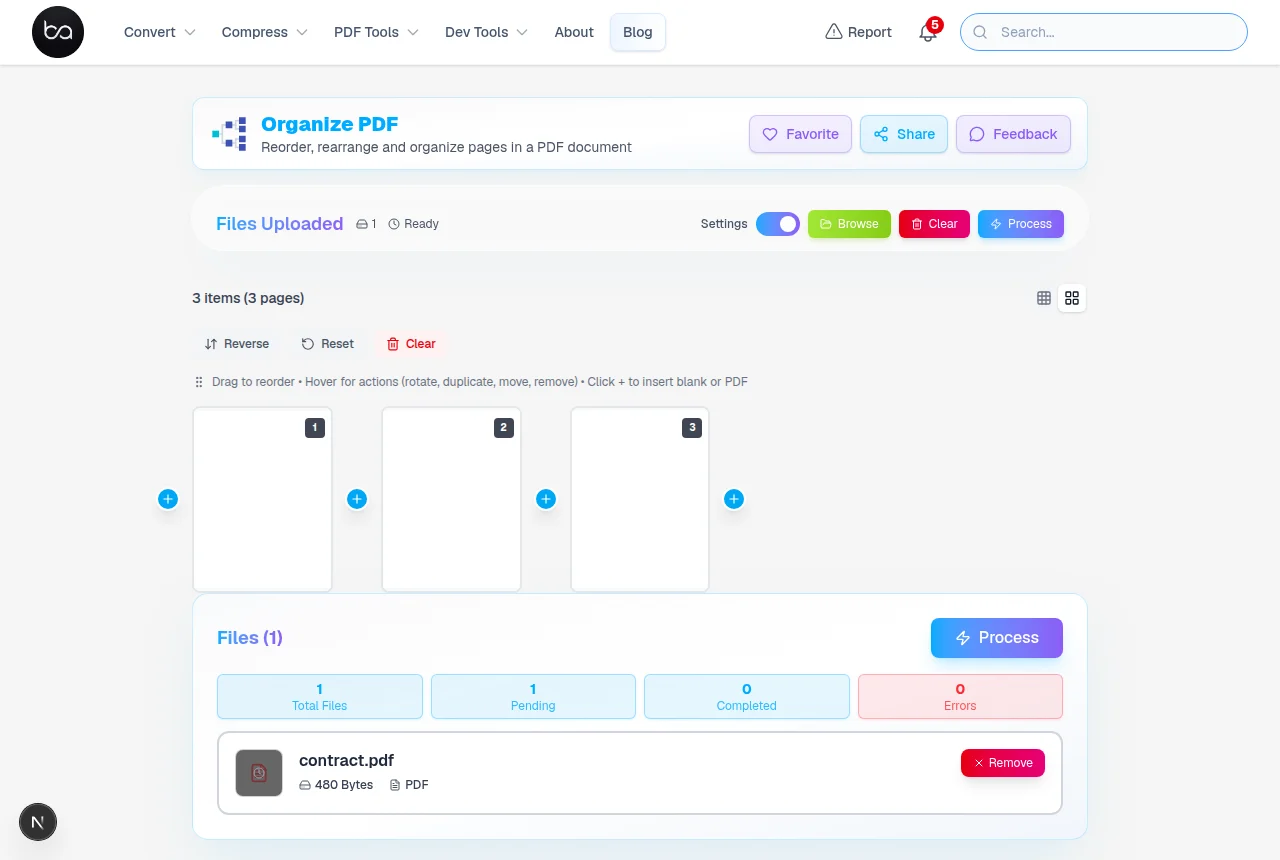
You can add more PDFs to a session after the first file is loaded — drag additional files into the same window and their pages appear at the end of the queue. From there, drag individual pages to wherever they need to go. There's no separate "merge mode"; merging just means uploading multiple files into the same session.
When working with multiple source files, the session tracks which pages came from which file until you download. You can mix and match freely — take page 3 from file A, page 1 from file B, insert a blank between them — and the final PDF combines them all into one clean document.
For very large documents, the tool loads thumbnails progressively rather than all at once, which keeps the interface responsive. If you're on a device with limited RAM, avoid having many other browser tabs open during processing — the document lives in browser memory and competes with everything else running.
| File Count | Speed | Memory Demand | Notes |
|---|---|---|---|
| 1–5 files | Fast | Low — most machines handle this easily | Typical everyday use case |
| 6–15 files | Moderate | Moderate — close unused tabs if needed | Works fine on most laptops |
| 16–30 files | Slower | Higher — 8GB+ RAM recommended | Give the browser time to load thumbnails |
| 31–50 files | Slowest | High — free as much RAM as possible | Consider splitting into batches |
Performance Optimization and System Requirements
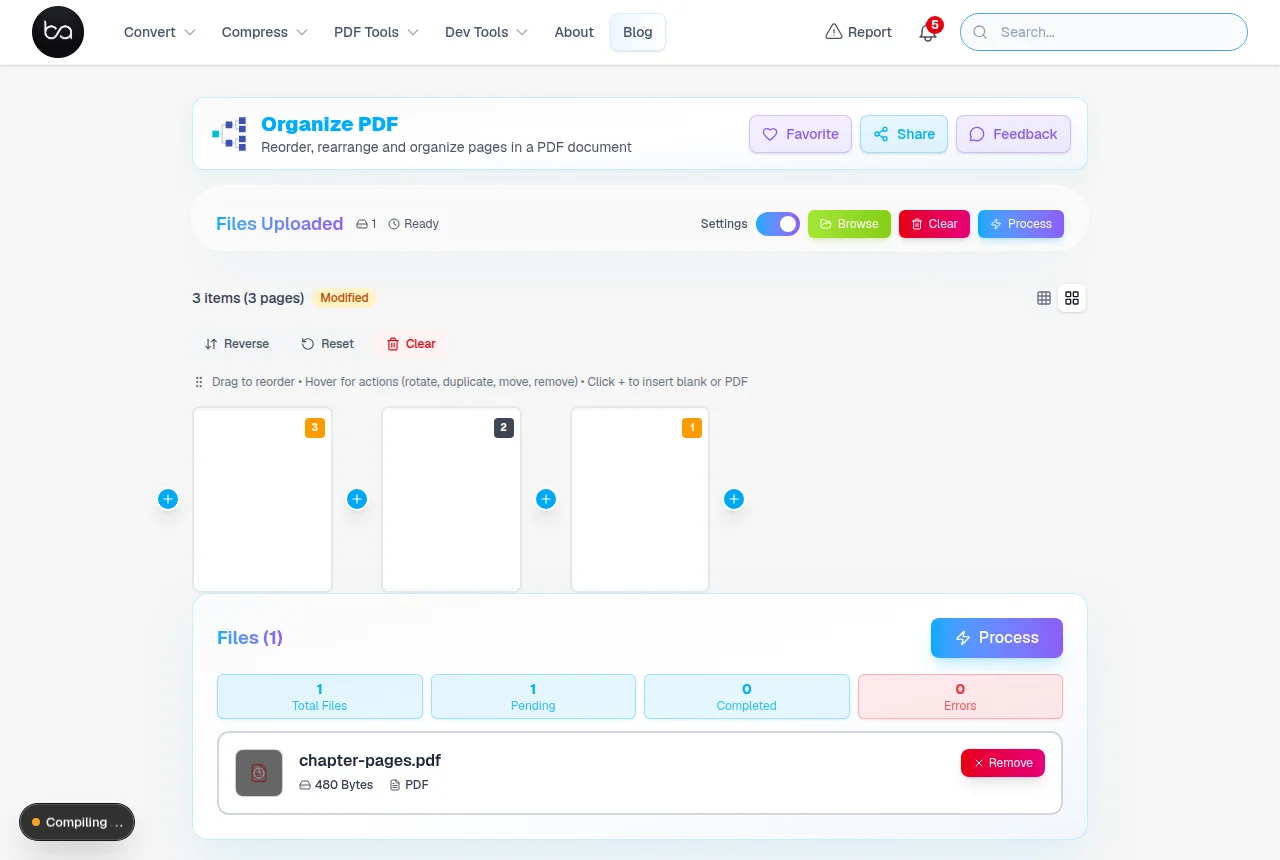
One shortcut worth knowing about before you start moving cards around manually: the sort toolbar. If your document came out of a scanner with pages in reverse order — which happens constantly with duplex scanning on machines that stack face-up — you can flip the entire sequence in one click instead of dragging 40 cards one by one. It's a small thing but it saves a lot of time.
Any modern browser works — Chrome, Edge, Firefox, and Safari all handle PDF reorganization without issues. Chrome and Edge tend to be the fastest for heavy JavaScript work. Safari works well on Mac and iOS; on very large documents or when merging many files, Chrome or Edge will complete the job noticeably quicker. If you hit sluggishness on Safari, switching browsers is the easiest fix.
Available memory matters more than the browser choice. A 50-page document with embedded images needs a few hundred MB of free RAM — any modern machine handles that fine. If you're merging several large files at once, close unused tabs first to give the browser more headroom. A file that stalls or causes a tab crash almost always recovers after freeing up memory this way.
Because all processing runs in your browser rather than on a server, there's no upload wait and your file never leaves your device. For most documents this feels instant. Very large merges — say, combining five 100-page PDFs — take a little longer, but you can watch the thumbnails render in real time rather than staring at an upload progress bar.
Large file slowing things down? Compress it first to reduce processing load and make sharing easier after you finish organizing. Compress PDF
| Document Size | Speed | Notes |
|---|---|---|
| 1–20 pages | Fast | Works on any device without issue |
| 21–50 pages | Moderate | Smooth on a modern laptop |
| 51–100 pages | Noticeably slower | Close unused tabs for best results |
| 101–200 pages | Slow — be patient | Works, but a desktop with good RAM helps |
Error Handling and Compatibility Considerations
If you drop in a password-protected PDF, the tool detects it immediately and shows you a prompt to unlock it first — you can't reorder pages in an encrypted file without the owner password. There's a direct link to the unlock tool from the error message.
Single-page PDFs are edge cases — there's nothing to reorder in a one-page document. The most useful thing you can do with a single-page file is either add pages from another document or insert a blank page before or after it. The tool suggests the multi-file upload when it detects a single page.
Corrupted PDFs sometimes load partially — some pages render and others show a blank or error thumbnail. If this happens, try the PDF repair tool first to reconstruct the file structure, then reload it here. Very old PDFs (pre-2000) occasionally have structural quirks that modern libraries handle inconsistently.
| Error Type | How It's Detected | What Happens |
|---|---|---|
| Password Protection | Detected on upload | Prompt shown to unlock first — direct link to unlock tool |
| Single Page Document | Detected on load | Suggests multi-file merge instead |
| Memory Overflow | Tab slows or crashes | Close other tabs, reload — usually recovers |
| Corrupt PDF Structure | Pages fail to render | Blank thumbnails shown — try repair tool first |
| Browser Compatibility | Feature detection on load | Core functions work in all modern browsers |
- Password-protected PDFs are detected on upload — you'll see a prompt to unlock first
- On low-RAM devices, very large documents load thumbnails progressively to stay responsive
- Works in Chrome, Firefox, Edge, and Safari — no plugin or extension required
- If the browser tab closes unexpectedly, reopening a fresh session is the fastest recovery
- Very old PDFs (pre-2000) occasionally have structural quirks — if pages don't load, try the repair tool first
- Corrupted files that partially load will show blank thumbnails for the unreadable pages
File locked with a password?
Remove the restriction before organizing — it only takes a few seconds.
Frequently Asked Questions
How does drag-and-drop page reordering work on touch devices?
Long-press a thumbnail for 0.5 seconds, then drag. Drop targets highlight as you move.
What happens to PDF quality during page organization and rotation?
Quality is unchanged because the tool edits structure references only, never decoding image data. Rotation stores a number in the page rotation field. A 300 DPI scan rotated 90 degrees is still 300 DPI after download.
Can I merge multiple PDF files while organizing pages?
Yes — upload additional PDFs into the same session and their pages appear at the end of the queue. Drag individual pages to any position. There's no separate merge mode; it's the same drag-and-drop interface whether you have one file or ten loaded.
How are blank pages created and what formats do they support?
Blank pages are generated as new PDF objects matching source document dimensions. They support standard sizes (A4, Letter, Legal) and custom dimensions.
What should I do if my PDF is password-protected or single-page?
If the PDF has a password, the tool detects it on upload and shows a prompt to unlock it first. For single-page files, the most useful option is adding pages from another PDF in the same session — just drag in the second file and its pages appear in the queue.
Related Articles
How to Fill PDF Forms Online: Complete Guide for Interactive PDF Form Management
Learn how to fill PDF forms online without software installations, create interactive form fields, and manage complex document workflows with professional-grade tools.
Read articleConvert HEIC to PNG With Transparency Support - Free Online Tool
Convert iPhone HEIC photos to PNG format with full transparency support. AI background removal, custom dimensions, and quality optimization. Works on all devices.
Read articleConvert Video to GIF Under 5MB for Any App - Free Online Tool
Learn how to convert any video to GIF format under 5MB for social media, messaging apps, and websites. Complete guide with size optimization tips and FPS settings.
Read article