
No signup required • Works in your browser • 100% secure
How to Fill Out PDF Forms Online Without Software
PDF forms come in two types: ones with actual interactive fields, and flat PDFs where the form is just a printed image. Which type you have determines which approach works. Both are covered below, along with the workflows most people overlook.
Understanding PDF Forms and Interactive Field Types
PDF forms contain clickable fields you can type into, check, or select. To edit non-form PDF content, use our PDF editor instead. There are six types of interactive fields you'll typically encounter, each behaving differently when you click on it.
Text fields are the most common — a box you type into. Checkboxes and radio buttons are for selections. Dropdowns and listboxes let you pick from a predefined list. Signature fields capture a drawn or typed signature. Most forms use a combination of these rather than all six.
A flat PDF looks like a form but has no interactive fields — the lines and labels are just part of the image. You can still fill these by overlaying typed text with the annotation tool, but you'll need to position each text block manually rather than tabbing between fields.
| Field Type | Use Case | Works In |
|---|---|---|
| Text Fields | Names, addresses, comments | All modern browsers |
| Checkboxes | Yes/No selections, agreements | All modern browsers |
| Radio Buttons | Single choice selections | All modern browsers |
| Dropdowns | Country lists, categories | All modern browsers |
Technical Implementation and Browser Compatibility
Drop your form PDF and the tool detects interactive fields automatically.
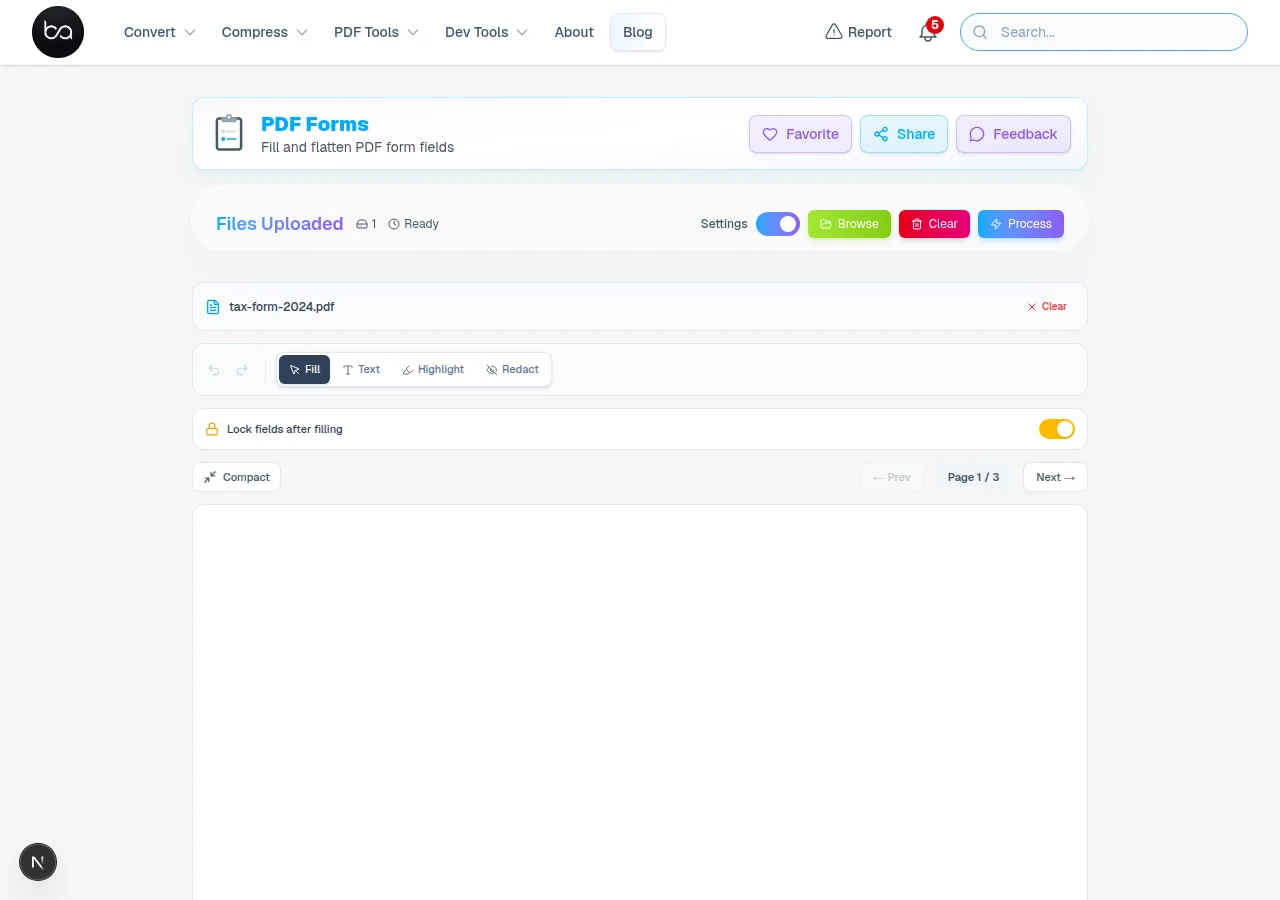
The tool uses a JavaScript PDF library to render and process forms locally in your browser — nothing is sent to a server. This works in any modern browser; Chrome and Edge tend to be most reliable for complex forms. Safari works but occasionally has quirks with less common field types.
The tool renders forms at a scale that keeps text crisp on standard screens. Form fields keep their original positions — text you type appears exactly where it should in the document layout.
Works in Chrome 60+, Firefox 55+, Safari 12+, and Edge. Mobile browsers handle basic forms well, though very complex forms with many fields are easier to fill on a desktop where you have more screen space and a physical keyboard.
What to Expect for Speed
- Simple 1–5 page forms with text fields: loads in a few seconds, fills instantly
- Longer forms (10+ pages): loading thumbnails takes longer, but field interaction stays fast
- Very large forms with many images: give it 15–30 seconds to fully render before filling
- Signature fields: drawn signatures may take a moment to register on slower devices
- If the form is slow to respond, try closing other browser tabs to free up memory
Professional Font Support and Typography Options
When you type into a form field, the tool uses fonts that work across all PDF viewers. The standard PDF built-in fonts — Helvetica, Courier, Times-Roman — are the most reliable because every PDF reader includes them by default.
If the original form used a specific font that you don't have, the text field may fall back to a similar substitute. This rarely causes any visual problem for typed form data. If exact font matching matters (say, for a form that needs to look exactly like the original), match the font family manually in the field settings.
| Font Category | Fonts Available | Compatibility |
|---|---|---|
| PDF Built-in | 3 fonts (Helvetica, Courier, Times) | Universal — works everywhere |
| Microsoft Core | 9 fonts (Arial, TNR, Georgia, etc.) | Windows and Mac systems |
| Liberation/DejaVu | 6 fonts (Open source alternatives) | Good Linux/cross-platform |
| CrosExtra | 2 fonts (Carlito, Caladea) | ChromeOS optimized |
Advanced Features: Text Insertion and Document Annotation
Once loaded, all fillable fields are highlighted and ready to accept input.
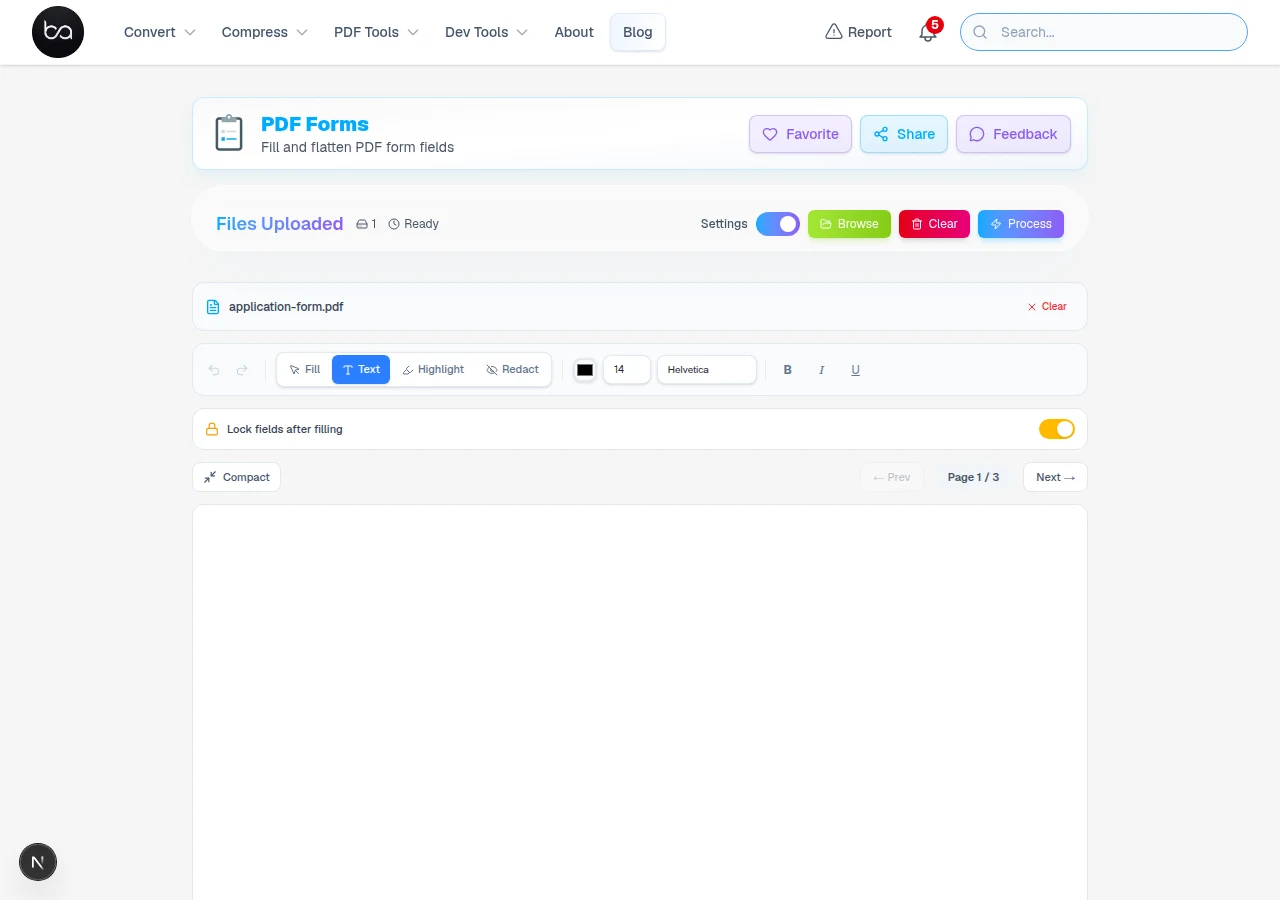
Beyond standard form filling, professional PDF processors support freehand text insertion, highlighting, and redaction capabilities. These tools operate independently of existing form fields, allowing custom document annotation.
Text insertion tools provide pixel-perfect positioning with support for 14-point to 72-point font sizes. Color customization includes 16 predefined professional colors plus custom hex color input with real-time preview.
Highlighting adds a colored overlay to mark up content. Whiteout covers text with a white box — useful for visually hiding content without actually redacting it from the file structure.
Who Actually Uses PDF Form Tools
- Legal work: Contracts, agreements, and intake forms — all standard documents that come as PDFs and need to be returned signed
- Healthcare: Patient intake forms, consent forms, referral letters
- Government applications: Tax forms, permit applications, licensing documents
- Education: Enrollment forms, financial aid applications, accommodation requests
- Insurance: Claims forms, policy applications, change-of-details forms
Lock It Down
After filling your form, add a password so only authorised recipients can open it.
Protect PDF →Security Features and Data Protection
For flat PDFs without interactive fields, the text toolbar lets you place typed text anywhere on the page.
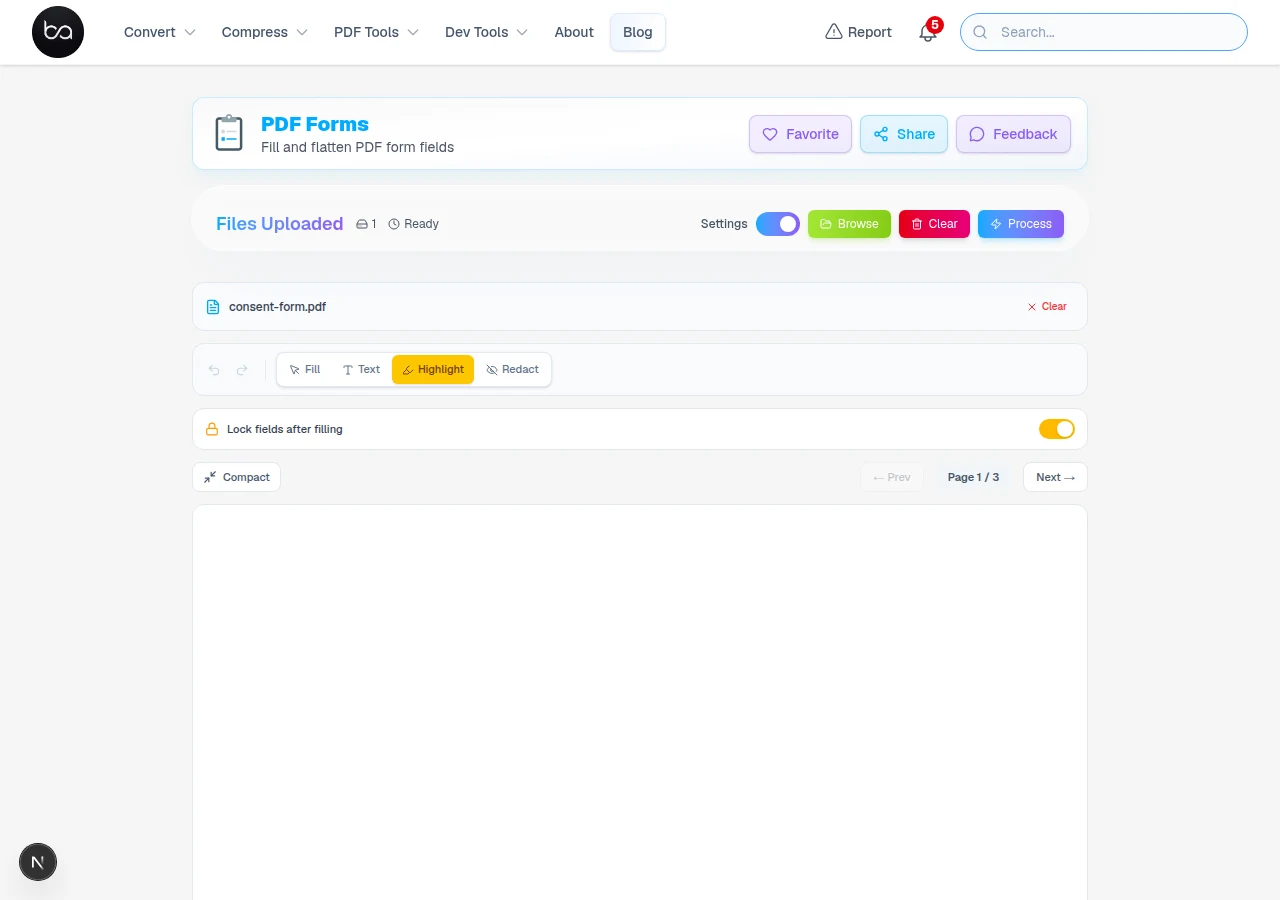
All processing runs locally in your browser — the form and any data you enter never leave your device. There's no server to receive files, no account that stores your data. When you download the completed form, that's it. Nothing is retained.
Form flattening converts all interactive fields into static content. The filled values become permanent text, and the fields themselves disappear. Use this before sharing a completed form when you don't want the recipient to be able to change the entries.
If you're filling a form with sensitive information (medical, financial, legal), the fact that everything stays in your browser is a genuine privacy advantage over tools that require file upload to a server.
Need a form in the first place?
Convert a Word document to PDF with fields ready to fill in seconds.
When PDF Form Fields Disappear or Misalign
Form Field Detection Problems
If no fields appear when you open the PDF, the form is probably flat — it has no interactive annotations, just a visual layout. The form was likely created by scanning a printed page or exported from a tool that doesn't support form fields. Use the text annotation tool to place text manually over the blank lines.
If some fields appear but others are missing, the PDF was likely created with a mix of interactive and non-interactive elements. Fill the interactive fields normally, then use text annotations for the rest.
If fields appear but won't accept input, the PDF has read-only field permissions. You'll need to either get an unlocked version from the form creator or fill it using text annotations overlaid on the static layout.
Password and Encryption Issues
If prompted for a password, enter it and the form will open normally. Certificate-based encryption is different — it requires the original digital certificate, not a text password. If you see a certificate prompt rather than a password box, you need the original issuing software to open it.
If the PDF opens but shows "permission denied" when you try to type, the document has restricted editing permissions. Contact the form creator for an unrestricted version, or try filling it via text annotations on top of the page.
Browser-Specific Tips
- Chrome: Most reliable for complex forms — recommended for first attempt
- Firefox: Good alternative if Chrome has issues; handles most forms well
- Safari: Works for most forms; occasionally has issues with less common field types
- Mobile browsers: Use "Request Desktop Site" for forms with complex layouts that don't render correctly on mobile
Comparison: Online Tools vs Desktop Software
| Feature | Online Tools | Desktop Software | Winner |
|---|---|---|---|
| Setup Time | 0 seconds (instant access) | 5-15 minutes installation | Online Tools |
| Processing Speed | Fast for most forms | Fast — native processing | Similar |
| Privacy Control | Files stay in browser | Files stay local | Tie |
| Cross-Platform Access | Any device with browser | Platform-specific installation | Online Tools |
| Feature Richness | Covers most common form tasks | Full feature set | Desktop Software |
| Cost Efficiency | Free to $5/month | $179–$449 one-time | Online Tools |
Best Practices for PDF Form Management
If you regularly fill the same form, keep a blank copy as a template and only fill what changes. Overwriting the same file repeatedly is how data gets lost. Keep the master blank separate.
For forms you distribute to others, fill in any sections that won't change (company name, date, standard checkboxes) before sharing — it reduces errors on the recipient's end and speeds up completion.
Required fields matter: if you hit a required field validation error when saving, the tool will usually highlight which field needs attention. Fill it in and try again. If the form uses JavaScript-based validation that your browser doesn't support, some fields may behave unexpectedly — filling those manually is the fallback.
Optimization Strategies
- Fill forms on a device with a keyboard when possible — typing into PDF fields on a phone is awkward
- Use Tab to move between fields rather than clicking each one — much faster on long forms
- Save a completed copy with a descriptive filename before submitting
- If a field won't accept your input, check whether it has a character limit or validation constraint
- For signature fields, a typed name is usually accepted — check the form's instructions if in doubt
- Flatten the form before sharing if you don't want the recipient to change your entries
Industry Statistics and Adoption Trends
Digital form filling is common enough that most government agencies and large organizations provide PDF forms designed for online completion — the assumption that forms will be printed and scanned has largely faded for standard business documents.
The main practical advantage over desktop software is that nothing needs installing. You don't need Adobe Acrobat to fill a form — any modern browser does it. That matters most when you're on a machine you don't control (work laptop, library computer, someone else's tablet).
On mobile, PDF form filling works best for simple forms. Multi-page forms with many fields are noticeably easier on a desktop. If you're filling a form on a phone, check whether the form owner provides an HTML alternative — it will be faster to complete.
Frequently Asked Questions
Can I fill PDF forms without installing software?
Yes — the tool runs entirely in your browser without any download or installation. Drop in the PDF, fill the fields, and download the completed file. Works in any modern browser on any device.
How do I handle password-protected PDF forms?
Enter the password when prompted and the PDF decrypts locally in your browser. One limitation: certificate-based encryption requires the original digital certificate, not a text password. No browser-based tool can open these without that certificate. If your PDF came from a government portal or corporate IT and shows a certificate prompt rather than a password field, you need the original issuing software.
What happens to my data when filling forms online?
Everything happens in your browser — the form data never leaves your device. No files are sent to a server, no data is logged. The completed PDF downloads directly to your device when you're done.
Why do some PDF forms not show interactive fields?
PDFs created in basic word processors often lack proper form field annotations. Only PDFs created with specialized form builders like Adobe Acrobat contain the interactive elements needed for digital form filling. Visual forms without annotations require manual text insertion using annotation tools.
How can I prevent others from editing my filled PDF forms?
Use the flatten option to convert interactive form fields into static content. Flattening removes all editable elements while preserving the visual appearance and entered data. This creates a final document that cannot be modified, similar to a printed and scanned form.
Want to edit more than just form fields?
Our PDF editor lets you add text, images, annotations, and signatures anywhere on the page.
Related Articles
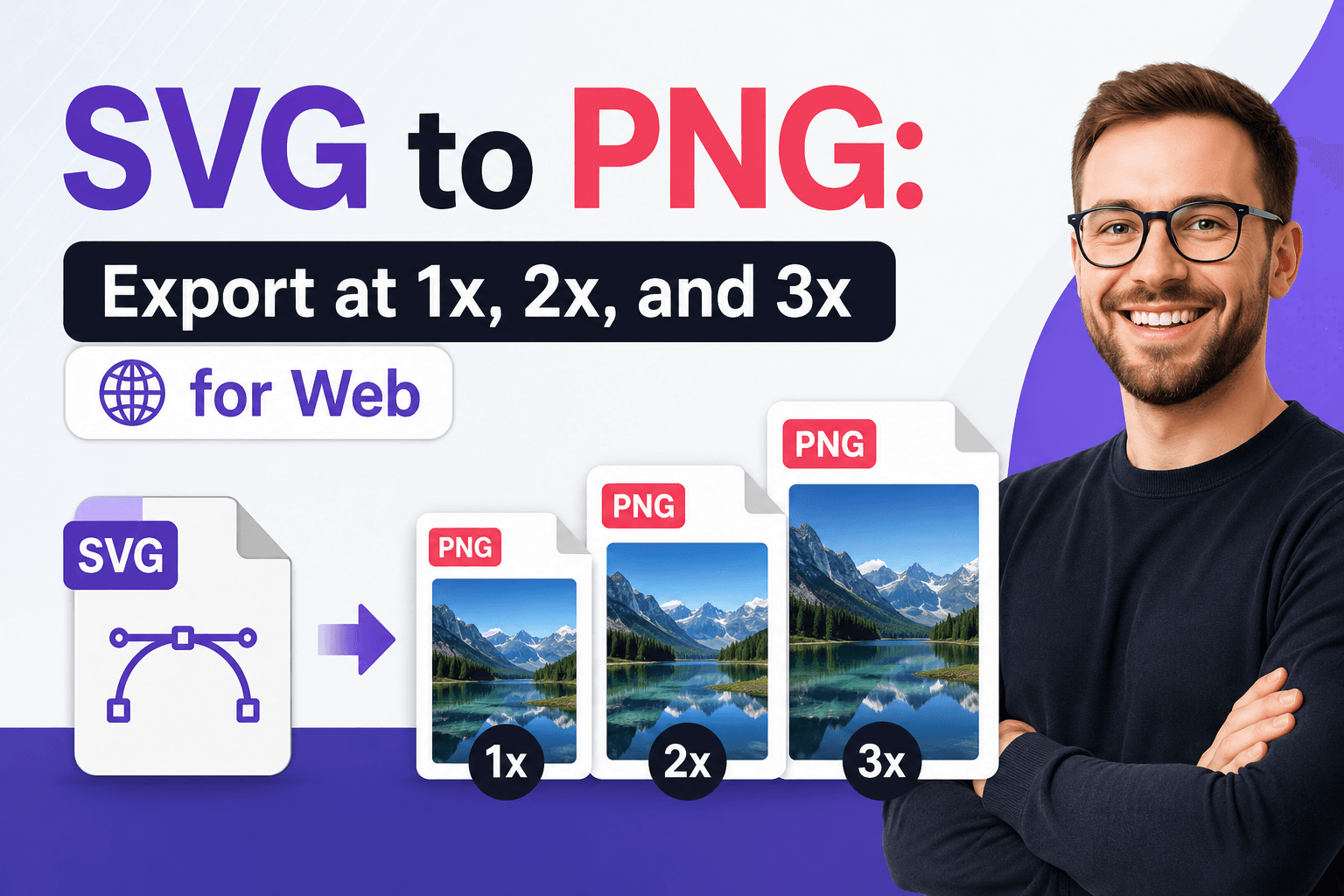
Convert SVG to PNG Export at 1x, 2x, and 3x for Web - Free Online Tool
Convert SVG vector graphics to PNG images with custom dimensions and transparent backgrounds. Perfect for web development, responsive design, and high-DPI displays. No signup required.
Read articleConvert WebP to JPG Fix Images That Won't Open
Convert WebP images to JPG format for universal compatibility. Fix images that won't open in older software. Free online converter with background removal.
Read articleConvert iPhone MOV Clips to GIF Instantly
Convert iPhone MOV videos to GIF animations with custom FPS, compression, and trimming. Preserve smooth motion in small files. Works in browser, no upload required.
Read article