
Under 5 MB output · No signup · Free
Convert Video to GIF Under 5MB for Any App - Free Online Tool
I needed to add a short product demo GIF to an email newsletter with a 5 MB attachment limit — at 10fps and 480px width the 12-second clip came in at 4.8 MB and played correctly in every inbox I tested. Every video format converts to GIF differently. The 5MB constraint matters because that is Slack's upload limit, Discord's cap for free users, and the point where mobile data charges become noticeable. Here is what actually controls output size.
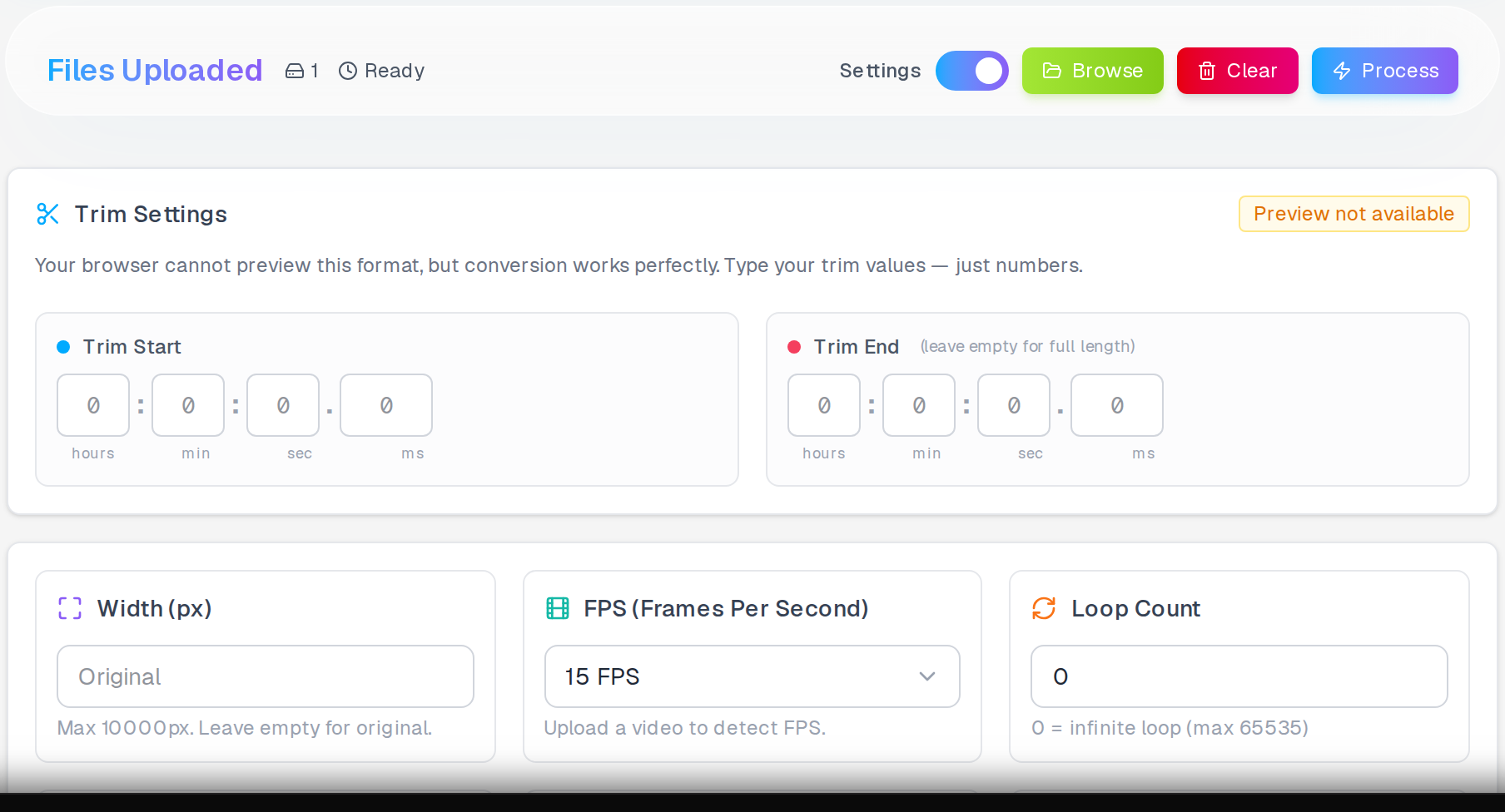
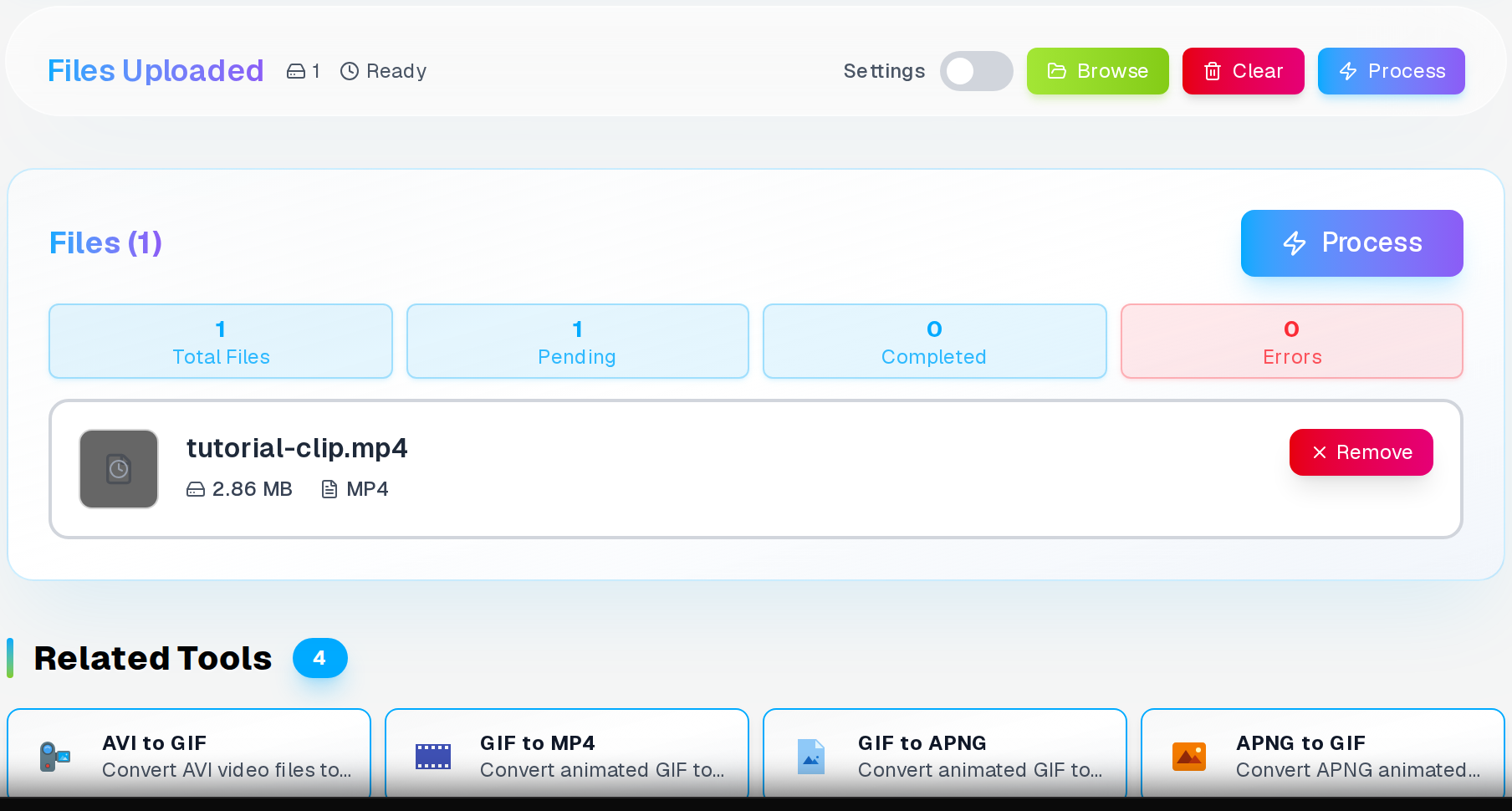
This is what the tool looks like the moment the video file has been accepted — duration and resolution confirmed before settings are shown.
Why Convert Videos to GIF Format
GIF files offer unique advantages over standard video formats — they play automatically without requiring user interaction, making them perfect for social media posts, website banners, and quick demonstrations. The one trade-off is file size; if your GIF is too heavy to share easily, converting it to MP4 typically cuts the file size by 60% or more while keeping playback smooth.
The main benefit of GIF format is universal compatibility. Every web browser, messaging app, and social platform supports GIF files natively. You won't encounter codec issues or compatibility problems that sometimes affect MP4 or other video formats.
GIFs also work well for creating seamless loops. Product demonstrations, animation previews, and tutorial snippets benefit from the endless loop functionality that GIF format provides automatically. This makes them ideal for capturing attention in crowded social media feeds.
Understanding GIF Size Limitations Across Platforms
GIF too large? Convert to MP4
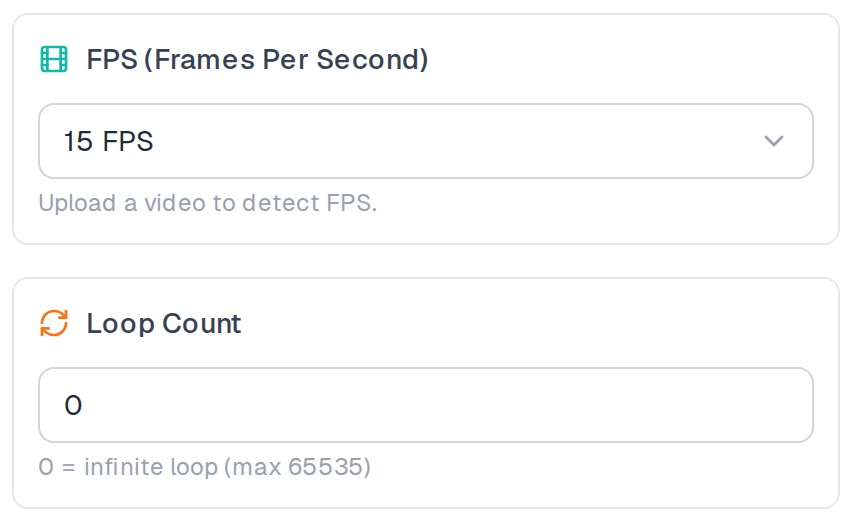
Three settings control the output GIF quality and file size.
MP4 files are up to 60% smaller than GIF with far better quality — ideal for social media and messaging apps.
GIF to MP4 →Different platforms impose strict file size limits for GIF uploads. Discord allows GIFs up to 8MB for free users and 50MB for premium subscribers. Twitter limits GIFs to 15MB, while Instagram Stories accept GIFs up to 4MB.
WhatsApp and Telegram have some of the strictest limits at 16MB and 20MB respectively, but performance issues occur with files larger than 5MB. Facebook Messenger works best with GIFs under 8MB to ensure smooth playback across all devices.
Email platforms typically limit attachments to 25MB total, but many email clients struggle with GIFs larger than 5MB. For professional communications, keeping GIFs under 3MB ensures reliable delivery and quick loading times across all recipients.
Optimal FPS and Dimension Settings for Different Use Cases
Frame rate directly impacts both file size and visual quality. For most applications, 15 FPS provides smooth motion while keeping file sizes manageable. Gaming clips and action sequences may benefit from 20-24 FPS, but expect significantly larger file sizes.
Social media posts work well at 12-15 FPS with dimensions of 480x270 or 640x360 pixels. These settings balance visual quality with loading speed, ensuring your content displays quickly on mobile devices with slower internet connections.
Tutorial and demonstration GIFs benefit from higher resolutions like 800x600 or 1000x750 pixels, but require careful compression management. Use 10-12 FPS for these larger dimensions to maintain file sizes under 5MB while preserving readability of text and interface elements.
Compression Strategies to Reduce File Size
Compression settings significantly affect final GIF quality and size. Low compression (0-5) maintains maximum detail but creates larger files. This works best for short clips under 3 seconds or when visual fidelity is crucial for technical demonstrations.
Medium compression (6-12) provides the best balance for most applications. You'll notice slight quality reduction, but file sizes typically decrease by 40-60%. This range works well for social media content, memes, and general purpose animations.
High compression (13-20) creates very small files but with noticeable quality loss. Use these settings only when file size is more important than visual quality, such as for email signatures or bandwidth-limited applications.
Consider the content type when choosing compression levels. Text-heavy content requires lower compression to maintain readability, while abstract animations or color-rich scenes can tolerate higher compression without significant visual impact.
Video Trimming and Speed Adjustment Techniques
Effective trimming is crucial for creating engaging GIFs under size limits. Focus on the most important 2-5 seconds of your original video. Remove unnecessary intro and outro sections, keeping only the core action or message you want to convey.
Speed adjustments can dramatically improve GIF effectiveness. Slow-motion sections from original videos often work better at 1.5x or 2x speed in GIF format. This reduces file size while maintaining visual impact and fitting more content into shorter timeframes.
For tutorial content, consider using 0.75x or 0.5x speed to ensure viewers can follow along with complex processes. Slower speeds increase file sizes, so balance instructional clarity with size requirements for your target platform.
Loop timing affects user experience significantly. Ensure your trimmed content creates a smooth, natural loop without jarring transitions. Test different start and end points to find combinations that flow seamlessly when the GIF repeats automatically.
When GIF-to-MP4 Output Looks Wrong
Color banding appears when converting videos with gradients or smooth color transitions to GIF format. This happens because GIF files support only 256 colors per frame. Choose source videos with distinct, solid colors for best results, or increase compression to minimize banding visibility.
Flickering issues often occur with screen recordings containing white backgrounds or frequently changing content. Reduce the frame rate to 10-12 FPS and apply medium compression to stabilize the visual output and reduce file size simultaneously.
Large file sizes despite compression settings usually indicate the source video contains too much motion or detail. Try reducing dimensions by 25-50% and shortening the duration to 3 seconds or less. Focus on the most essential parts of the original content.
Upload failures on social platforms often result from unsupported aspect ratios or dimensions. Stick to standard ratios like 16:9 for landscape content or 1:1 for square posts. Avoid unusual dimensions that platforms might reject or crop unexpectedly.
Platform-Specific Optimization Tips
Settings Cards
FPS and loop — platform-specific targets
Twitter auto-converts GIFs to MP4 above 15 MB, so staying under that threshold is more important than pixel quality. Slack free caps at 5 MB; Discord free at 8 MB. 12 FPS at 480 px width reaches those targets for most 3–5 second clips.
Infinite loop (0) is the default expectation everywhere. Numbered loops only make sense for instructional content where you don’t want the GIF replaying indefinitely while the user reads text below it.
Create GIF from images instead?
Turn a series of JPG or PNG frames into an animated GIF with custom speed, loop, and transition settings.
Twitter GIFs perform best at 480x270 pixels with 12-15 FPS for optimal mobile viewing. The platform automatically compresses larger files, so starting with moderate dimensions preserves more control over the final quality.
Instagram Stories require 9:16 aspect ratio with maximum 1080x1920 pixels. Keep file sizes under 4MB and use 10-12 FPS for smooth playback across different device speeds and network conditions.
Discord community servers benefit from GIFs optimized for quick loading. Use 400x300 pixels or smaller with 8-10 FPS to ensure instant display in busy chat channels without causing lag for other users.
Email marketing campaigns should use GIFs under 1MB when possible. Many corporate email systems block larger attachments, so prioritize small file sizes over high resolution for maximum deliverability.
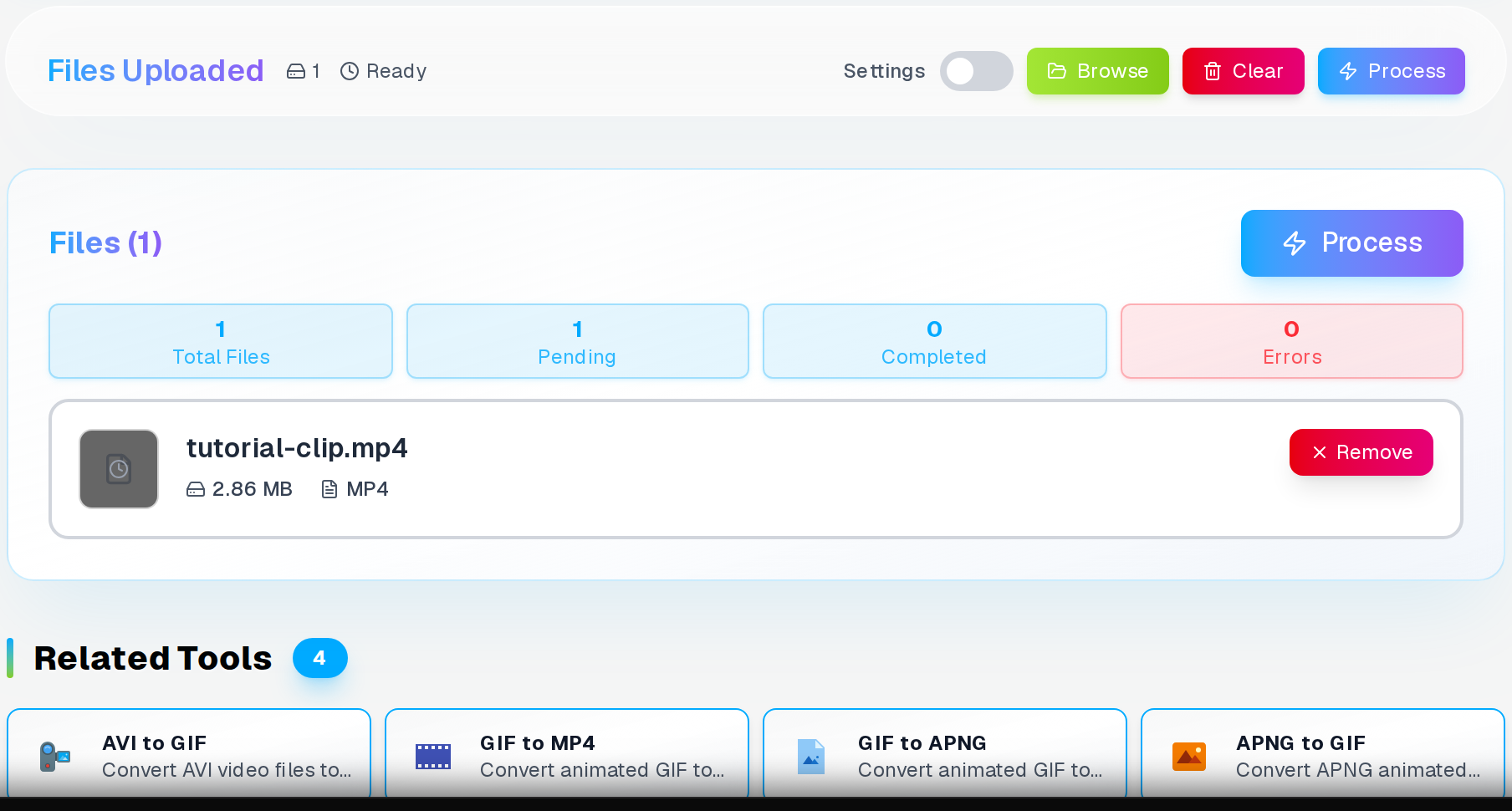
The result screen shows the converted GIF file size directly — confirm it is under your target threshold before downloading.
Frequently Asked Questions
What video formats can be converted to GIF?
Most modern video formats work for GIF conversion, including MP4, MOV, AVI, WebM, and MKV. Our converter automatically detects the format and processes the file accordingly. MP4 files typically convert fastest due to their optimized compression structure.
How can I make my GIF file smaller than 5MB?
Reduce the duration to 3-5 seconds, lower dimensions to 480x270 pixels, set FPS to 12-15, and apply medium compression (8-12). These settings typically produce files under 3MB while maintaining good visual quality for social media use.
Why does my GIF look blurry or pixelated?
GIF format limitations cause quality reduction, especially with high compression or small dimensions. Use lower compression settings (3-7) and avoid scaling down videos with fine details. Source videos with sharp, high-contrast content convert better to GIF format.
Can I convert long videos to GIF format?
While technically possible, GIFs work best for clips under 10 seconds. Longer videos create extremely large files that most platforms reject. Consider trimming to the most important segments or creating multiple shorter GIFs instead.
Do GIFs support sound?
No, GIF format doesn't support audio tracks. The conversion process removes all sound from the original video. If audio is important, consider using MP4 format for platforms that support auto-playing videos with sound.
Want better quality than GIF?
Convert your GIF to APNG for millions of colours and full transparency — far better than the GIF 256-colour limit.
Related Articles
Convert SVG to PNG Export at 1x, 2x, and 3x for Web - Free Online Tool
Convert SVG vector graphics to PNG images with custom dimensions and transparent backgrounds. Perfect for web development, responsive design, and high-DPI displays. No signup required.
Read articleConvert WebP to PNG With Transparency Kept: Complete Guide
Converting WebP to PNG preserves image quality and transparency that many software applications still cannot handle. Learn technical specifications, troubleshooting tips, and optimization techniques.
Read articleConvert iPhone HEIC Photos to PDF Instantly
Convert iPhone HEIC images to PDF documents with password protection and watermarks. Standard and optimized quality modes. Works in browser, no upload required.
Read article