
No signup required • Works in your browser • 100% secure
How to Password Protect a PDF with AES-256 Encryption
PDF password protection with AES-256 encryption is strong enough that it can't be brute-forced in any practical timeframe. The weak link is usually the password choice, not the encryption. Worth knowing: if you ever need to access a protected file after losing the password, you can unlock the PDF as long as you're the original owner. Below are the practical details on what the settings control and how to choose a password that holds up.
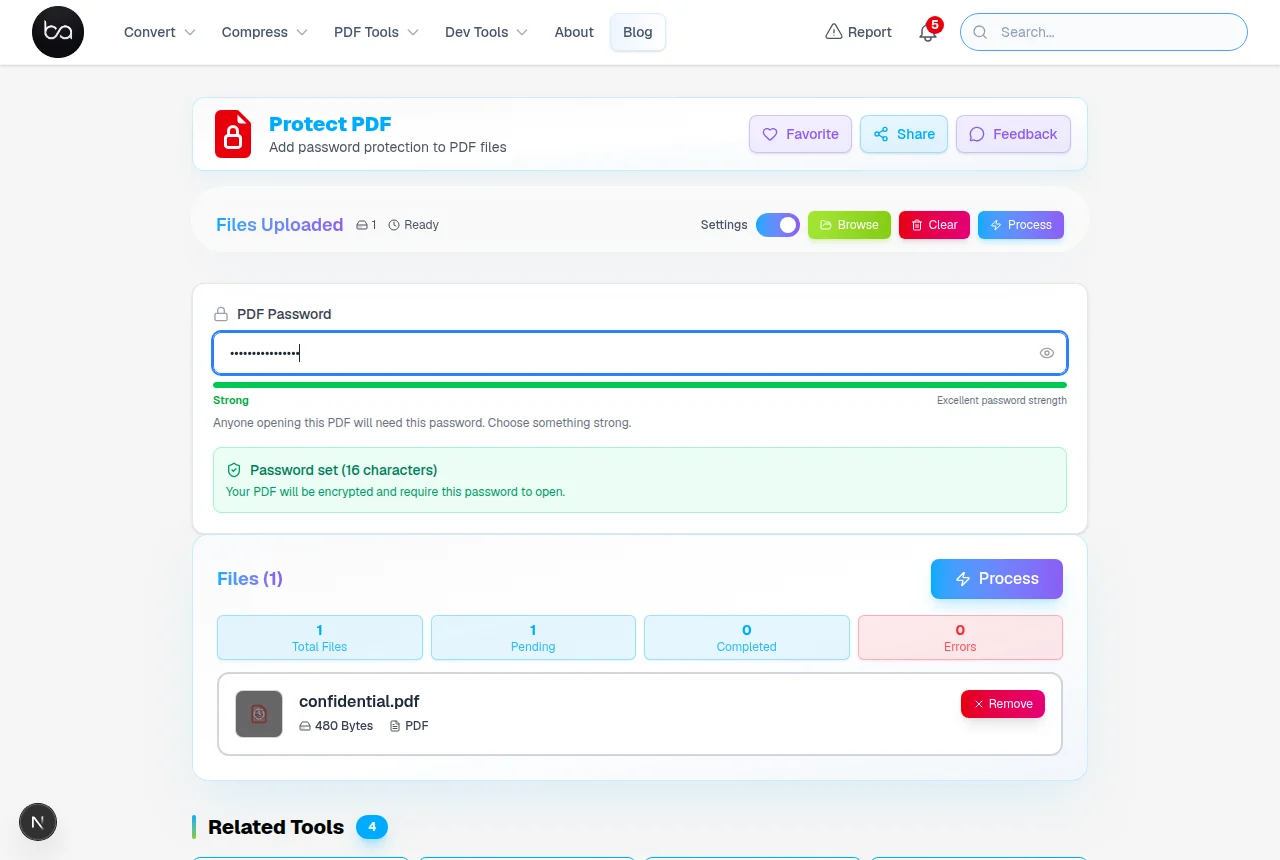
The tool gives you real-time feedback on password strength as you type, and shows whether the existing PDF already has a user password, owner password, or both before you add new protection.
This is what the protection tool looks like when you first drop in a file. The password field and strength indicator are in the sidebar — you see the bar change color in real time as you type, which is actually the most useful part of the whole thing.
How PDF Encryption Works
PDF encryption works at the file level — the entire document is scrambled so a reader without the correct password can't display any of it. There are two password layers: a user password that controls who can open the file, and an owner password that controls what recipients can do with it (print, copy text, modify). You can set either or both.
AES-128 vs AES-256: both are effectively unbreakable given a decent password — neither can be brute-forced in any practical timeframe. The real difference is compatibility: AES-256 requires Acrobat Reader 7+ or equivalent, while AES-128 has slightly broader legacy support. For most purposes, AES-256 is the right default. All encryption runs in your browser — the password never leaves your device.
Encryption adds almost nothing to file size — a few hundred bytes of overhead. Fonts, images, and formatting are preserved exactly; the encryption wraps existing content rather than converting it. All major PDF readers from the past 15 years open AES-encrypted files without issue.
Need to edit the document before locking it?
Add text, annotations, or signatures with the PDF Editor, then come back to apply password protection.
| Encryption Method | Key Length | Security Level | Compatibility |
|---|---|---|---|
| RC4 Encryption | 40-bit | Weak (legacy) | Universal — very old PDFs |
| RC4 Enhanced | 128-bit | Moderate | Widely supported |
| AES Standard | 128-bit | Strong | All readers since Acrobat 7 (2005+) |
| AES Advanced | 256-bit | Very strong | All readers since Acrobat X (2010+) |
What the Password Strength Meter Is Checking
The strength meter checks a few things as you type: length, character variety (uppercase, lowercase, numbers, symbols), and obvious patterns like keyboard runs or repeated sequences. It updates in real time so you see immediately whether a change tips you from weak to strong.
A practical PDF password is any phrase you can remember that mixes character types and runs 12+ characters. "BlueRiver#22" is genuinely strong — brute-forcing it would take decades on current hardware. Under 8 characters, dictionary words, and repeated sequences all score weak regardless of what else is added.
One thing no meter can catch: whether someone already knows your password. If you reuse a password from another account, that's a bigger risk than any encryption weakness. Use something file-specific for documents you actually want protected long-term.
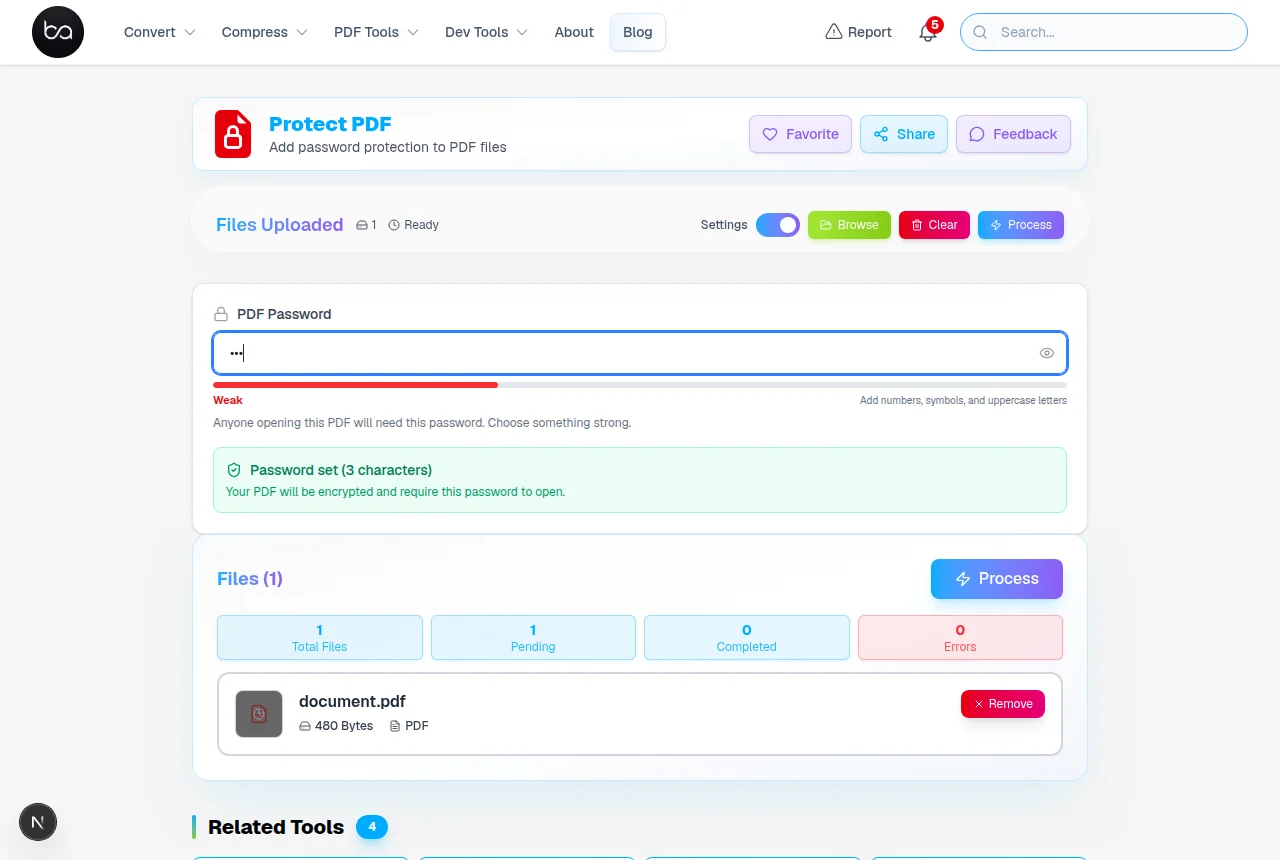
The two screenshots below show the difference in practice. First, a short predictable password — the bar goes red and the label tells you exactly what's missing.
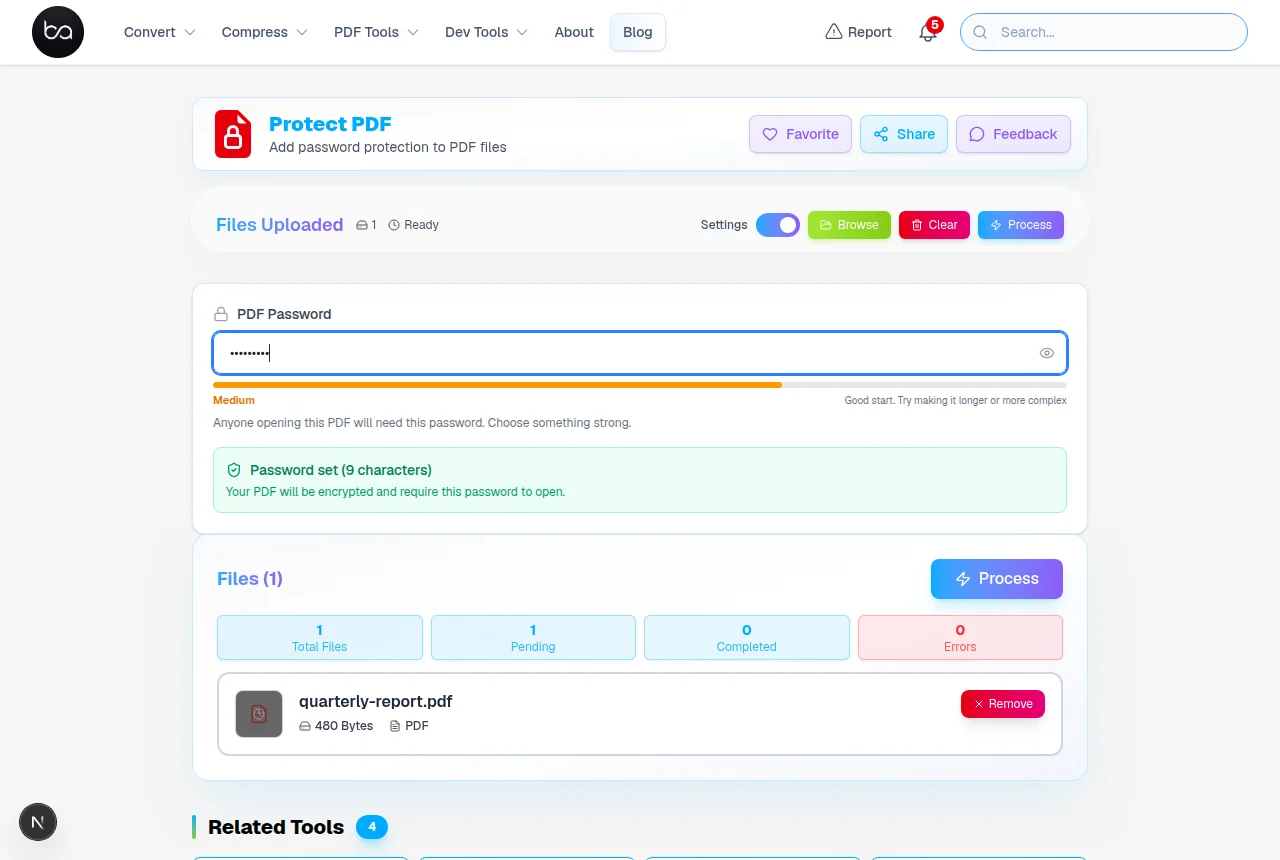
Add some length and a mix of case and it moves to medium. The bar shifts to amber — better, but not there yet. In practice, one more character type (a number or symbol) pushes most passwords straight to green.
| Password Category | Score Range | Security Assessment | Typical Characteristics |
|---|---|---|---|
| Weak Passwords | 0-2 points | Vulnerable | Short, simple patterns |
| Medium Passwords | 3-5 points | Adequate | Mixed case, some symbols |
| Strong Passwords | 6-8 points | Excellent | Long, diverse characters |
Security and Privacy: What Stays on Your Device
All encryption runs locally in your browser. The password you type and the file you upload never leave your device — there's no server call during the encryption process. No account, no login, no data retention on any server.
When you drop a file in, the tool reads the first few kilobytes to check whether it's already encrypted. If it finds encryption markers, it flags the file before you do anything else — telling you whether there's a user password, owner password, or both. Stacking new protection on an already-locked file without unlocking it first causes compatibility problems in many PDF readers.
If a file fails the pre-check, you get the filename and a direct prompt to use the unlock tool first. In a batch job, only that file is flagged — the others continue processing normally so you don't lose the whole batch over one problematic file.
| Detection Step | What It Checks | What It Reports |
|---|---|---|
| File Header | PDF magic bytes and version | Valid PDF or not |
| Encrypt Dictionary | Presence of encryption object | Encrypted yes/no |
| Permission Flags | Owner vs user password type | Which password type is set |
What Encryption Does (and Doesn't Do) to Your File
Encryption changes nothing visible in the document. Fonts, images, vector graphics, color profiles, and page layouts are all preserved — the encryption wraps the data streams rather than transforming them. When someone opens the file with the correct password, everything looks exactly as it did before.
File size barely changes — a few hundred bytes of overhead at most. The encrypted PDF opens in every major reader: Acrobat, browser-built-in viewers, iOS Files, Android, Preview on Mac. AES-256 requires a reader from roughly 2006 or later, which covers effectively everything in current use.
Interactive form fields, digital signatures, and embedded metadata all survive encryption intact. Print quality is unchanged. The one exception: screen readers need the document unlocked to access text content — accessibility tools work with the document open, not with the encrypted file.
| Document Element | Preserved After Encryption? | Notes |
|---|---|---|
| Text Content | Yes | Readable when unlocked |
| Embedded Fonts | Yes | Unchanged |
| Images/Graphics | Yes | Unchanged |
| Interactive Forms | Yes | Work when unlocked |
| Embedded Media | Yes | Reader support varies |
How Fast Does Encryption Actually Take?
Speed depends mainly on file size. A standard 1–5MB business document encrypts in 1–3 seconds. A large scan-heavy file at 50–100MB might take 20–60 seconds depending on your device. There's a progress bar so you know where it is. Processing runs entirely in your browser — nothing is sent to a server, which is why speed varies by device rather than network.
If processing a very large file stalls, close other browser tabs to free memory. The document is held in browser memory during processing, so competing tabs can cause slowdowns on lower-RAM devices. There's no tool-imposed file size limit — practical limits come from available system memory.
For batch jobs, the queue shows each file's progress individually. If you have 10 files and one is very large, the others don't wait — they process in sequence and you can see which is at what stage. Download becomes available per-file as each one finishes rather than waiting for the full batch.
Protecting multiple files?
Merge them into one document first, then protect with a single password for easier distribution.
| File Size | Typical Speed | Notes |
|---|---|---|
| Under 1MB | A few seconds | Text-only business documents |
| 1–10MB | A few seconds | Standard reports with images |
| 10–50MB | Under a minute | Large scanned documents |
| 50MB+ | Up to a minute or more | Close other tabs to free memory |
Practical Password Tips
Already have an encrypted file you need access to?
Remove the password restriction in seconds — then re-protect it with a new, stronger password.
The most important thing is a password you won't forget — if you lock yourself out of your own document, recovery options are limited. "Something memorable" and "something strong" aren't mutually exclusive. A short passphrase like "Maple9Tree!" is both memorable and strong enough for any realistic threat.
When sharing a password with a colleague, don't include it in the same email as the file — send the password separately or use a different channel (phone, messaging app). Putting the password and the encrypted file in the same message defeats the point of encryption.
For documents you distribute widely — like a client-facing report — consider whether an open password is even needed. An owner-password-only file prevents editing but opens freely. Reserve open-file passwords for truly sensitive material where you need to control who can view the content at all.
- Use passwords with minimum 12 characters combining uppercase, lowercase, numbers, and symbols
- Avoid dictionary words, personal information, and predictable character sequences
- Change the password if you've shared the document widely or need to revoke access for anyone
- Use a password manager to store and recall complex passwords — don't rely on memory alone
- For highly sensitive documents, use a unique password not reused anywhere else
- If a password may have been seen by the wrong person, re-encrypt the file with a new one immediately
Finalizing a formal document?
Add page numbers before locking the file to ensure it stays professional and easy to reference.
Add page numbers →Frequently Asked Questions
How strong should my PDF password be for adequate security?
12+ characters mixing uppercase, lowercase, numbers, and symbols — that scores 6–8/8 on the strength meter.
Does PDF encryption affect document formatting or file compatibility?
No. AES-128 and AES-256 both preserve 100% of document formatting, fonts, images, and interactive elements. File size increases by only 0.1–0.5% because encryption wraps the existing content rather than converting it. All major PDF readers released after 2010 support both. The difference between the two is that AES-256 is marginally slower but provides significantly stronger protection against brute-force attacks.
What happens if I try to encrypt an already password-protected PDF?
The tool reads the file header on upload and flags it right away if it's already protected. You'll see the filename and a prompt to unlock it first — stacking encryption creates reader compatibility issues, so the check prevents that.
How long does it take to encrypt large PDF files?
Speed depends mostly on file size and your device. A 1MB document typically encrypts in under 2 seconds. A 100MB file might take 30–60 seconds on a mid-range laptop — all processing is local in your browser, so network speed plays no role. If a large file stalls, close other tabs to free up browser memory.
Can I encrypt multiple PDF files simultaneously with different passwords?
Batch mode applies one password to all files in the queue. For different passwords, run them separately. If you need per-file passwords regularly, process them in small groups and keep a note of which password goes with each file.
Related Articles
Convert GIF to APNG for Better Color Quality - Fix Color Banding Free
Convert GIF to APNG online free. Fix color banding and poor color quality in animations. APNG supports millions of colors vs GIF 256 limit. Better transparency and quality.
Read article
Convert SVG to JPG for Social Media Posts - Keep Quality Sharp
Convert SVG vector graphics to JPG images online free. Perfect for social media, web use, and sharing. Control resolution and quality. Works in browser, no signup required.
Read articleHow to Extract PDF Pages: Split, Select, and Save Specific Pages Online
Learn how to extract specific pages from PDF documents using professional online tools. This comprehensive guide covers advanced extraction methods, performance benchmarks, and troubleshooting tips for managing large documents with precision page selection and batch processing capabilities.
Read article