
Free · No watermark · Browser-based
Convert GIF to APNG for Better Color Quality - Fix Color Banding Free
A designer I work with had a GIF logo animation showing obvious colour banding in the sky gradient — a known 256-colour GIF limitation — and converting to APNG removed the banding completely. GIF animations look terrible because they can only show 256 colors at once. Your smooth gradients turn into ugly color bands. Your vibrant images become dull and pixelated.
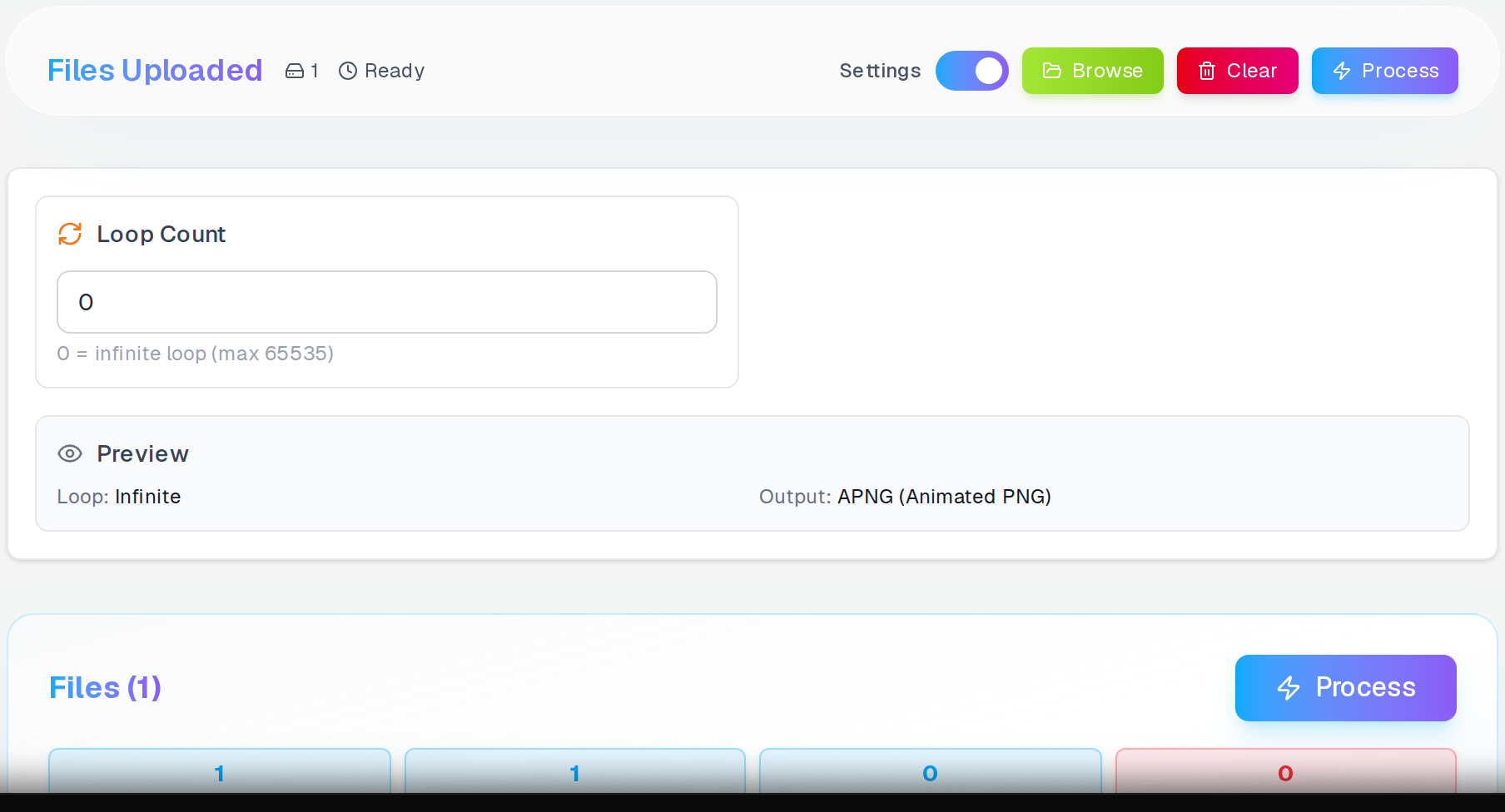
This is what the tool shows right after the GIF is accepted — frame count and delays read from the header before conversion begins.
APNG replaces the 256-colour limit with full 24-bit colour depth and smooth alpha transparency. For animations with gradients, photos, or complex colour work, the improvement is visible immediately.
Why GIF Color Quality is So Poor
Share GIF on video platforms?
Convert GIF to MP4 for files 60% smaller that play at full quality on Twitter, Discord, and all major platforms.
GIF to MP4 →GIF format was created in 1987 for slow internet connections. It uses a maximum of 256 colors per frame to keep file sizes tiny.
Modern images contain thousands or millions of different colors. When GIF tries to display these images, it picks the closest 256 colors and throws away the rest.
The result is color banding, posterization, and dithering. Smooth gradients become stepped bands. Subtle color variations disappear completely.
Common GIF Quality Problems
- Color banding in sky gradients and smooth surfaces
- Dithering patterns that make images look grainy
- Loss of subtle color details in faces and natural scenes
- Poor transparency handling with jagged edges
- Washed out colors that look different from the original
How APNG Fixes Color Problems
APNG stands for Animated Portable Network Graphics — it uses the same full-color technology as regular PNG images, giving your animations millions of colors instead of GIF's 256-color ceiling. If you're targeting video platforms like YouTube or TikTok where file size is critical, you can also convert your GIF to MP4 for even more aggressive compression on those channels.
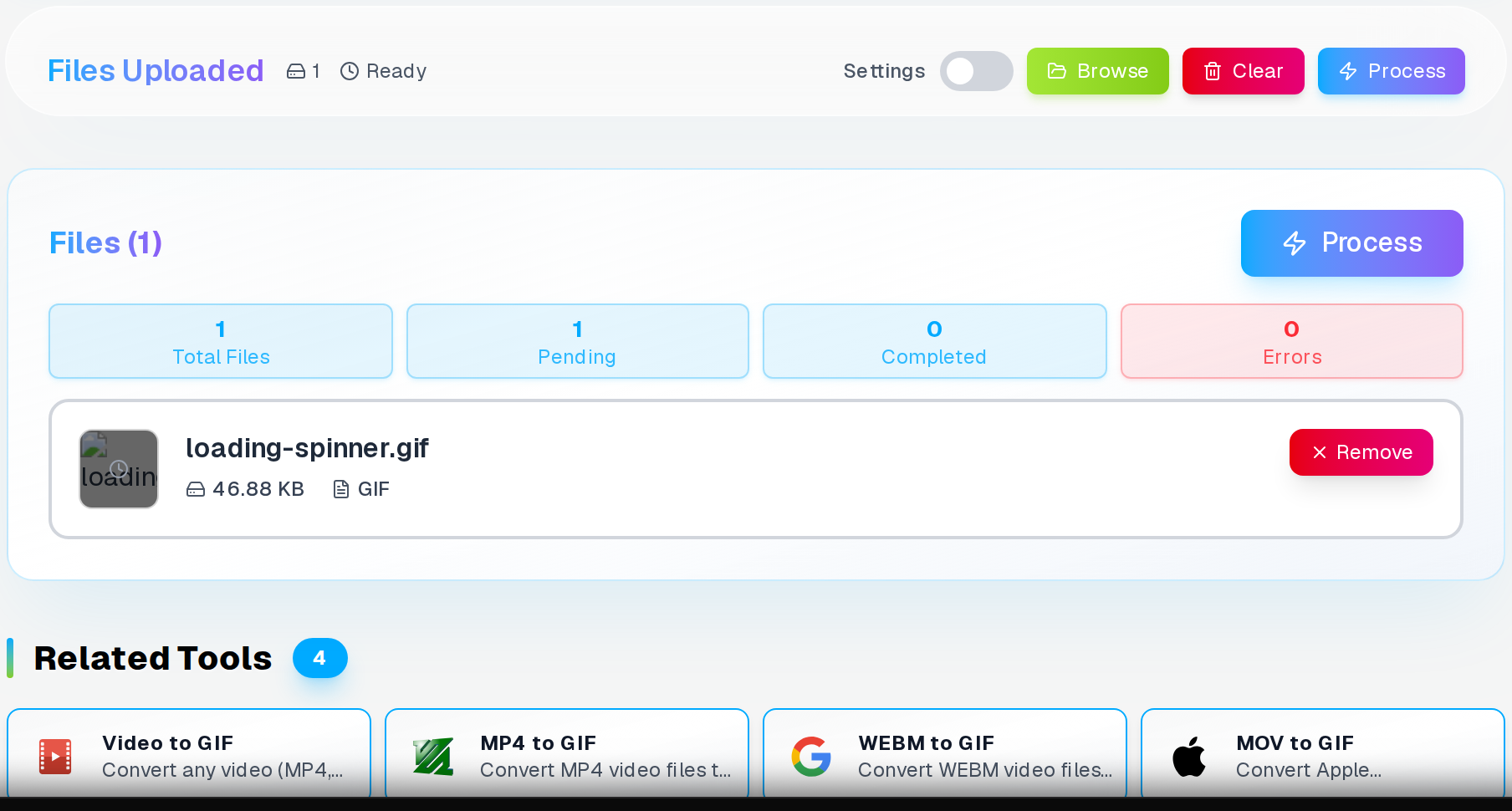
Opening settings reveals the three controls that determine how faithfully the APNG matches the original GIF.
PNG supports true color with 16.7 million colors plus full alpha transparency. Every pixel can be any color without restrictions.
This means your converted animations maintain perfect color accuracy. Gradients stay smooth. Subtle details remain visible. Colors match the original exactly.
How to Convert GIF to APNG
Converting your GIF animations to APNG takes just three simple steps. The tool handles all the technical work automatically.
- Upload your GIF file: Drag and drop your animated GIF into the converter or click to browse files
- Set loop count: Choose how many times the animation repeats (0 = infinite loop, or set a specific number)
- Convert and download: Click Convert to process your file and download the high-quality APNG
The conversion usually takes 15-45 seconds depending on your GIF size and frame count. Complex animations with many frames take longer.
Loop Count Settings
The loop count controls how many times your animation repeats when viewed. This is the only setting you need to configure.
Loop Options
- 0 (Default): Animation loops infinitely, just like most GIFs
- 1: Animation plays once and stops on the last frame
- 2-10: Good for subtle animations that shouldn't repeat too much
- Higher numbers: Useful for specific presentation needs
Most web animations use infinite loops (0) so viewers can watch them continuously. Social media platforms expect infinite loops for animated content.
Settings Card
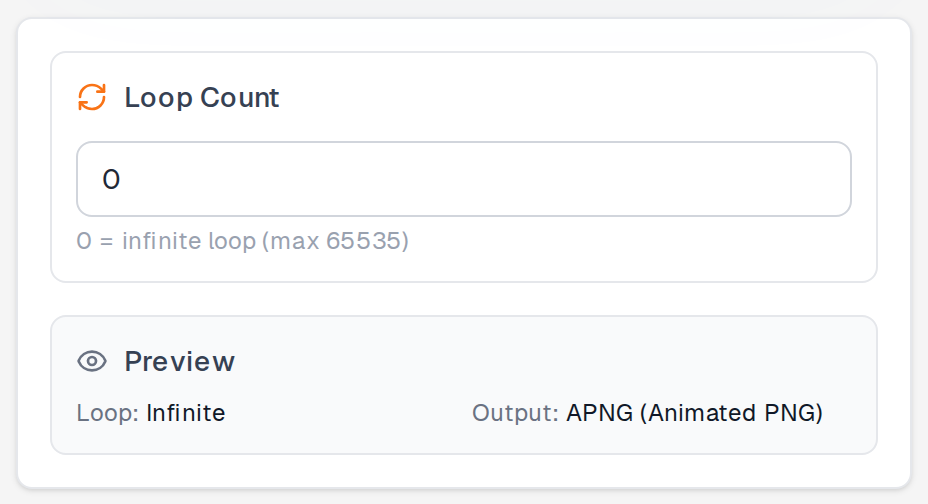
The loop-count card — only setting you'll touch
The loop count card is the only configuration the GIF to APNG converter exposes, because APNG carries every other property directly from the source GIF frames. Enter 0 for infinite loops, or any integer to stop after that many plays.
The first field shows the current value; the step buttons adjust by 1. Typing a number is faster for large values like 100. Leaving it at 0 matches the behaviour most GIF authors intend.
APNG vs GIF Comparison
| Feature | GIF | APNG |
|---|---|---|
| Colors | 256 maximum | 16.7 million |
| Transparency | Binary (on/off) | Full alpha channel |
| Color Banding | Common problem | Never occurs |
| File Size | Smaller | Larger but better quality |
| Browser Support | Universal | Modern browsers |
Browser Support for APNG
APNG works in all modern web browsers. Firefox, Chrome, Safari, and Edge all support animated PNG files natively.
Older browsers from before 2017 might not support APNG. However, these browsers will still show the first frame as a static image.
For web use, APNG is safe to use today. Over 95% of web users have browsers that support animated PNG files.
Best Use Cases for APNG
Create an animation from still images?
Turn a series of JPG or PNG frames into a GIF or APNG animation with custom frame timing and loop settings.
High-Quality Logos
Brand animations that need perfect colors and smooth transparency for professional presentation.
UI Animations
Interface elements with smooth color transitions and gradient effects that GIF cannot display properly.
Art and Photography
Creative animations where color accuracy is critical and quality cannot be compromised.
Product Demos
Software screenshots and product showcases that need crisp text and accurate colors.
File Size Considerations
APNG files are larger than GIFs because they store more color information. A typical increase is 2-4 times the original GIF size.
However, the quality improvement is dramatic. Colors become accurate, banding disappears, and transparency looks professional.
For most web use, the larger file size is worth the quality gain. Modern internet connections handle APNG files without problems.
File Size Examples
- Simple logo animation: 150KB GIF becomes 400KB APNG
- Colorful illustration: 800KB GIF becomes 2.5MB APNG
- Screenshot sequence: 1.2MB GIF becomes 4MB APNG
When to Keep Using GIF
GIF still makes sense for simple animations with limited colors. Pixel art, simple shapes, and text animations work fine with 256 colors.
If file size is critical and color quality is not important, GIF remains the better choice. Social media platforms also prefer smaller GIF files.
For everything else, APNG provides better quality that justifies the larger file size.
I converted a logo animation last year that had always looked terrible as a GIF. The gradient in the logo was 12 colours compressed into 256-colour GIF space, which produced that characteristic stepping effect on every colour band. As APNG the same animation was smooth and the logo looked correct. File was 3.1MB instead of 0.9MB. Worth every byte for something that goes on a homepage.
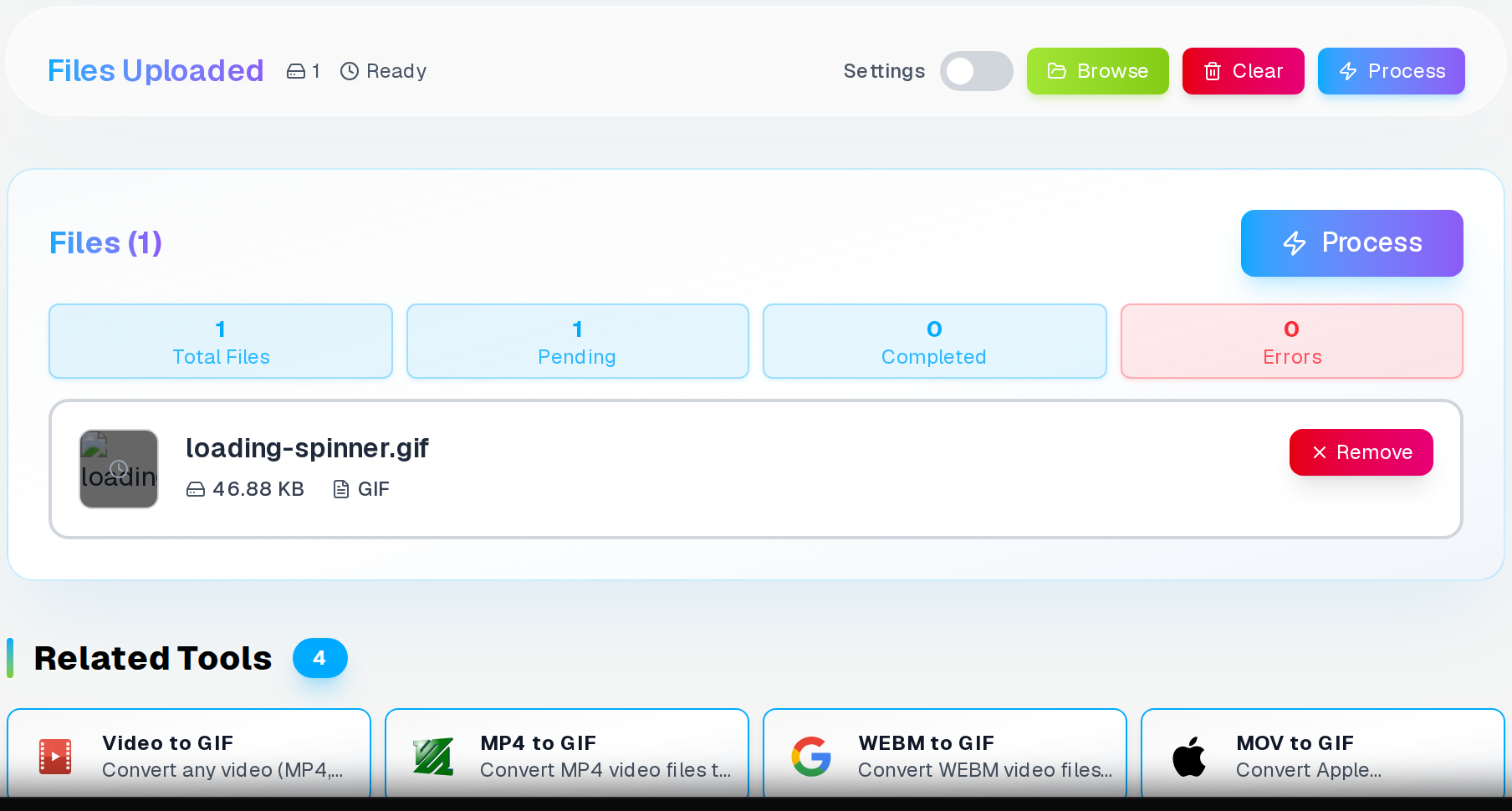
Once conversion finishes, you see the APNG file weight against the original GIF — the difference often surprises people.
Frequently Asked Questions
Will APNG files work on all websites?
Yes — Chrome, Firefox, Safari, and Edge all support it. Old browsers show the first frame as a static image.
How much bigger will my APNG file be?
Typically 2–4× the size of the source GIF. That sounds alarming, but consider what you are getting: full 16-million-colour depth, clean gradients without banding, and smooth semi-transparent edges. For logos, UI animations, and anything where colour accuracy matters, that file size premium is worth it. If you are serving it on a fast connection and the animation runs at 15 FPS or less, most visitors will not notice the difference in load time — particularly on broadband or 5G.
Can I convert APNG back to GIF later?
Yes, you can convert APNG back to GIF, but you will lose the color quality improvements. The color banding and 256-color limit will return in the GIF version.
Does this fix transparency problems too?
Yes, APNG supports full alpha transparency with smooth edges. GIF only supports binary transparency (fully visible or fully invisible), which creates jagged edges.
What happens if I set loop count to 1?
The animation plays once and stops on the final frame. This is useful for reveal animations or sequences that should not repeat continuously.
Have a MOV or AVI to animate?
Convert video files directly to GIF or use the AVI-to-GIF tool for legacy video clips from older cameras.
Related Articles
Convert iPhone HEIC Photos to PDF Instantly
Convert iPhone HEIC images to PDF documents with password protection and watermarks. Standard and optimized quality modes. Works in browser, no upload required.
Read articleMerge PDF Files Free, No Watermark or Limit
Combine multiple PDF files into one document online. Drag to reorder, password protect output, add watermarks. Up to 50 files, 100MB each. Free tool with no signup.
Read articleHow to Fill PDF Forms Online: Complete Guide for Interactive PDF Form Management
Learn how to fill PDF forms online without software installations, create interactive form fields, and manage complex document workflows with professional-grade tools.
Read article