
No signup required • Works in your browser • Password support
How to Fix Sideways or Upside-Down PDF Pages
Scanned files from copiers, fax machines, and mobile apps are especially prone to arriving sideways or upside-down. Once you've corrected the orientation, the PDF page organizer lets you finalize the reading order before sharing.
The fix is usually quick: most PDFs only need a rotation value change in the page metadata. The details below cover how that works and what to watch for when rotating pages in bulk.
Understanding PDF Rotation Technology and Document Structure
PDF rotation is non-destructive — it doesn't touch the actual content on the page. Instead, it stores a rotation angle (0°, 90°, 180°, 270°) in the page's metadata. When a PDF viewer opens the page, it reads that angle and displays the content accordingly. The image data itself stays exactly as it was scanned or saved.
This is why PDF rotation is instant and lossless. You're changing a single number in a metadata field, not re-encoding pixels. A 300 DPI scanned page rotated 90° is still 300 DPI after rotation — the file size barely changes.
All major PDF viewers respect the rotation metadata: Adobe Acrobat, Chrome's built-in viewer, Edge, iOS Files, Android viewers, and Preview on Mac. Once the rotation is set, the page displays correctly everywhere.
Some scanners write incorrect rotation values when they create the PDF. Others produce pages where the image content itself is sideways, but the metadata says 0°. Both cases are correctable — you're rotating the display angle in either case, and the result looks the same.
| Rotation Method | Quality Impact | File Size Change | Used When |
|---|---|---|---|
| Metadata Rotation | No quality loss | Negligible | Standard PDF rotation |
| Content Rotation | Minimal loss | Small increase | Some older PDF types |
| Image Reprocessing | Possible quality loss | Larger increase | Avoid if possible |
Batch Rotation vs Individual Page Control - Choosing the Right Approach
Upload the PDF and page thumbnails appear right away so you can see which pages are rotated wrong.
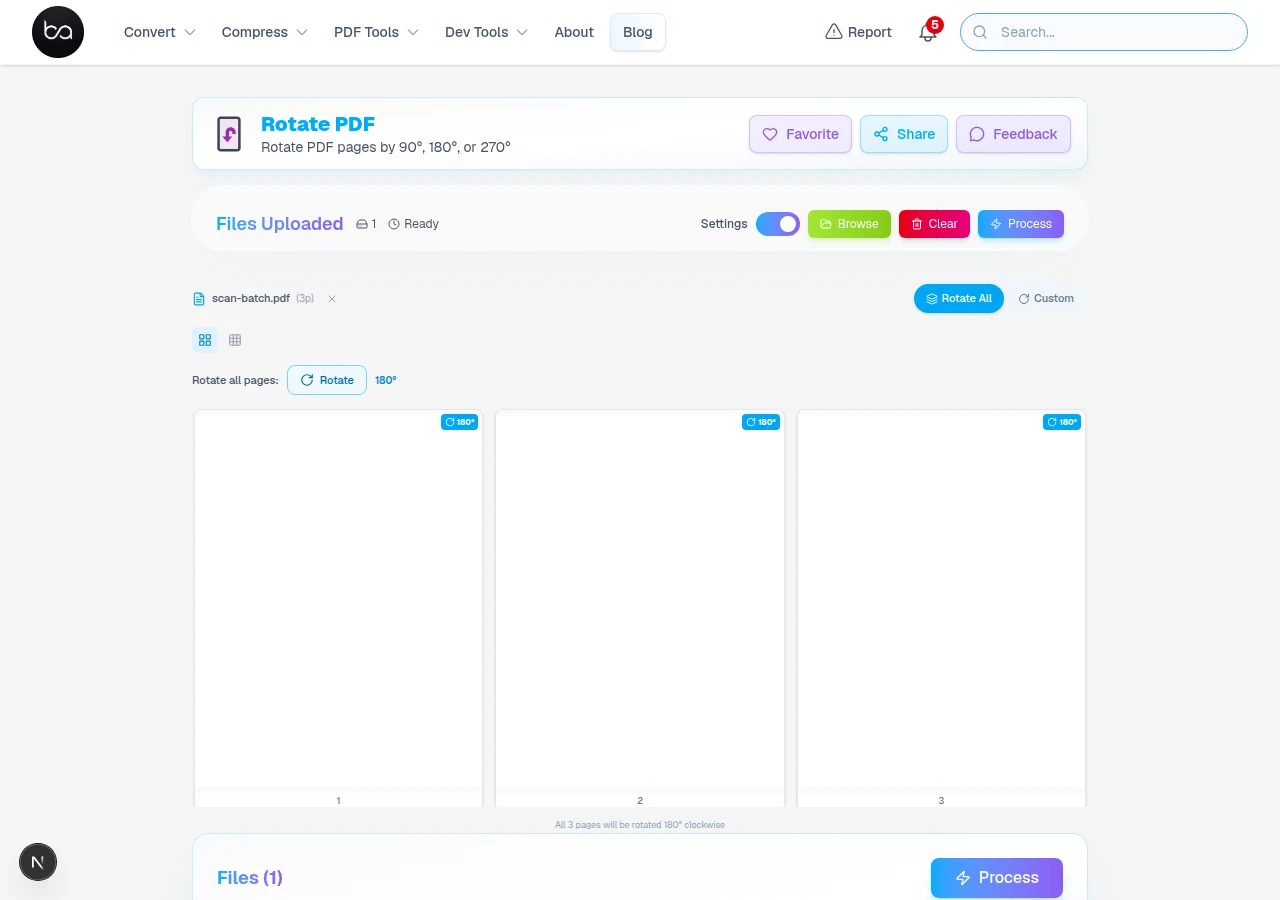
Batch rotation rotates every page by the same angle in one click. Use it when the whole document is wrong the same way — typically a scanner that feeds documents sideways, or a scan where all pages are landscape when they should be portrait.
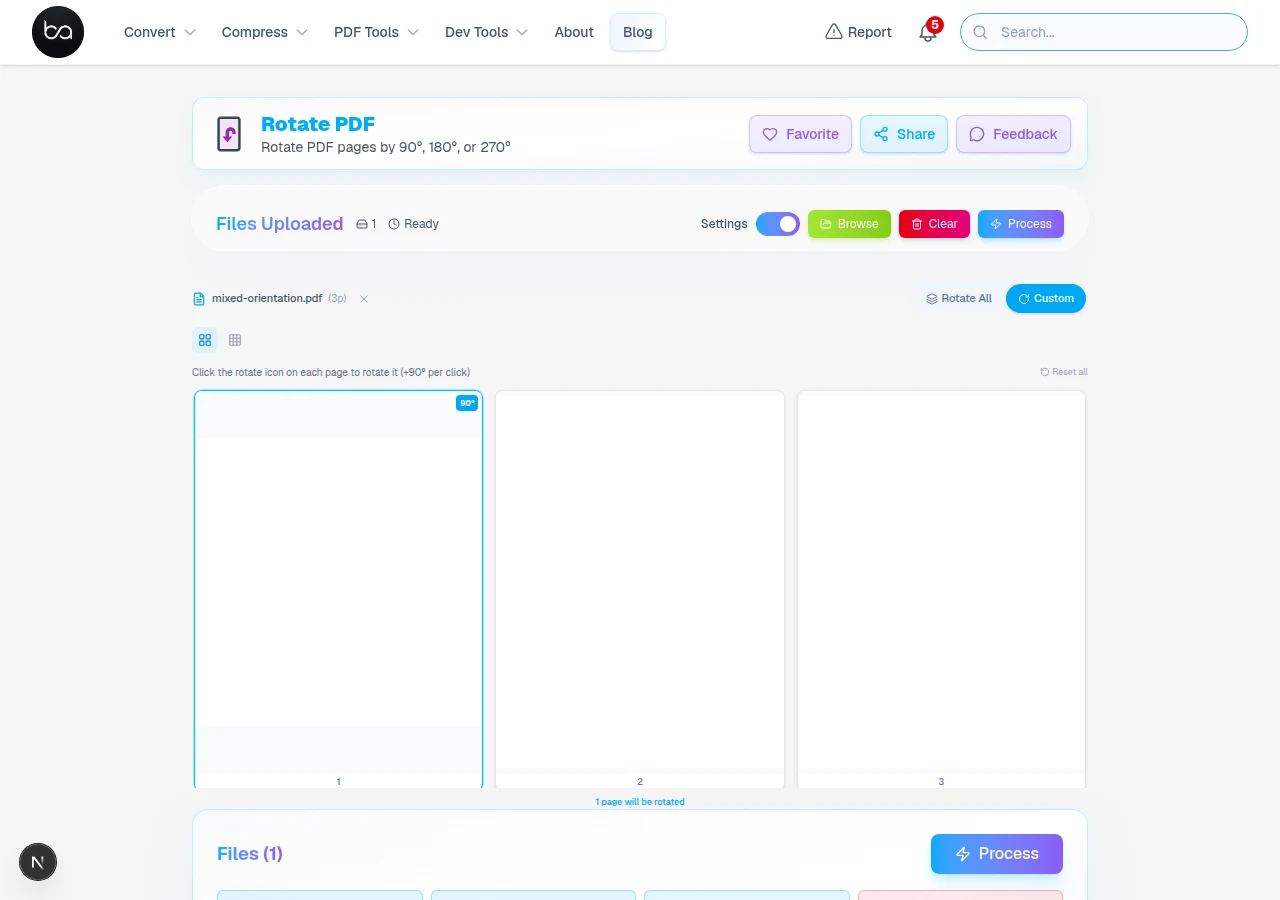
Individual page rotation lets you rotate one page at a time. This is what you need for a mixed document where most pages are correct but a handful are sideways — select just those pages and rotate them without affecting the rest.
For documents with a pattern — say, every other page is flipped because you scanned both sides separately — batch with a selection is fastest. Select the odd-numbered pages, rotate 180°, done. Saves going through each page manually.
Whether you batch or go page-by-page, the result is the same: a rotation angle stored in metadata. There's no quality difference between rotating all pages at once versus one at a time.
| Rotation Method | Best Use Case | Quality Impact | File Size Change |
|---|---|---|---|
| Batch All Pages | Consistent orientation issues | None | Negligible |
| Individual Pages | Mixed orientations | None | Negligible |
| Selective Batch | Specific page ranges | None | Negligible |
Password Protection Handling and Security Considerations
Rotate All applies a uniform rotation to every page at once — the fastest fix for consistently sideways scans.
If a PDF requires a password just to open, you'll need to enter it before anything can be rotated. The password is used locally in the browser — it never goes anywhere. Once the file unlocks, rotation works exactly the same as an unprotected document.
Some PDFs have an owner password that restricts editing but not viewing. Whether rotation is blocked depends on the specific restrictions the owner set. If you open the file fine but rotation is blocked, the owner restricted modification. In that case, you'd need to remove the owner password first.
Most business and personal PDFs aren't restricted this way. If your PDF opens without a password, rotation will work without any extra steps.
- Passwords stay in the browser — nothing is sent to any server
- Viewing passwords let you open and rotate the document normally
- Owner-restricted PDFs may block modification — unlock first if needed
- Most unlocked PDFs can be rotated with no extra steps
Before you rotate
If your file is locked with a password, remove the restriction first so the rotation tool can access every page.
Unlock PDFBrowser Compatibility and Performance
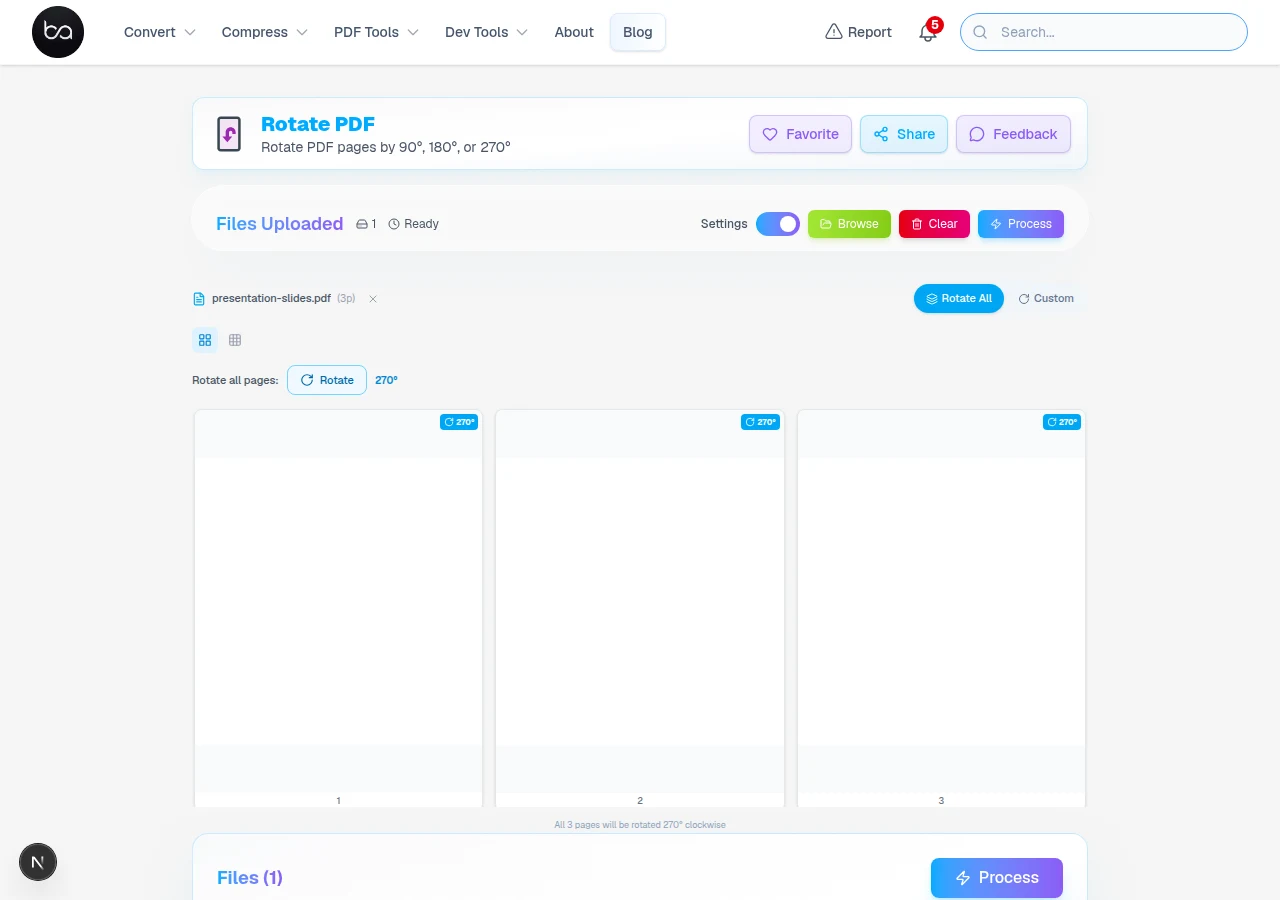
Custom mode shows every page as a thumbnail. Select individual pages and assign different rotations to each.
Chrome and Edge work best for this tool — they handle large PDFs smoothly and render page thumbnails quickly. Firefox works well for most documents. Safari is reliable for standard files but may be slower with very large scanned PDFs.
For documents over 50 pages, close extra browser tabs before loading the file. Preview generation takes a moment for large files — once thumbnails are visible, the actual rotation step is fast regardless of page count.
On mobile, rotation still works, but the thumbnails are smaller and tapping small pages precisely can be tricky. For complex multi-page jobs, a desktop browser gives you a better experience.
If thumbnails fail to appear or the page stalls on a large document, refresh the page and try again with other tabs closed. This is almost always a browser memory issue, not a problem with the file itself.
| Browser | Works? | Notes |
|---|---|---|
| Chrome | Yes ✓ | Best choice for large files |
| Edge | Yes ✓ | Reliable, same engine as Chrome |
| Firefox | Yes ✓ | Works well for most documents |
| Safari | Yes ✓ | Fine for standard files; may slow on very large scanned PDFs |
When PDF Rotation Preview Shows Blank or Broken Pages
Blank thumbnails are almost always a browser memory issue. The most common fix: close other tabs, refresh the page, and try again. If that doesn't help, try a different browser — Chrome usually handles this most reliably.
If the whole file fails to load rather than just some thumbnails, the PDF may be corrupted. Open it in Adobe Reader or your system's default PDF viewer first. If it opens there, the file is fine and a browser refresh should resolve it. If it won't open anywhere, the file itself has a problem.
Sometimes a preview renders correctly but the downloaded file shows wrong rotation. This usually means the browser cached an old version — do a hard refresh (Ctrl+Shift+R / Cmd+Shift+R) and re-download.
Very large PDFs with many high-resolution scanned images can take longer to preview. The thumbnails appear one by one as the browser processes each page — this is normal. Wait for all thumbnails to load before rotating to make sure you're seeing every page.
- Close extra tabs and refresh if thumbnails are blank or slow to appear
- Check the file opens in another viewer if the whole upload fails
- Hard refresh and re-download if the rotated file doesn't look right
- Let all thumbnails finish loading before making selections on large files
- Switch to Chrome if another browser is struggling with a large file
Common Scenarios Where PDF Rotation Helps
Scanning a stack of paper where the feeder takes some pages sideways is the most common cause. A 50-page scanned contract where every page is rotated 90° takes seconds to fix with batch rotation.
Mobile phone scans are another frequent culprit. Scanning apps sometimes misread device orientation when you tilt your phone, and the resulting PDF has pages rotated inconsistently. Individual page rotation handles these well.
Assembling a PDF from multiple sources — some portrait, some landscape — often produces a mixed document. This is what the individual page controls are designed for: rotate only the pages that need it, leave the rest alone.
Old archive scans, fax-to-PDF conversions, and PDFs created from camera photos frequently have orientation problems. The tool handles all of these the same way — rotate, preview, download.
Pages in the right orientation but wrong order?
Use the Organize tool to drag, reorder, or delete pages after rotating them.
Frequently Asked Questions
Does rotating PDF pages affect image quality or file size?
Zero quality loss. Rotation writes a number to the page rotation field and never touches the image data.
Can I rotate password-protected PDFs without knowing the owner password?
You need the user password to view and rotate. Owner passwords control editing restrictions but are not needed for rotation when you have viewing access. If the PDF appears locked specifically for rotation, the sender may have set an owner restriction on that operation specifically.
What browsers work best for PDF rotation, and what are the system requirements?
Chrome and Edge work best — they handle large files smoothly. Firefox is also reliable. Safari works fine for most documents. Any modern browser with JavaScript enabled will work.
Why do some pages appear blank or fail to load during rotation preview?
Usually a browser memory issue — close other tabs and refresh the page. If the whole file fails to load, check it opens correctly in another PDF viewer first. Clearing your browser cache can also help if the tool was working before but stops suddenly.
How many pages can I rotate at once, and what are the processing time limits?
There's no hard page limit — it depends on the file size and your browser's available memory. Documents up to 100 pages work reliably in any modern browser. For very large files, close other tabs first to free memory.
Related Articles
Convert JPG to PDF Free, No Watermark Added
Convert JPG images to PDF documents online. Combine multiple photos into one PDF, control file size, and choose page layouts. Free tool with no signup required.
Read articleConvert PDF Tables to Excel, Editable and Free
Convert PDF documents to Excel spreadsheets online free. Keep rows, columns, and formulas accurate. Extract tables from PDFs to editable XLSX format instantly.
Read articlePassword Protect PDF Free - Secure Documents with Encryption Online
Password protect PDF files with advanced encryption and security features. Real-time password strength validation, already-encrypted file detection, and professional document security without software installation.
Read article