
Tables preserved · No signup · Free
Convert PDF Tables to Excel, Editable and Free
Gulsher Zaman
Full Stack Developer · Codingtron
You get a PDF from a client. It has a perfectly formatted table — revenue by quarter, product inventory, survey results, whatever. And you need to work with that data. Not read it. Work with it. Add a column, run a sum, filter by region. But it's locked in a PDF, and copy-paste turns everything into a single column of useless text.
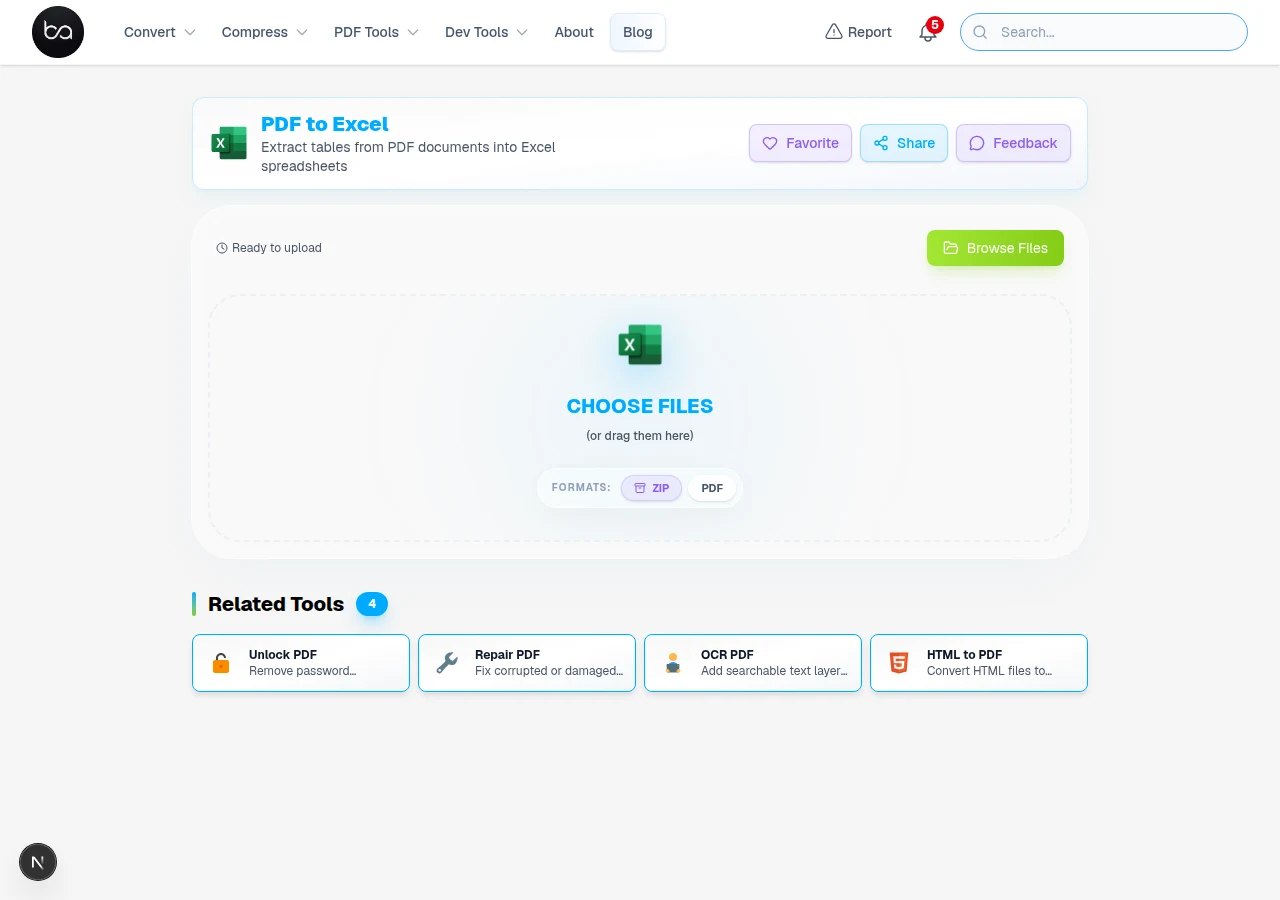
I've been there. Below is how to get that data out cleanly, which kinds of PDFs convert well, and how to fix the common problems.
Why Copy-Paste Doesn't Work
When you copy a table from a PDF and paste it into Excel, the software has no idea those numbers were ever in a grid. PDFs store data as positioned text — each character has an X and Y coordinate on the page, but there's no concept of rows or columns baked into the format. So paste gives you a column of values with all structure gone.
A proper PDF-to-Excel converter reads those coordinates and reconstructs the table geometry — grouping text by row alignment, detecting column separators, and mapping everything into cells. That's the step that copy-paste skips entirely.
How to Convert a PDF Table to Excel
Whether it is a financial statement, invoice, product catalog, or survey data — once it is in Excel you can sort, filter, run formulas, and build charts.
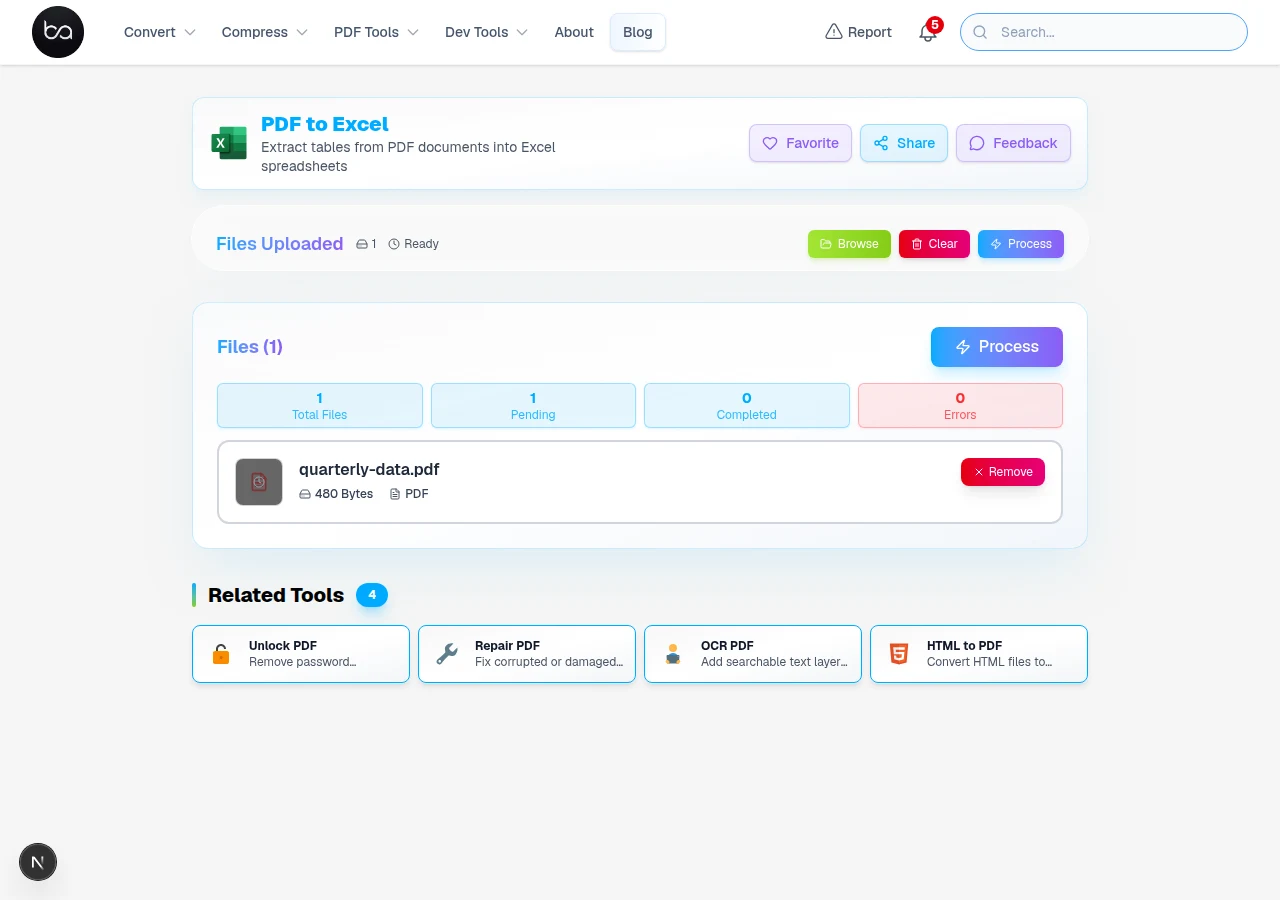
Step 1: Upload Your PDF
Open the PDF to Excel tool and drag your file onto the upload area, or click to browse. The tool processes files in your browser — nothing is stored on a server.
Multi-page reports convert just fine. Very large scanned archives take longer, so give it a moment and don't refresh the page mid-conversion.
Step 2: Table Detection
The converter scans each page for table structures — consistent row/column alignment, repeated spacing patterns, bordered regions — and maps detected cells into Excel rows and columns.
Working with a scanned PDF?
OCR will make the table data readable before extraction. Better OCR input equals cleaner Excel output.
Apply OCR first →Step 3: Download and Verify
The converted .xlsx file downloads automatically. Multi-page PDFs produce one worksheet per page. Before working with the data, do a quick check:
- Scan the first and last rows — headers and totals are the most common misalignment spots
- Check that numbers are right-aligned (left-aligned means they were read as text)
- Verify column count matches the original PDF
- Look at merged cells — they sometimes collapse or split unexpectedly
What Converts Well vs. What Doesn't
PDFs That Convert Cleanly
Digitally created PDFs — files produced in Excel, Word, accounting software, or report generators — have actual text data embedded. Conversion reads those characters directly. These produce clean output.
PDFs with explicit table borders give the converter unambiguous column separators. Financial statements, invoices, and database exports usually fall in this category.
PDFs That Need Manual Cleanup
Scanned PDFs are images of paper — no embedded text. Converting them requires OCR to read characters from pixels first. OCR is good but makes occasional errors on low-resolution scans or unusual fonts. Always verify numerical data from scanned conversions.
PDFs with complex layouts — tables spanning multiple pages, nested tables, columns that shift mid-page, or cells with multi-line text — will often need some manual cleanup. Expect to spend a few minutes adjusting row boundaries or splitting merged cells.
Fixing Common Issues After Conversion
Numbers Stored as Text
The most common post-conversion problem. You'll notice it when SUM returns 0, or values are left-aligned in a numeric column. Fix it: select the column, click the warning triangle in Excel, choose Convert to Number. Or use VALUE() in a helper column.
Columns Merged or Split Wrong
If the PDF had a header spanning multiple columns, the converter may not reproduce it exactly. Use Excel's Merge & Center or Unmerge Cells to fix it — takes less than a minute per table.
Extra Blank Rows
Visual spacing between row groups in the PDF sometimes gets picked up as empty rows. Use Go To Special → Blanks → Delete to clean them up in one step.
Need just selected pages?
Extract specific pages from your PDF before converting to Excel, so you only work with the data you actually need.
Extract pages →A Note on Formulas
PDFs don't store formulas — only the printed result. If the original Excel file had =SUM(B2:B10), the PDF shows the number it produced. After conversion you get that value as a static cell, not a formula. You'll need to rebuild any formulas manually. This is a fundamental property of the PDF format, not a limitation of the converter.
Frequently Asked Questions
Can I convert a password-protected PDF to Excel?
Not directly — unlock the PDF first, then convert.
Will formulas from the original spreadsheet carry over?
No — and every PDF converter on the market has the same limitation, so this is worth understanding rather than working around. PDFs store the printed result of calculations, not the formulas themselves. When the original spreadsheet was exported to PDF, the formula results were baked into the file as static text. What you extract into Excel are those final numbers, exactly as they appeared on the page. You will need to rebuild formulas manually in Excel if you want live calculations. For simple reports this rarely matters; for complex financial models it does.
My table has merged cells — will they come through correctly?
Often yes, but multi-row or multi-column merges in complex layouts sometimes collapse into a single cell or split incorrectly. It's quick to fix manually — select the cells and use Merge & Center as needed.
Does each PDF page become a separate Excel sheet?
Yes. Each page in the PDF maps to its own worksheet tab. If your table spans multiple pages, copy all sheets into one and remove the duplicate header rows from continuation pages.
What happens to images and charts in the PDF?
They're not converted. Only text content — numbers, labels, dates — gets extracted into cells. Charts are images and won't appear in the Excel output. You'd need to recreate them from the extracted data.
Need the text as a Word document instead?
Our PDF to Word converter preserves paragraphs, headings, and tables in a fully editable DOCX file.
Related Articles
Convert JFIF to PNG Free, No Software Needed - Fix Files Windows Won't Open
Convert JFIF images to PNG format with AI background removal, custom dimensions, and quality optimization. Fix compatibility issues when Windows won't open JFIF files.
Read articleRotate PDF Pages Free - Fix Sideways and Upside-Down Documents Online
Rotate PDF pages for free with advanced preview and batch processing. Fix sideways scans, upside-down documents, and mixed orientations. Support for password-protected files and custom page rotation.
Read articleHow to Convert HTML to PDF Online for Free
Convert HTML files, web pages, or HTML code to PDF format with our comprehensive guide. Three input methods, advanced settings, and CSS rendering support.
Read article