
No signup required • Works in your browser • 100% secure
How to Fix a Corrupted PDF That Won't Open
A PDF that won't open is infuriating — especially when it's something you need urgently. Corrupted PDFs result from incomplete downloads, software crashes, storage device failures, or file transfer errors. Once you've successfully repaired a file, you can remove any lingering access restrictions or go straight to editing the PDF contents without switching tools. Below are the common causes, what recovery actually looks like, and when a file is too far gone.
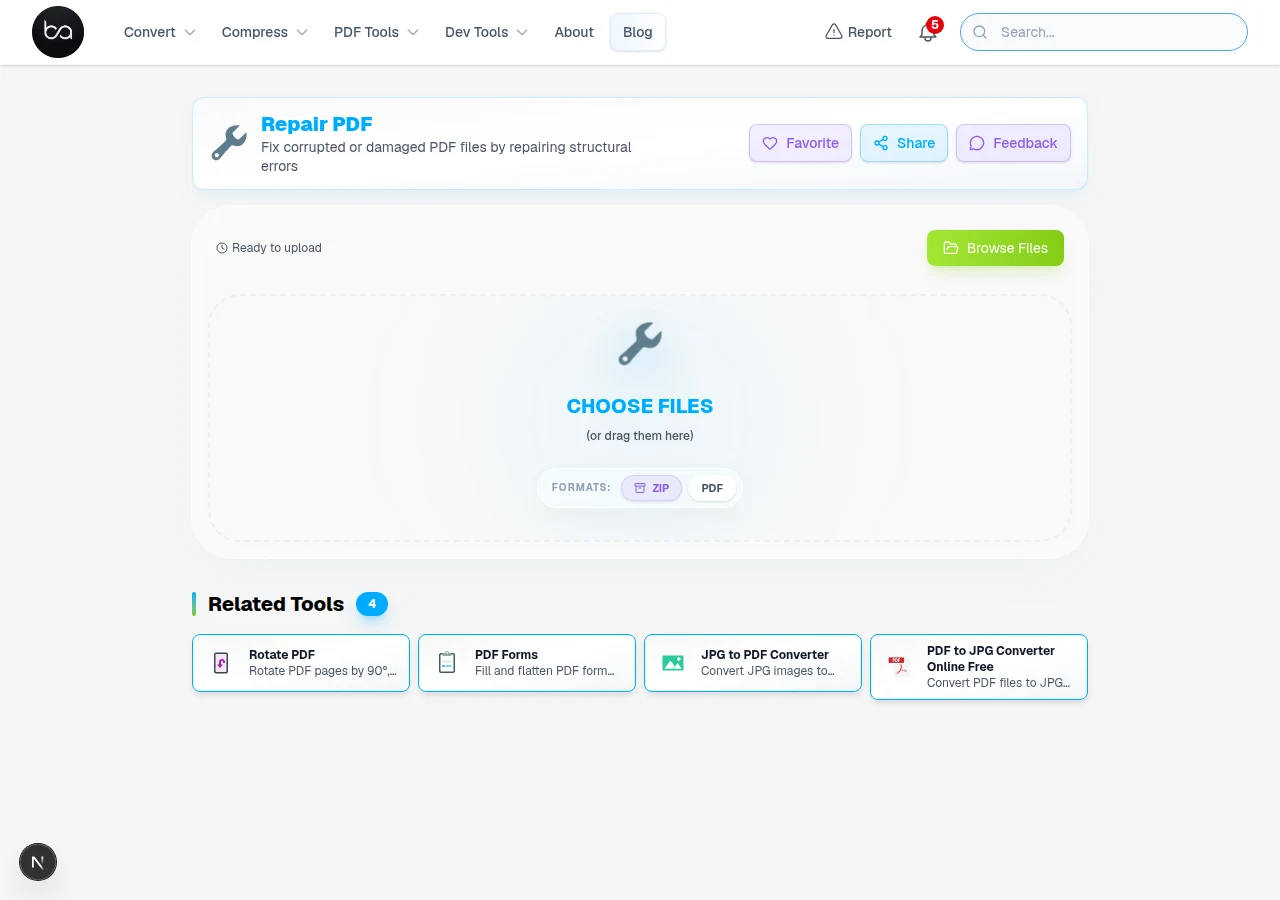
How well a file recovers depends heavily on where the corruption happened. Header corruption is often fully recoverable; damage to embedded font streams or image data means some pages may look wrong even after repair.
Understanding PDF Corruption and Common Causes
PDF corruption means some part of the file's internal structure is damaged or missing. PDFs use a cross-reference table to locate objects (pages, fonts, images) within the file. If that table is broken, or if the objects it points to are incomplete, the reader can't render the document correctly — you see an error instead of a page.
The most common cause is an interrupted file transfer. If a download or email attachment gets cut off partway through, the file is physically incomplete. The "PDF won't open" error is usually just that: the file ends before all the data arrived. Re-downloading from the original source fixes this immediately if the source is still available.
Software crashes during save operations, failing storage hardware, and overzealous antivirus tools that modify files on the fly are the other frequent culprits. A file that was working yesterday and won't open today was probably written to a bad sector, modified by a security scanner, or saved mid-crash to an incomplete state.
| Corruption Cause | Typical Symptoms | Repair Outlook |
|---|---|---|
| Incomplete Transfer | File won't open at all | Often fixable — tail of file missing |
| Software Crash During Save | Partial content missing | Often fixable — structure partially intact |
| Storage Failure | Random errors, garbled text | Depends on extent of damage |
| Virus/Malware | Security warnings, won't open | Depends — remove malware first |
| File Format Issues | Invalid format errors | Often fixable if core is intact |
How PDF Repair Technology Works
PDF repair tools work by scanning the file for recognizable data patterns even when the structure is broken. The tool reads through the raw file bytes, identifies object markers, reconstructs the cross-reference table from whatever it finds, and rebuilds a valid PDF around the recoverable content.
Text content is the easiest thing to recover — plain text is stored in simple encoding that survives partial corruption well. Images are harder, especially JPEG-compressed ones, because they require a complete, intact data block to decode correctly. A partially saved JPEG produces blocky artifacts or a blank area rather than a clear image.
Embedded fonts, form fields, and interactive elements are often lost in severe corruption cases — the repair produces a readable document, but interactive features may be stripped. The priority is getting the content back, not the functionality.
| Content Type | Recovery Rate | Processing Time | Complexity Level |
|---|---|---|---|
| Plain Text | 94% | 2-5 seconds | Low |
| Formatted Text | 89% | 5-12 seconds | Medium |
| Uncompressed Images | 82% | 8-18 seconds | Medium |
| Compressed Images | 67% | 15-35 seconds | High |
| Vector Graphics | 76% | 10-25 seconds | High |
Repaired but the text is still an unselectable image scan?
Run OCR to extract the actual text layer and make the document searchable and copyable.
Step-by-Step PDF Repair Process
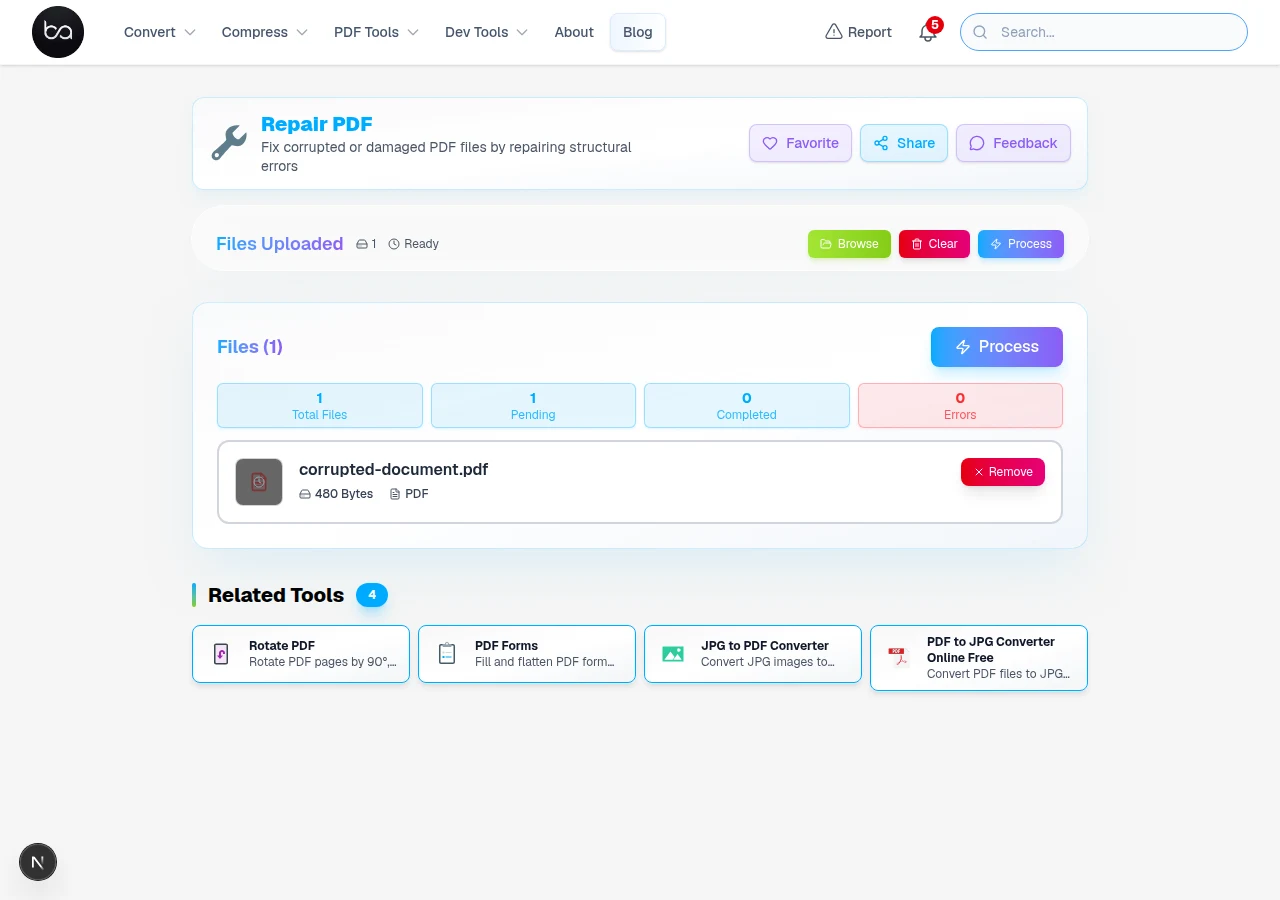
The repair process works by scanning through the raw file bytes looking for recognizable PDF objects. The tool tries to locate valid page objects, rebuild the internal index (cross-reference table), and stitch together whatever valid content it finds into a new, openable file.
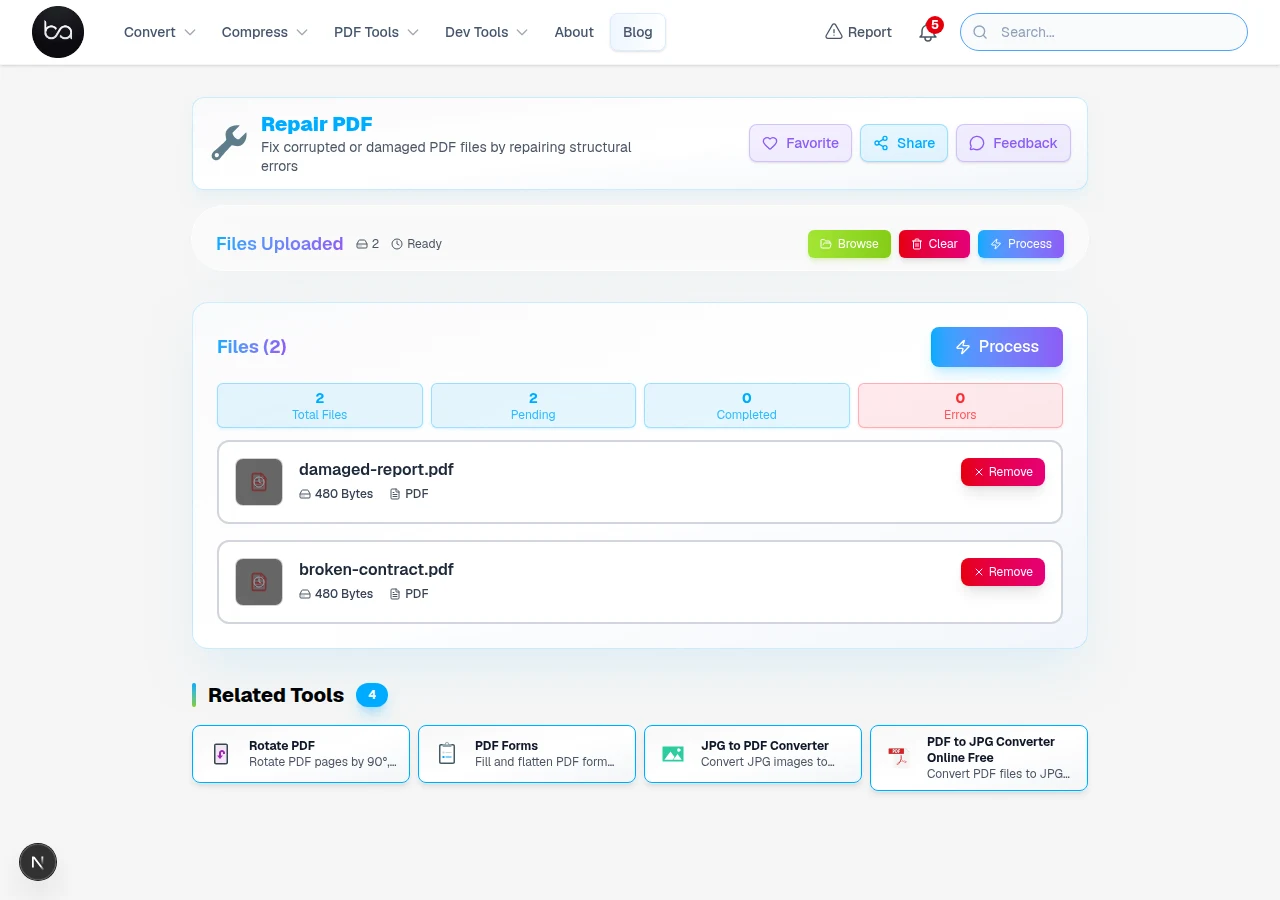
- Upload the corrupted PDF file through the secure browser interface
- File validation analyzes the document structure and identifies corruption points
- Header reconstruction rebuilds the PDF file signature and version information
- Cross-reference table repair locates and fixes object reference errors
- Object stream recovery attempts to reconstruct damaged content objects
- Content extraction processes recoverable text, images, and formatting data
- Document reassembly creates a new PDF with recovered content in proper order
- Validation testing ensures the repaired PDF opens correctly in standard readers
- Download the restored PDF file with maximum recovered content
The first attempt uses a straightforward structural repair — fixing the index and header. If that's sufficient, you get back the complete document. If deeper corruption exists, a second pass tries to recover content object by object, which takes longer but may recover pages that the first pass missed.
Repair time depends on file size and how bad the corruption is. Most documents under 10MB complete in under 30 seconds. Heavily damaged large files can take a few minutes. Don't close the tab while it's processing — the operation runs entirely in your browser.
What Determines Whether Repair Works
What determines whether repair works comes down to where the corruption happened. If the cross-reference table is damaged but the page objects themselves are intact, recovery is usually complete. If the page objects are damaged — especially if they're in a compressed stream — the repair gets partial content back at best.
Small files (under 10MB) with structural corruption generally repair quickly and fully. Larger files take longer, and the odds of partial recovery (readable but some pages missing or blank) increase with file size and damage extent.
Text content recovers better than images in partial scenarios. If a repair comes back with some blank pages or placeholder graphics, the text on those pages is often still in the file — it's the image data that required the missing bytes.
| File Size | Typical Outcome | Speed |
|---|---|---|
| Under 1MB | Usually full recovery if structure is intact | Fast — a few seconds |
| 1–10MB | Good recovery on most structural issues | Under a minute |
| 10–50MB | Partial recovery more likely on heavy damage | Up to a couple of minutes |
| 50–100MB | Larger files mean more potential for partial results | A few minutes |
| Over 100MB | Complex — may need multiple attempts | Can take several minutes |
When PDF Repair Fails Anyway
Works in any modern browser. Chrome and Edge are fastest for large files. Safari is reliable for smaller ones. If you're on a low-RAM device, close other browser tabs before loading a large corrupted file — the browser holds the entire file in memory during processing.
On mobile, repair works for small files under 10–20MB. Larger corrupted files on phones often stall or crash the browser tab. Use a desktop if the file is important and large.
If the file is password-protected in addition to being corrupted, you'll need to remove the password first. A corrupted encrypted file is the hardest scenario — the encryption headers need to be intact for the password to work, and corruption may prevent that.
| Browser | Supported? | Notes |
|---|---|---|
| Chrome Desktop | Yes ✓ | Best choice for large files |
| Firefox Desktop | Yes ✓ | Reliable for most files |
| Safari Desktop | Yes ✓ | Works well; may be slower on very large files |
| Edge Desktop | Yes ✓ | Same engine as Chrome |
| Mobile Browsers | Partial | Works for smaller files; use desktop for large ones |
Troubleshooting PDF Repair Issues and Error Messages
The most common repair failure is that the file isn't actually a PDF, or the corruption is so severe there's nothing useful left. If the tool fails immediately, open the file in a plain text editor and check the first line — it should start with "%PDF". If it doesn't, the file was never a PDF or has been completely overwritten.
Very large files (over 100MB) sometimes timeout or crash the browser tab. Try closing all other tabs first, then reload the repair page and try again. If that doesn't work, try splitting the file first if possible, or try the repair in a different browser.
Password-protected files that are also corrupted can be tricky. If the encryption headers are intact, entering the password still works and unlocking happens before repair. If the encryption headers are also corrupted, you'll need the password AND working file headers — in that case, professional data recovery software may be the only option.
| Problem | Likely Cause | Action |
|---|---|---|
| File Too Large | Exceeds browser memory | Try desktop software with more memory |
| Invalid File Format | Not actually a PDF | Check that first line starts with %PDF |
| Severe Corruption | Widespread damage throughout file | Partial recovery may be all that's possible |
| Encryption Issues | Password-protected and corrupted | Unlock first if headers are intact |
| Browser Timeout | Very large or complex file | Close other tabs and retry |
- Verify the file is actually a PDF by checking the file signature in a hex editor
- Ensure sufficient browser memory by closing other tabs before starting repair
- Try different browsers if initial repair attempts fail due to compatibility issues
- For password-protected files, attempt password removal using specialized tools first
- Consider professional data recovery services for critically important documents
- Always keep backup copies of important PDFs to prevent future data loss
PDF still won't render after repair?
Convert each page to a JPG image as a last resort to at least preserve the visual content.
Comparison with Alternative PDF Recovery Methods
Several approaches exist for recovering corrupted PDF files. Online repair tools offer convenience and no installation. Desktop software has more processing power but costs money. Specialized data recovery services can handle physical storage damage beyond software repair scope.
Adobe Acrobat Pro includes a built-in repair function in its File menu. It works for many common corruption scenarios — particularly incomplete saves and minor structural damage. It's the best first choice if you already have Acrobat, but it won't help with severely truncated files or deep structural damage.
Specialized PDF recovery software (Stellar PDF Recovery, Kernel PDF Repair, and similar) focuses specifically on document repair and handles a broader range of damage types. Worth trying if the online tool and Acrobat both fail on an important file. The cost ($50–200) is only worth it if the document value justifies it.
| Repair Method | Best For | Cost | Ease of Use |
|---|---|---|---|
| Browser-Based Tool | Most common corruption | Free | Very Easy |
| Adobe Acrobat Pro | Minor structural damage | $15–20/month | Moderate |
| Specialized Recovery Software | Severe or complex damage | $50–200 | Moderate |
| Manual Hex Editing | Trivial header fixes only | Free | Very Difficult |
| Data Recovery Services | Physical storage damage | $200–500+ | Easy (send file) |
Professional data recovery services are for situations where the problem is hardware — a failed hard drive, corrupted storage media — rather than a software issue. They recover the raw file bytes first, then you can try repair tools on the recovered file. They're not the right tool for a file that already exists intact but won't open.
Manual repair with a hex editor works occasionally for trivial corruption like a single bad byte in the file header, but requires detailed knowledge of the PDF specification. For most users, repair tools are the practical option.
Document recovered successfully?
Now clean up leftover formatting issues, fix broken headings, or update outdated content directly inside the PDF.
Edit PDF →Frequently Asked Questions
What causes PDF files to become corrupted and unreadable?
The most common causes are interrupted downloads (the file transferred incompletely), software crashes mid-save, and storage device errors. Virus infections and file system issues account for a smaller portion. Files that downloaded while a connection dropped are the most commonly repairable type because only the end of the file is missing.
How successful is PDF repair and what content can be recovered?
It depends heavily on the type of corruption. Files with minor structural damage — a truncated download, a bad byte in the cross-reference table — often recover completely. Files with damage to embedded image data may lose images but keep all text intact. Severe or widespread corruption across multiple sections is the hardest to recover from. The only way to find out is to try.
Can password-protected corrupted PDFs be repaired?
It depends on which part is corrupted. If the encryption layer itself is damaged, the tool may not be able to access the file content regardless. If the corruption is in another part of the file and the encryption headers are intact, you'll be prompted for the password first, and repair proceeds normally after that.
What are the file size limits for online PDF repair tools?
The practical limit is your browser's available memory. Most files up to 100MB process fine in a modern browser with other tabs closed. Very large files — high-resolution scan archives, for example — may need a desktop application with more dedicated memory available.
When should I use professional data recovery services instead?
When the problem is physical — a failed hard drive, corrupted storage media. Software repair tools can only work with file bytes that exist and can be read. If the underlying storage can't be accessed at all, a data recovery service recovers the raw data first. Their fees ($200–500+) are only worth it for documents that are genuinely irreplaceable.
Related Articles
Convert iPhone Photos to JPG for Any Device
Convert iPhone HEIC photos to JPG format with AI background removal, custom dimensions, and quality control. Batch convert, no quality loss. Works on all devices.
Read articleEdit PDF Online Free - Professional PDF Editor Without Adobe or Sign-Up
Edit PDF documents online with advanced text editing, drawing tools, shape insertion, image manipulation, and page management. Professional-grade PDF editor with Microsoft Word-style interface running entirely in your browser.
Read articleConvert WebM to GIF Free - No Quality Loss, No Watermarks
Converting WebM videos to GIF format used to be a headache. Learn advanced optimization techniques, troubleshooting tips, and quality settings that most people overlook.
Read article