
Built by engineers, for professionals • Zero Adobe dependency
We Built a PDF Editor That Doesn't Suck
This isn't just another form filler. We engineered a browser-based PDF editor with Microsoft Word-style ribbon UI, Canva-style object manipulation, and a plugin architecture that handles everything from font fallback mapping to non-destructive erasure. Here's how we solved the hard problems.
The Architecture That Makes It Fast
PDF editing in browsers is notoriously difficult. Most solutions either upload everything to servers (slow, insecure) or try to render PDFs as single canvas elements (inflexible, memory-hungry). We took a different approach.
Finished editing? Lock it down.
Add a password to your edited PDF so only authorised people can open or modify it.
3-Layer Canvas Architecture
The HTML background layer is the key innovation. When you use our eraser tool, it uses `globalCompositeOperation: 'destination-out'` to punch transparent holes through annotations, but the original PDF page underneath remains untouched.
This 3-layer system means you can erase your annotations without accidentally destroying the original document. Layer 0 stays immutable, Layer 1 handles click detection through transparent hitboxes, and Layer 2 contains all your editable content. When you click on existing PDF text, we spawn a Fabric.js Textbox with precise coordinate mapping at exactly the right position.
Plugin Architecture: One Hook Per Tool
Instead of building a monolithic editor, we created a plugin system where each editing tool is an isolated React hook. The orchestrator hook (`useCanvasActions`) registers all plugins, but only the active tool's event listeners are attached to the canvas.
Plugin Architecture at Work
This architecture means adding a new tool requires just creating a new hook file and adding one line to the orchestrator. No cross-plugin conflicts, no memory leaks from unused event listeners, and each tool can be tested independently.
Each plugin hook follows the same pattern: watch the `activeTool` state, attach event listeners only when active, and clean up on tool switch. For example, `usePenDraw.ts` only enables `canvas.isDrawingMode` when `activeTool === "draw"`.
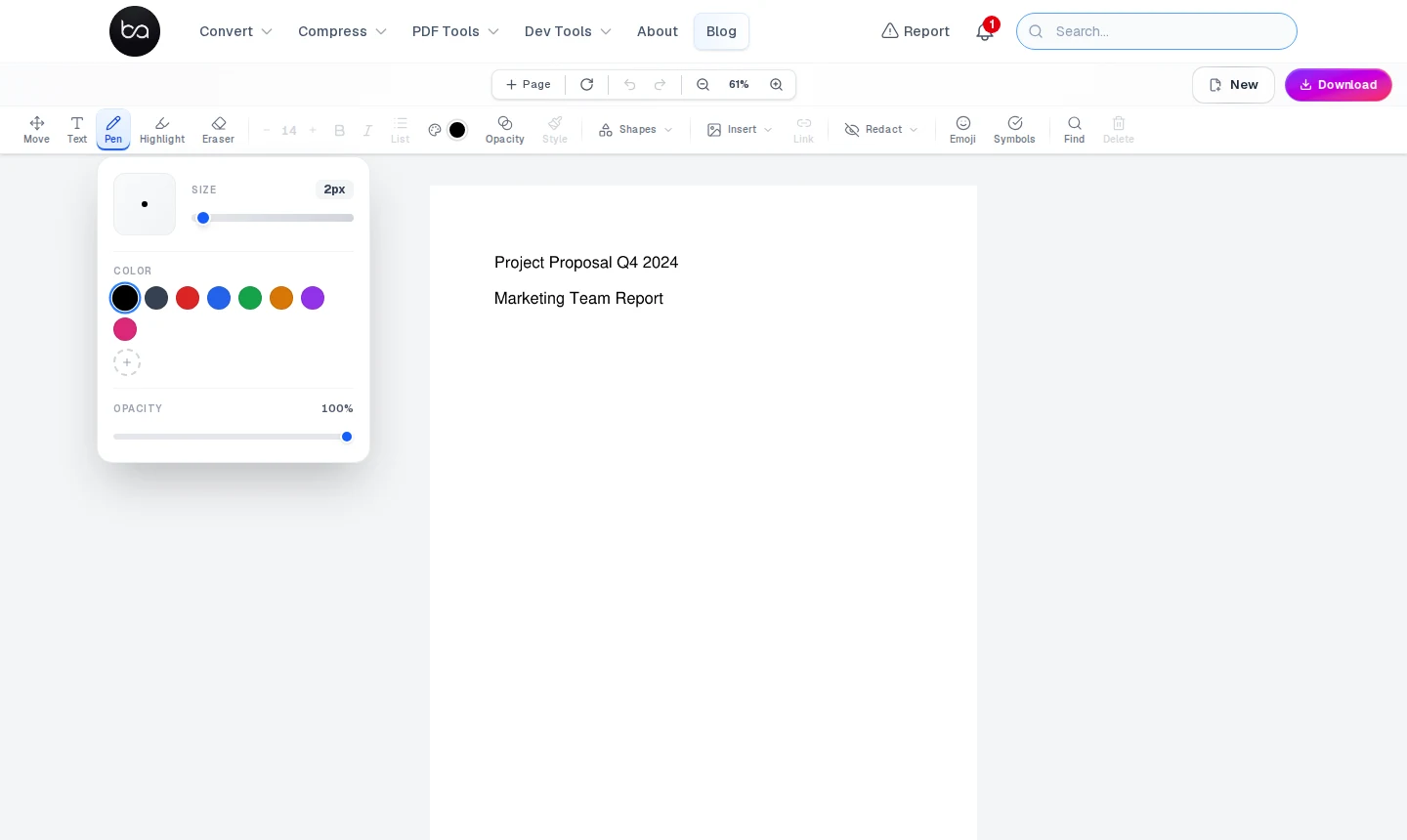
The Pen plugin is the clearest example of the activation pattern — here is what the toolbar looks like the moment it becomes active.
Performance Numbers That Actually Matter
The architecture keeps interactions snappy in practice. Text edits feel instant because we use lazy object spawning — hitboxes sit over original PDF text, but editable Textbox objects are only created when a user actually clicks. This means only the area being actively edited is live in Fabric.js at any given time, rather than the entire document.
Font Mapping: The Problem Nobody Talks About
PDF fonts don't exist in browsers. A PDF using "Helvetica" needs to render with web-safe fonts, but Helvetica renders differently than Arial on different operating systems. We solved this with dynamic font loading and measurement-based compression.
When you edit PDF text, we create an invisible measurement textbox to determine the natural width of your text with the fallback font. If it's wider than the original PDF bounding box, we compress the fontSize proportionally to prevent overflow.
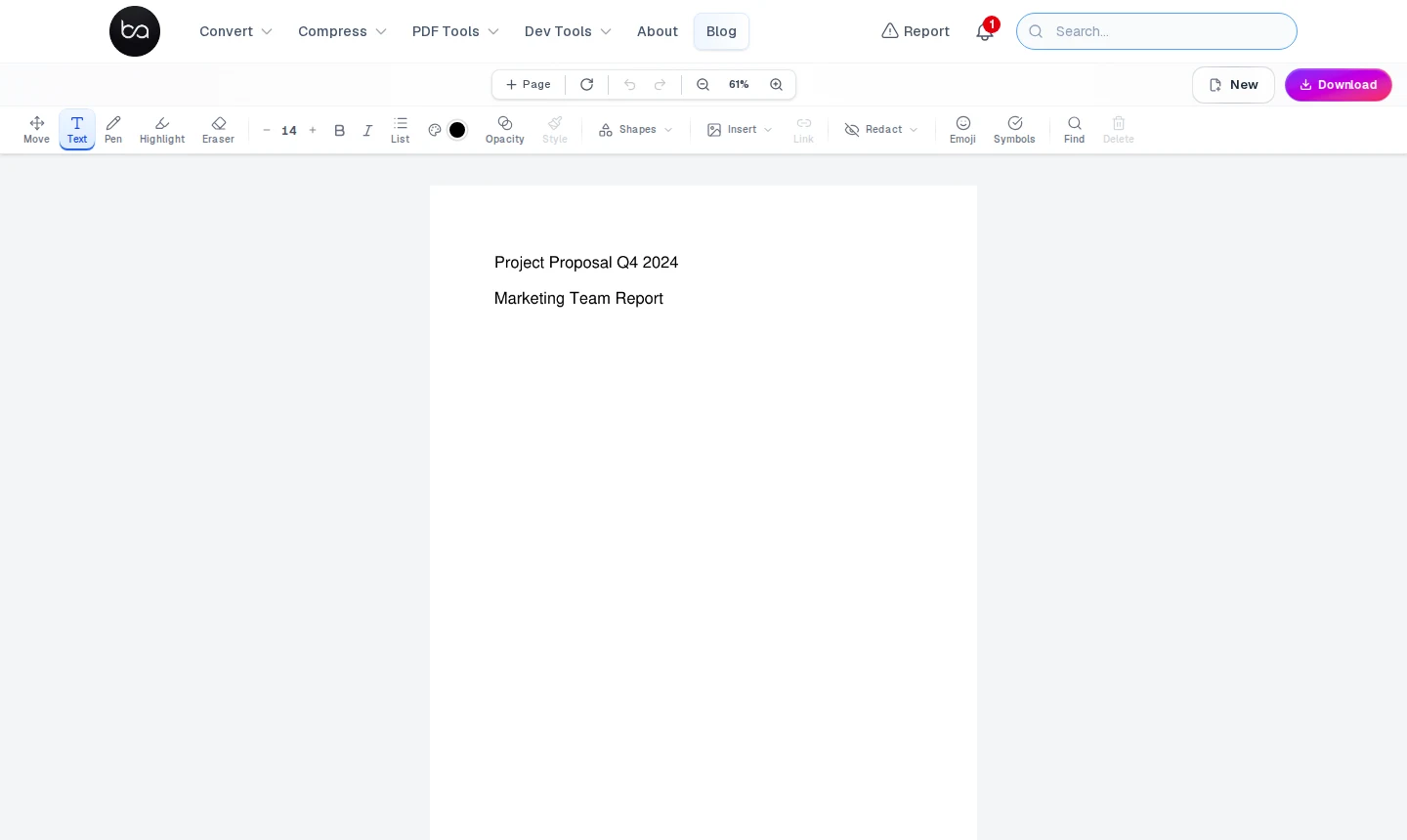
Font measurement happens invisibly, but the text toolbar is where you see the result — the controls here only unlock when the Text tool is active.
Our font fallback mapping translates common PDF fonts to Google Fonts equivalents. Times New Roman becomes "Times New Roman, serif", Helvetica becomes "Helvetica, Arial, sans-serif", and we inject Google Fonts `<link>` tags dynamically when needed. The result: your edited text looks exactly like the original.
Working with scanned PDFs?
Scanned documents contain images, not real text, so font mapping has nothing to work with. Run OCR first to convert the image layer into selectable, editable text.
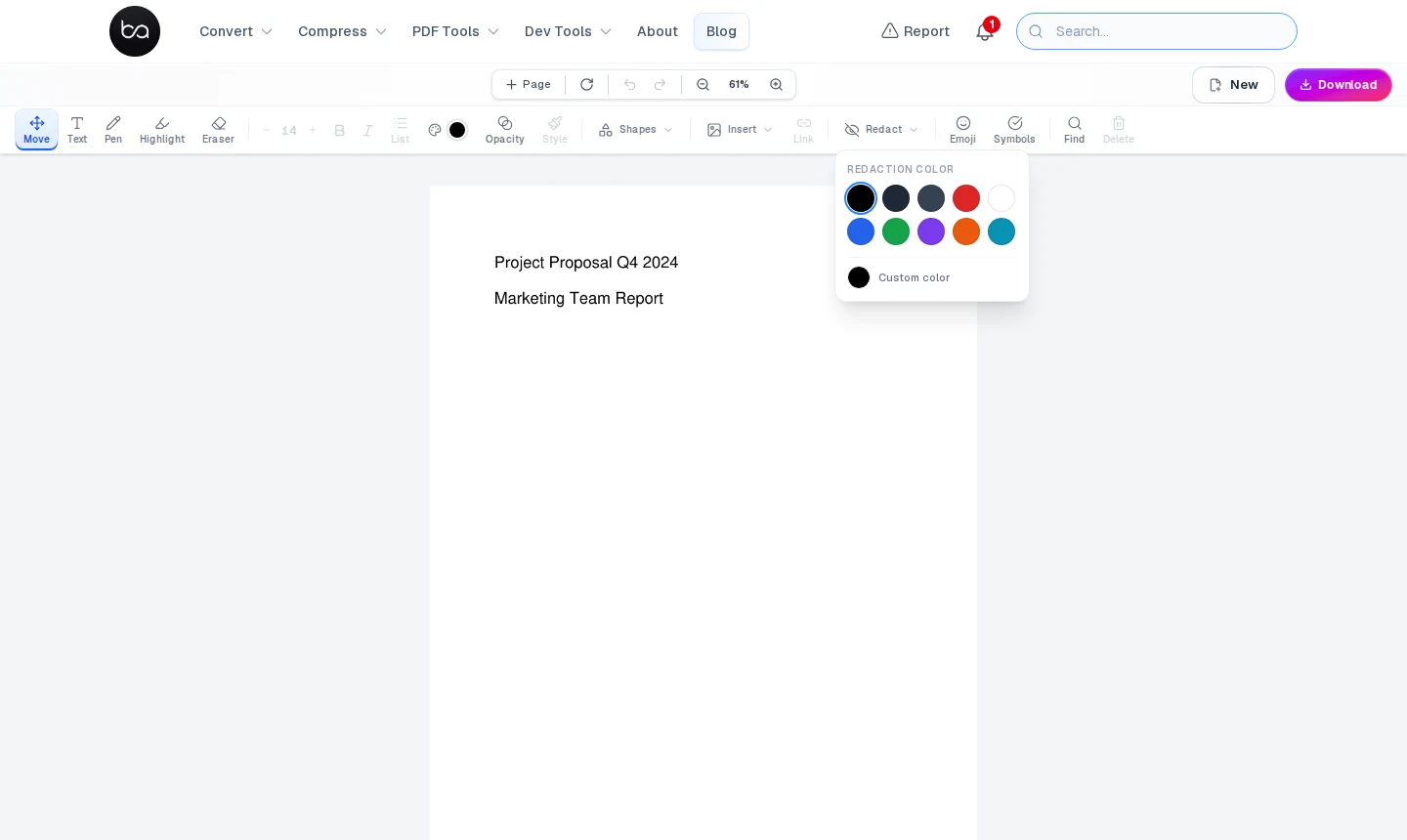
Extract text with OCR →The Redact tool is the most consequential plugin in the editor — once you apply it, the selected content is permanently overwritten in the PDF structure.
Inline Rich-Text: Character-Level Formatting
Most PDF editors treat text as blocks—bold the whole paragraph or nothing. We implemented character-level formatting using Fabric.js's `styles` object. You can highlight three words in a sentence and make just those words bold, italic, or change their color.
When you select text and change formatting, we check if the textbox is in editing mode and has a selection. If yes, we use `setSelectionStyles()` to format only the selected characters. If not, we apply formatting to the entire object and clear character-level overrides.
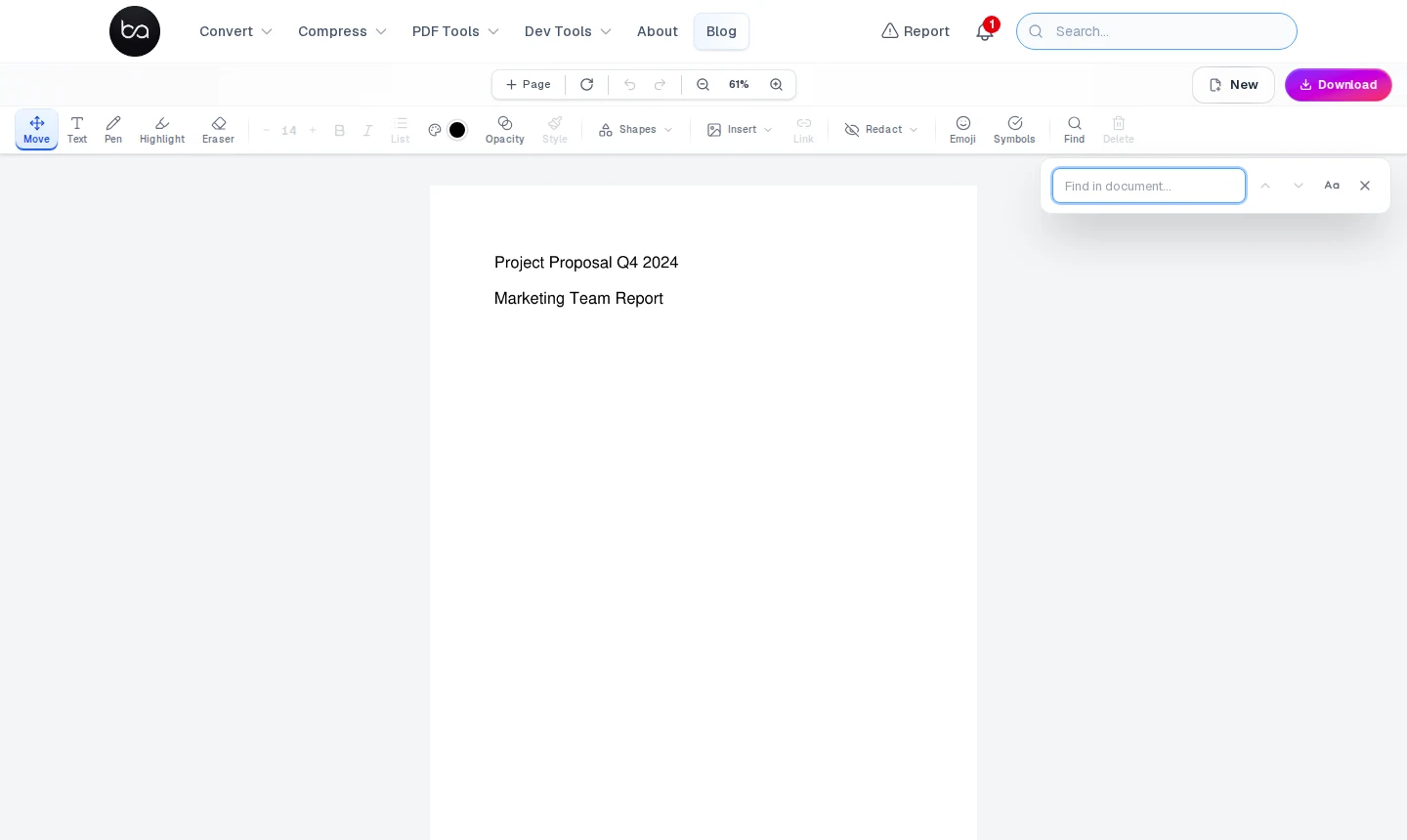
State Management Without the Bloat
We built a custom singleton store using React 18's `useSyncExternalStore` instead of adding Redux or Zustand. The store holds all editor state—pages, objects, current tool, formatting options—with a 50-level undo/redo stack that deduplicates identical states.
Our undo system serializes the entire state as JSON, compares SHA-256 hashes to prevent duplicate entries, and maintains a circular buffer. Undo operations typically complete in under 10ms for documents with hundreds of objects.
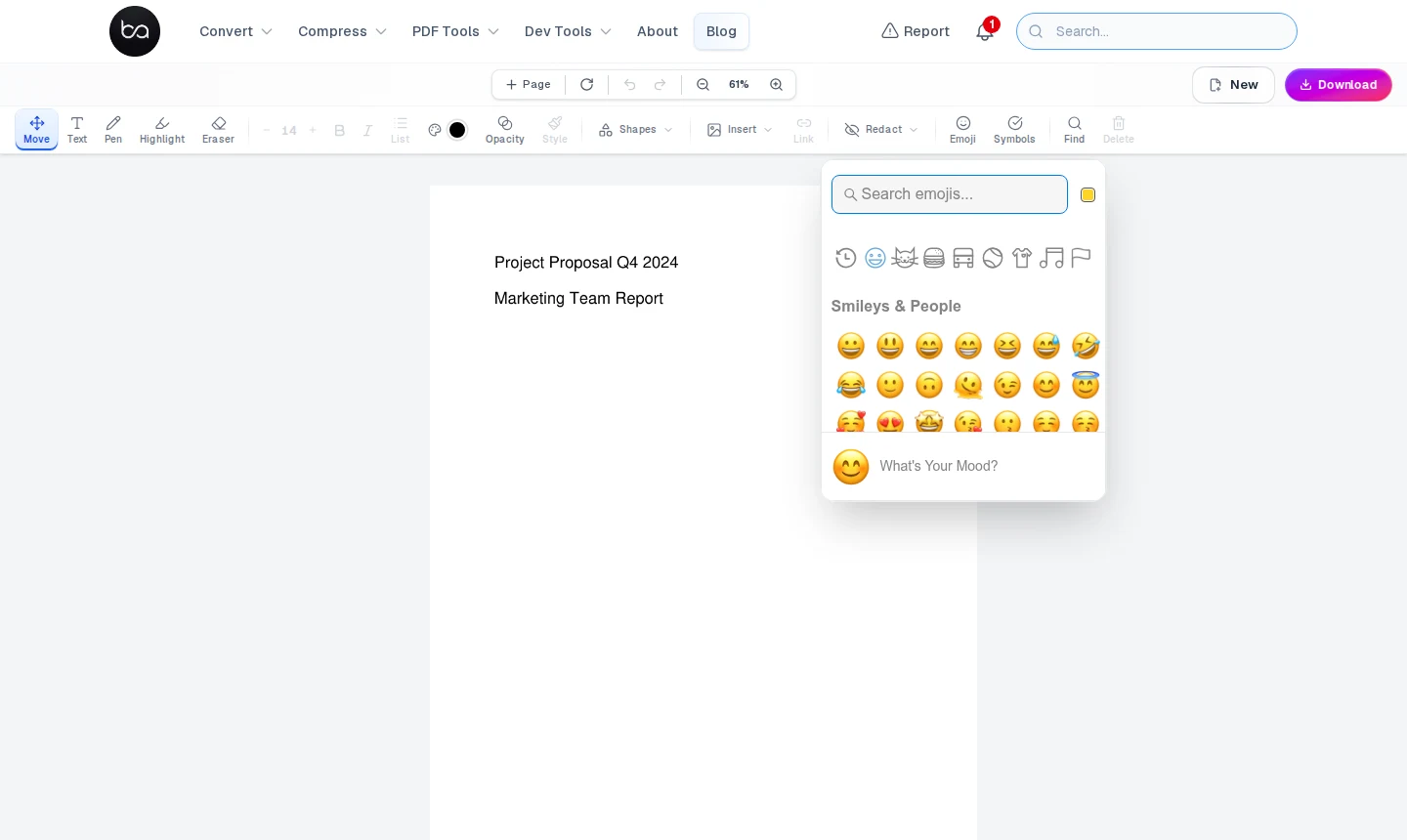
The emoji plugin is a good test of the undo system because inserting an emoji creates a new state entry immediately — here is the picker before any selection is made.
The store provides methods like `addObject()`, `updateObject()`, and `deleteObject()` that automatically trigger React re-renders. It also handles page operations—rotation, deletion, reordering—while maintaining object associations across page changes.
Need to reorder pages before editing?
The Organize tool lets you drag pages into the right sequence, delete blanks, and rotate individual pages.
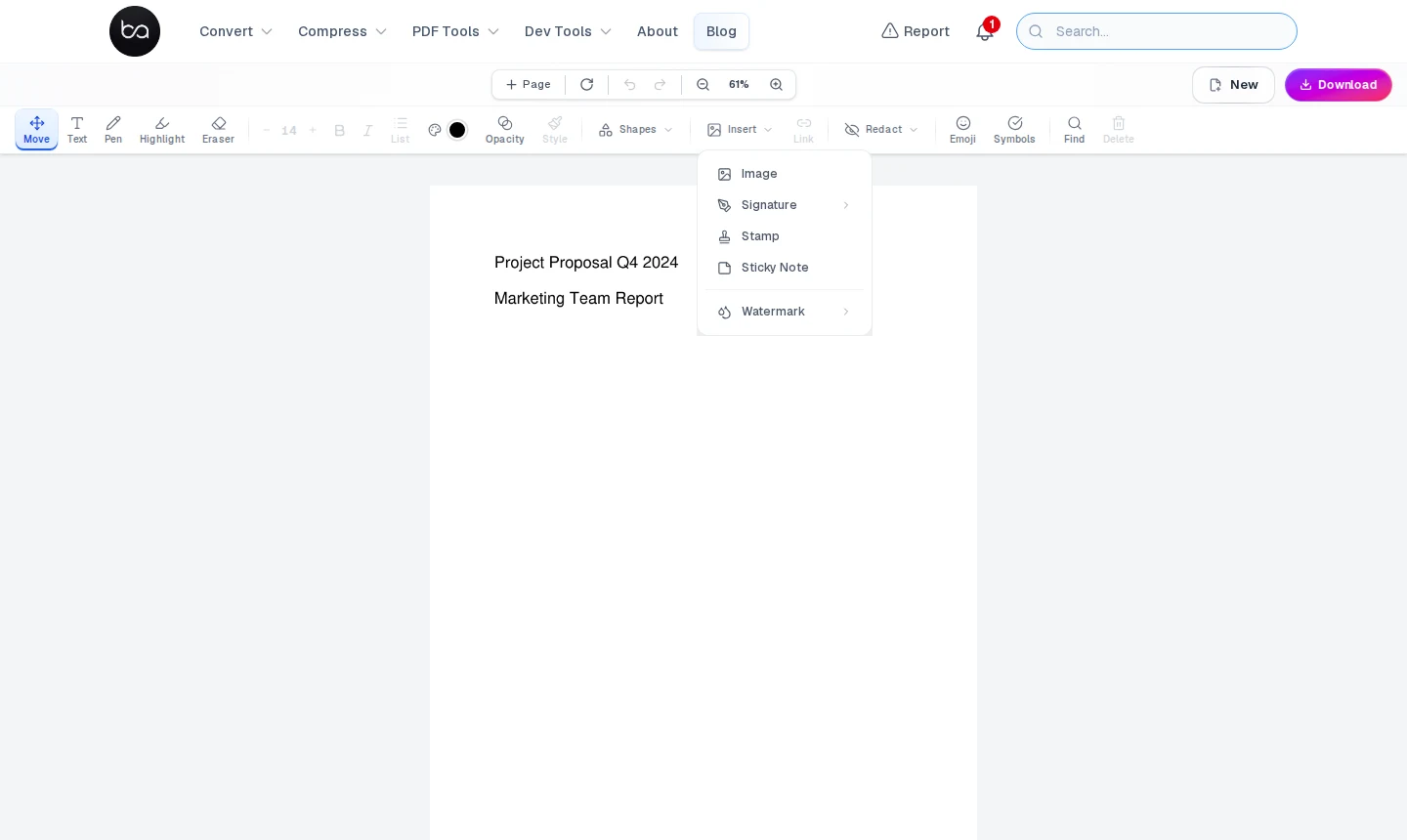
The Insert menu exposes all five object types from a single dropdown — the one place where everything you can add to a PDF page is listed.
Microsoft Word Ribbon, But Better
Users expect familiar interfaces. Our ribbon toolbar mimics Microsoft Word's tabbed design—Home, Insert, Draw, Format, Extras—but adapts contextually to your selection. Select a shape, see shape-specific controls. Select text, see typography options. Select nothing, see document-level tools.
The Shapes dropdown shows all 18 object types at once — clicking any of them sets the active tool and queues the next click as object placement.
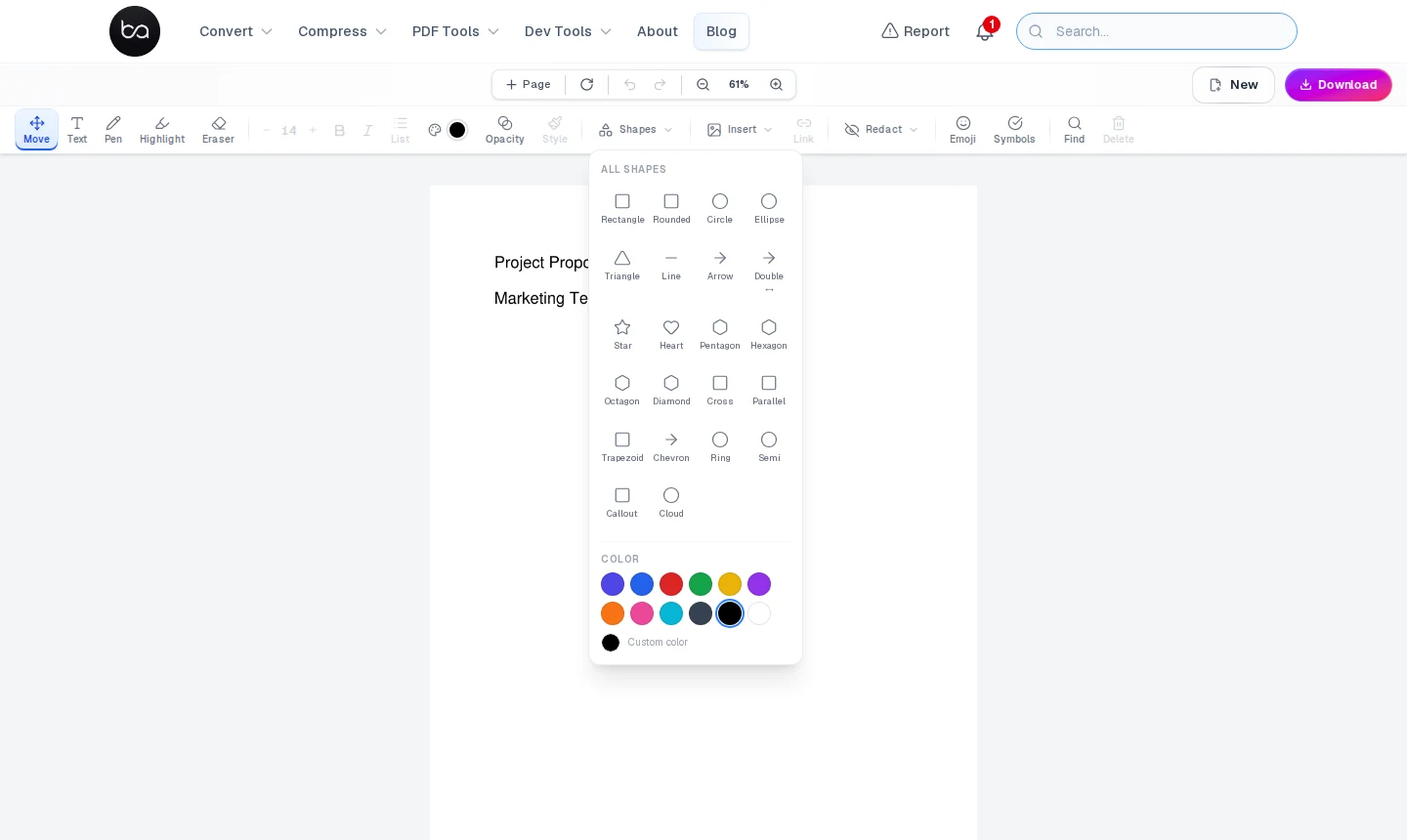
The toolbar never directly manipulates canvas objects. It only updates store state. The `useFormatSelection` hook watches those state changes and applies them to the active Fabric.js object. This separation means we can batch multiple formatting changes and maintain consistent undo behavior.
Mobile-First, Desktop-Optimized
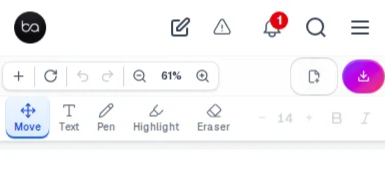
Editing PDFs on phones is painful with most tools. We implemented touch-optimized controls, pinch-to-zoom, and adaptive UI. The page panel becomes a horizontal strip on mobile, the toolbar collapses into bottom sheets, and Fabric.js object handles scale appropriately for touch interaction.
Mobile zoom starts at fit-to-width and adapts to viewport size. We prevent iOS overscroll rubber-banding and disable Safari's gesture-based zoom to avoid conflicts with our pinch-to-zoom implementation.
Touch event handling required the most care — this is what the editor looks like at 390px viewport width with the compact toolbar.
What We Shipped and What It Cost Us
PDF editing shouldn't require expensive desktop software or risky cloud uploads. We proved you can build professional-grade document editing that runs entirely in browsers, processes files locally, and matches the performance of native applications.
The techniques we developed—3-layer canvas architecture, plugin-based hooks, coordinate mapping with render scaling, font fallback systems—can be applied to other document formats too. This is just the beginning.
Ready to Try Professional PDF Editing?
Experience the editor that engineering teams trust. No downloads, no subscriptions, no data uploads.
Launch PDF EditorTechnical Questions
How do you handle PDF coordinate systems in browsers?
We use a RENDER_SCALE multiplier of 1.5x to balance visual quality with performance. All coordinates from the backend arrive pre-multiplied, and we convert back to PDF points during export. This ensures pixel-perfect placement while maintaining crisp text rendering at common zoom levels.
What makes your eraser tool different from other implementations?
Our eraser uses `globalCompositeOperation: 'destination-out'` to create transparent holes in the canvas layer, but the HTML background image remains untouched. This means erasing reveals the original PDF content underneath, not the webpage background—a technique most online editors get wrong.
How do you achieve such fast text editing performance?
We use lazy object spawning—hitboxes are placed over original PDF text, but editable Textbox objects are only created when users click. Combined with our plugin architecture that activates tools on-demand, this keeps memory usage low and interactions responsive even with complex documents.
What's the browser compatibility for advanced features?
Chrome and Edge provide optimal performance with hardware acceleration. Firefox works excellently for all core features. Safari requires specific optimizations for touch events but handles the core functionality well. We implement fallbacks for older browsers while maintaining feature parity.
Related Articles
Convert JFIF to PNG Free, No Software Needed - Fix Files Windows Won't Open
Convert JFIF images to PNG format with AI background removal, custom dimensions, and quality optimization. Fix compatibility issues when Windows won't open JFIF files.
Read articleRotate PDF Pages Free - Fix Sideways and Upside-Down Documents Online
Rotate PDF pages for free with advanced preview and batch processing. Fix sideways scans, upside-down documents, and mixed orientations. Support for password-protected files and custom page rotation.
Read articleHow to Convert HTML to PDF Online for Free
Convert HTML files, web pages, or HTML code to PDF format with our comprehensive guide. Three input methods, advanced settings, and CSS rendering support.
Read article