
No signup · Chapters preserved · Free
Convert EPUB to PDF Free: Keep Chapters and Formatting Intact
A professor I know shared course readings as EPUB but the university submission portal only accepted PDF — ten minutes of converting the batch before the term started solved the problem completely. EPUB is great for e-readers but most document portals expect PDF. This converter handles both EPUB 2 and EPUB 3, preserves chapters, images, and hyperlinks, and requires no desktop software.
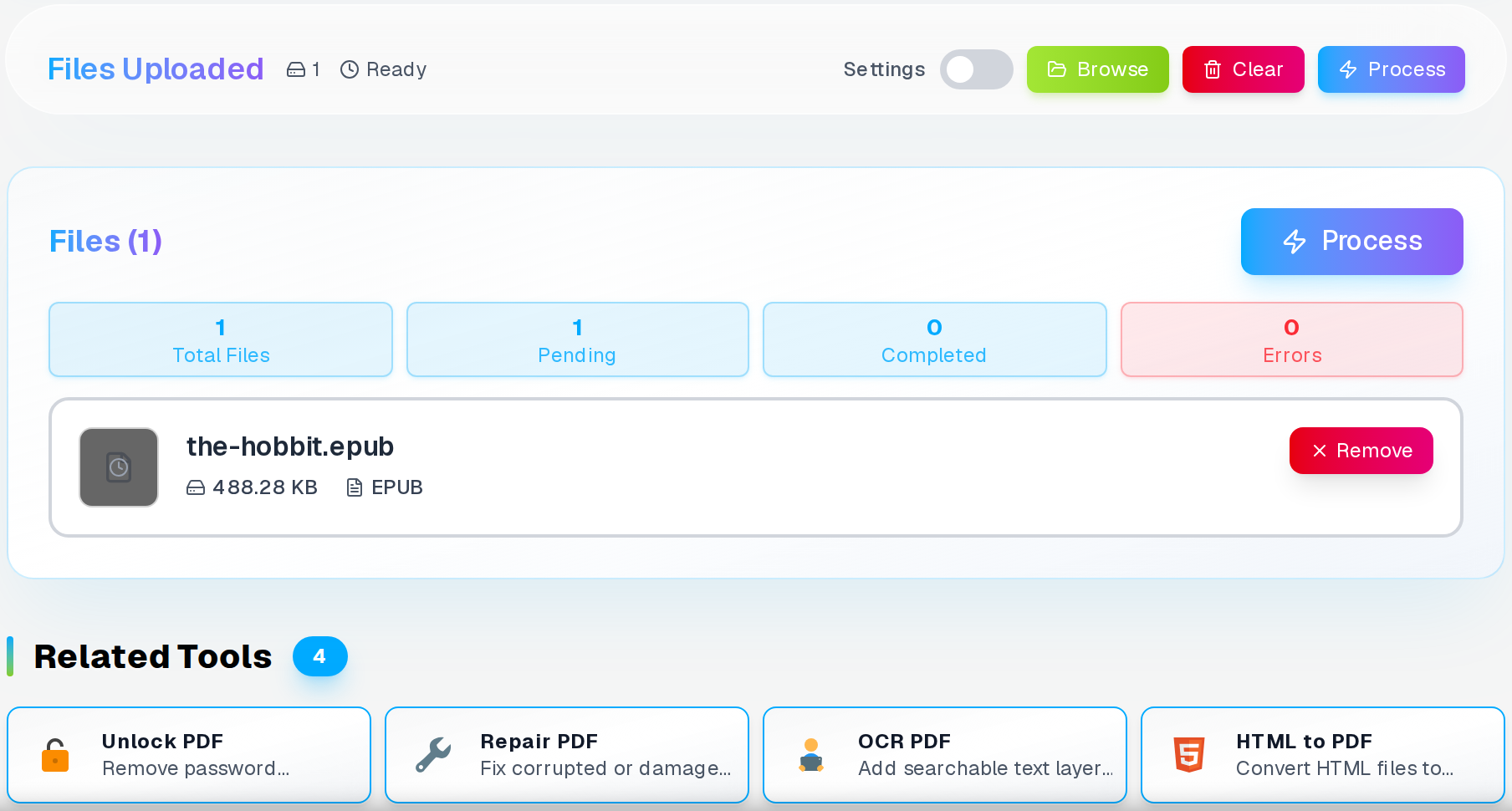
This is the converter right after the EPUB file is accepted — the spine and chapter list are parsed before any settings appear.
When You Need Your Ebook as a PDF
EPUB works well on e-readers, but there are plenty of situations where you need an ebook in PDF format instead. You want to print chapters for study, share with someone who does not have an EPUB reader, annotate with a PDF tool like Adobe Acrobat or Xodo, or archive the book in a format that every computer on the planet can open without special software.
A well-structured PDF document gives you chapter order intact, images in position, and text flowing naturally across fixed pages with proper margins — all in a clean, printable format without installing Calibre or any desktop software. If your book is split into multiple EPUB files, merge the converted chapter PDFs into one complete document afterward.
Five Reasons to Convert EPUB to PDF
Printing
You cannot print an EPUB directly. Printers need fixed page dimensions. Convert to PDF and print any chapter, page range, or the entire book at standard paper sizes.
Annotation and Markup
PDF annotation tools let you highlight text, add sticky notes, draw boxes, and write comments in ways most EPUB readers simply do not support. Essential for reviewers, editors, and students.
Universal Sharing
Not everyone knows what an EPUB is or has software to open one. Everyone can open a PDF in their browser, phone, or computer without installing anything.
Long-Term Archiving
PDF/A is recognized by libraries and institutions worldwide as a preservation format. If you want an ebook readable 20+ years from now regardless of technology changes, PDF is the safe choice.
How to Convert EPUB to PDF
Converting any DRM-free EPUB ebook to a printable PDF document takes four simple steps. The process is free and requires no Calibre or software installation.
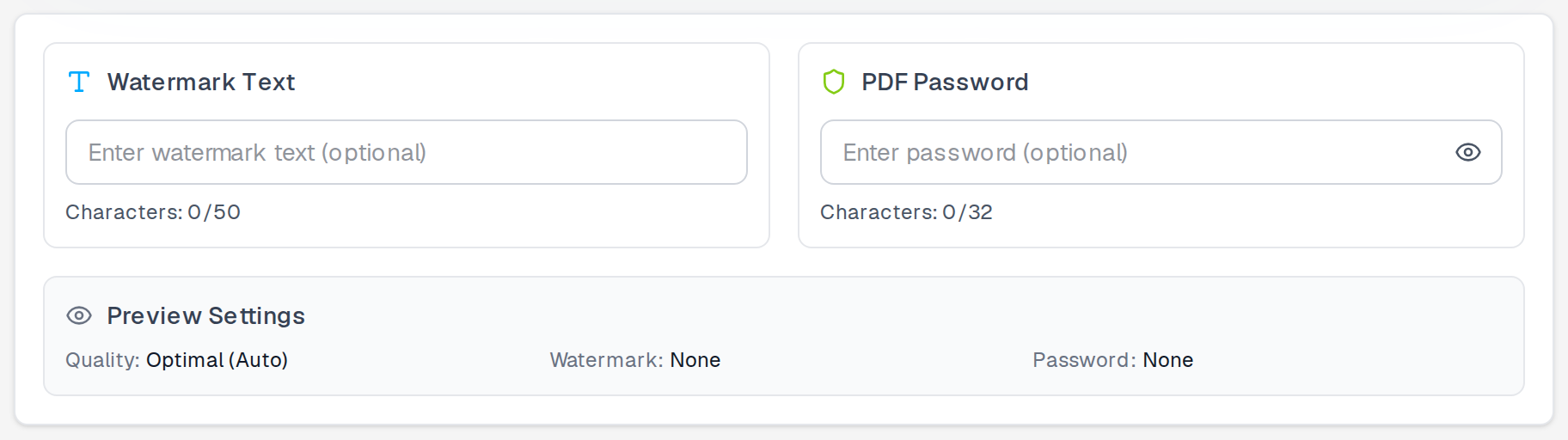
Three output options control the shape and security of the resulting PDF.
Step 1: Upload Your EPUB File
Click Browse Files or drag your .epub file into the upload area. Only DRM-free EPUB files can be converted. This includes books from Project Gutenberg, Smashwords, or your own exported documents.
DRM-encrypted files from Amazon, Kobo, Apple Books, or other stores are locked and cannot be processed by any converter. The tool will detect protected files and display clear warnings.
Step 2: Choose Settings
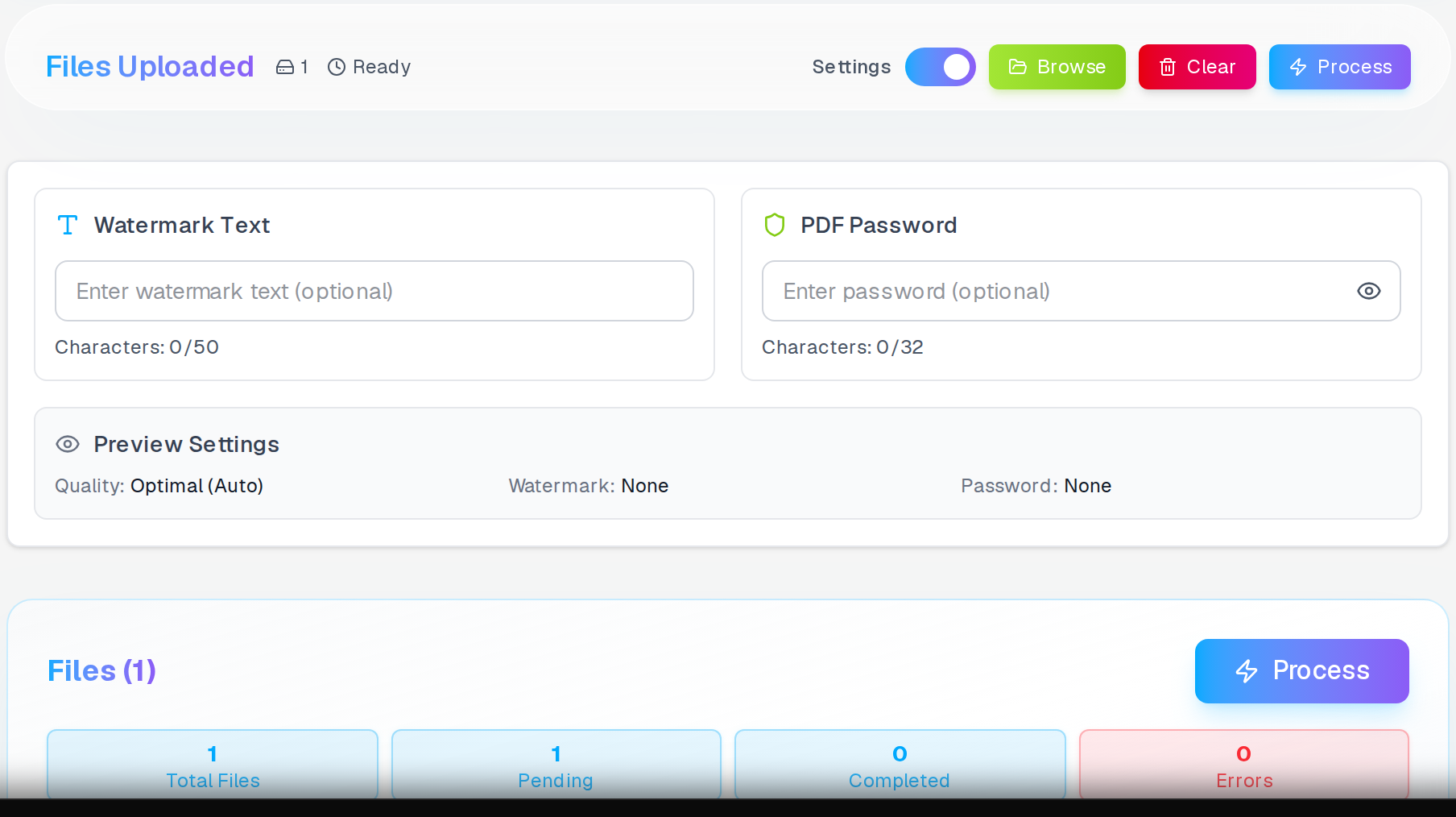
Select output page size (A4 or Letter) and any other available preferences in the Settings panel. The tool uses optimal defaults that work for most situations.
Optional password protection secures sensitive documents. Watermark features help identify document ownership. Both options are available in the settings panel if needed.
Output pages use A4 size with comfortable reading margins by default. Text stays sharp and images maintain their original resolution.
Step 3: Start Conversion
Click Convert. The tool processes your ebook and prepares the PDF output. Large ebooks take longer but there are no file size limits.
Processing time depends on file size and complexity. Simple text books convert in under a minute. Image-heavy files or very long books may take several minutes. The tool shows progress during conversion.
Step 4: Download Your PDF
Save your PDF. Chapters, images, and links are preserved in the output document. All body text flows naturally across pages with proper margins.
Table of contents becomes PDF bookmarks that you can click to jump to different sections. Internal links between chapters continue working.
Settings Panel
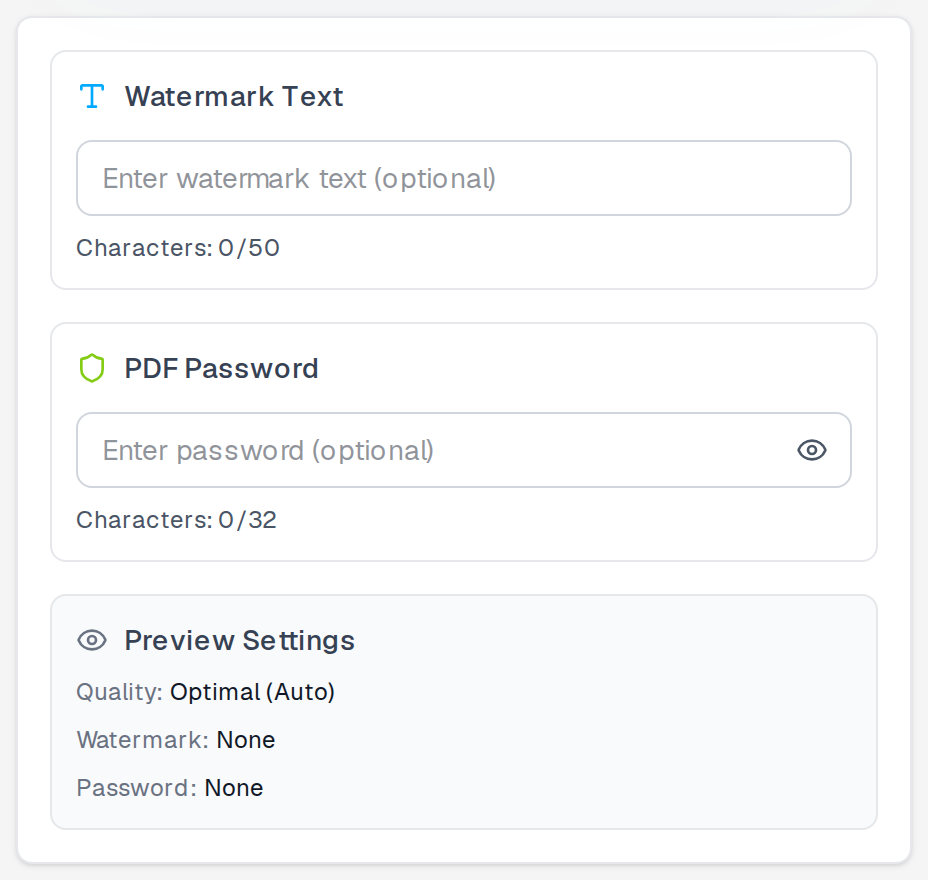
Three settings — what each one does
Page size is A4 or Letter. Choose based on your printing region — A4 for Europe, Letter for the US. Text reflows to fill whichever you pick. Watermark stamps diagonal text across every page, useful for review drafts.
Password encrypts the PDF so only the recipient with the correct key can open it — essential for academic manuscripts and confidential business reports you’re distributing externally.
What Gets Preserved vs What Changes
Need only certain chapters?
Extract specific pages from your converted EPUB PDF to share individual chapters without distributing the entire book.
Extract pages →Preserved in PDF
- ✓ Chapter structure and reading order
- ✓ All body text with headings and paragraphs
- ✓ Embedded images and cover art
- ✓ Bold, italic, and text formatting
- ✓ Internal and external hyperlinks
- ✓ Table of contents as PDF bookmarks
Things to Know
- ! PDF page numbers will not match EPUB"page" references
- ! Some e-reader CSS styling may not translate perfectly
- ! Interactive EPUB features (audio, video) do not carry over
- ! DRM-protected EPUBs cannot be converted
- ! Font size is now fixed (no more reader adjustment)
Common Use Cases
Printing Chapters for Study
Students prefer highlighting and writing notes on paper. Convert your textbook EPUB to PDF and print specific chapters for your study session.
Sharing with Non-Tech Colleagues
Your teammate does not have an ebook reader app. Convert to PDF and email it. They open it instantly in their browser without downloading anything.
Book Review and Editing
Use your favorite PDF markup tool to add highlights, sticky notes, and editorial comments. Much better annotation support than most EPUB reading apps provide.
Personal Library Archival
Building a permanent digital library? PDF is stable across decades of technology changes. Your books remain readable no matter what happens to ebook formats or apps.
Alternative Methods and Why This Tool Works Better
Want the text back in Word?
Convert your PDF to an editable Word document for revision, annotation, or collaboration.
Calibre is the most popular desktop software for ebook conversion. But it requires installation and has a complex interface with dozens of settings. Many users find it overwhelming for simple conversions.
This online tool handles the technical details automatically. You get professional results without learning complicated software. The process works on any device with a web browser.
Some websites require account registration or limit file sizes. This converter processes large files without signup requirements. Your privacy stays protected because files are not stored permanently.
When conversion completes, you get a single download — the PDF with all chapters intact in the correct reading order.
Frequently Asked Questions
Does this work with EPUB 3 files?
Yes. Both EPUB 2 and EPUB 3 are supported. Audio and video embeds are skipped — PDFs cannot carry them.
Can I convert DRM-protected ebooks from Kindle or Kobo?
No — and this is worth being direct about. DRM-encrypted files from Amazon, Kobo, Apple Books, or any major retailer are locked at the encryption layer, which no converter can bypass without the decryption key that only the retailer holds. This is not a technical limitation of this tool; it applies to every converter on the market. Only DRM-free EPUB files — from Project Gutenberg, Smashwords, your own exported documents, or publishers who sell without DRM — can be converted.
What page size does the output PDF use?
The default output is A4 or Letter size with comfortable reading margins. Since EPUBs have no concept of page size (text reflows to any screen), the converter chooses standard print dimensions that work well for both reading on screen and sending to a physical printer.
Will footnotes and endnotes come through?
Yes. Footnotes embedded as text in the EPUB appear in the PDF. The exact placement depends on how the original ebook structured them. Some will appear at the bottom of pages, others at the end of chapters, matching the source structure.
Can I select and search text in the output PDF?
Yes. Since EPUBs contain real text data, the output PDF has a full text layer. You can select passages, copy text, use Ctrl+F to search, and screen readers can access the content for accessibility.
Want consistent page numbering?
Add professional page numbers to your converted EPUB PDF to match the chapter structure and make navigation easy.
Related Articles
Add Page Numbers to PDF Free, No Sign-Up
Learn how to add professional page numbers to your PDF documents without any registration, watermarks, or hidden fees. Complete guide with customization options.
Read articleConvert PDF Tables to Excel, Editable and Free
Convert PDF documents to Excel spreadsheets online free. Keep rows, columns, and formulas accurate. Extract tables from PDFs to editable XLSX format instantly.
Read article
Resize Images for Instagram, Amazon, Shopify - Free Online Image Resizer
Resize photos without losing quality using advanced algorithms. Professional image resizing for social media, e-commerce, and web with smart presets and batch processing capabilities.
Read article