
Add Page Numbers to PDF Free, No Sign-Up
No Adobe subscription. No account. No installation. This is a practical guide to adding clean page numbers to any PDF in under a minute — with every setting, format choice, and positioning decision explained so you get it right on the first try.
A while back I sent a 63-page client proposal assembled from three separate source files. No page numbers. The client's first reply was: "which part were you referring to during the call?" I had to write back something humiliating like "third page after the blue header image, the paragraph that starts with 'projected ROI'." They found it eventually. That was the last document I ever sent without page numbers on it.
The frustrating part is this should not be hard. Most obvious tools have problems. Adobe Acrobat Pro handles it well but costs $239.88 per year. Microsoft Word numbers .docx files fine, but hand it a PDF created somewhere else — a scanned contract, an exported slide deck, a merged report — and it either refuses or mangles the layout on conversion. LibreOffice has roughly the same problem.
What works: a free browser-based tool. Upload the PDF, configure the numbering, download. No conversion, no layout damage, no account. I've used it on everything from 4-page one-pagers to a 312-page technical manual and it handled both without issue.
One thing to sort out before you start: if the page order still needs work — moving sections around, removing pages, merging other files in — do that first. I learned this the hard way. I numbered a report, then realized two chapters were in the wrong order, reorganized them, and the numbers were completely wrong. Page numbers are always the final step. Get the structure right first using the PDF page organizer, then come back and add numbers.
Why Skipping Page Numbers Costs You More Than You Think
I used to consider page numbers optional for internal documents. My reasoning was roughly "everyone knows the structure." Then I spent 12 minutes on a call with a colleague trying to locate a specific paragraph in a 40-page document I'd put together, using increasingly creative descriptions of its location. Not a good use of either of our time.
But it goes beyond convenience. Certain contexts have hard requirements. APA 7th edition — the standard format for psychology, education, and social science papers — requires a page number in the top-right corner of every page, including the title page. MLA 9th edition requires your last name immediately before the number, no comma, also top-right. Legal filings in US federal courts frequently have specific pagination requirements in local court rules that vary by district. Get the position wrong on an academic submission and it comes back. Get it wrong on a court filing and it might not be accepted at all.
PDF is the dominant document format in professional settings — and the number one navigation complaint from reviewers, lawyers, and professors is the same thing every time: "I can't find the page you meant." Page numbers are a small detail with a disproportionate effect on how usable a document is once it leaves your desk.
The Actual Steps — About 60 Seconds for Most Documents
- Upload your PDF — drag it in or click to browse. Files up to 100MB are supported. A typical 100-page document with embedded images usually runs 10MB to 25MB, so you'd need an unusually large file to hit that ceiling.
- Set your position and format — bottom-center is the default and works for most documents. All options are covered below if you need something different.
- Download — the processed file comes back clean. No watermarks, no quality change, just the numbers you configured.
🚀 Try It Now
The tool runs entirely in your browser — nothing to install, no account needed.
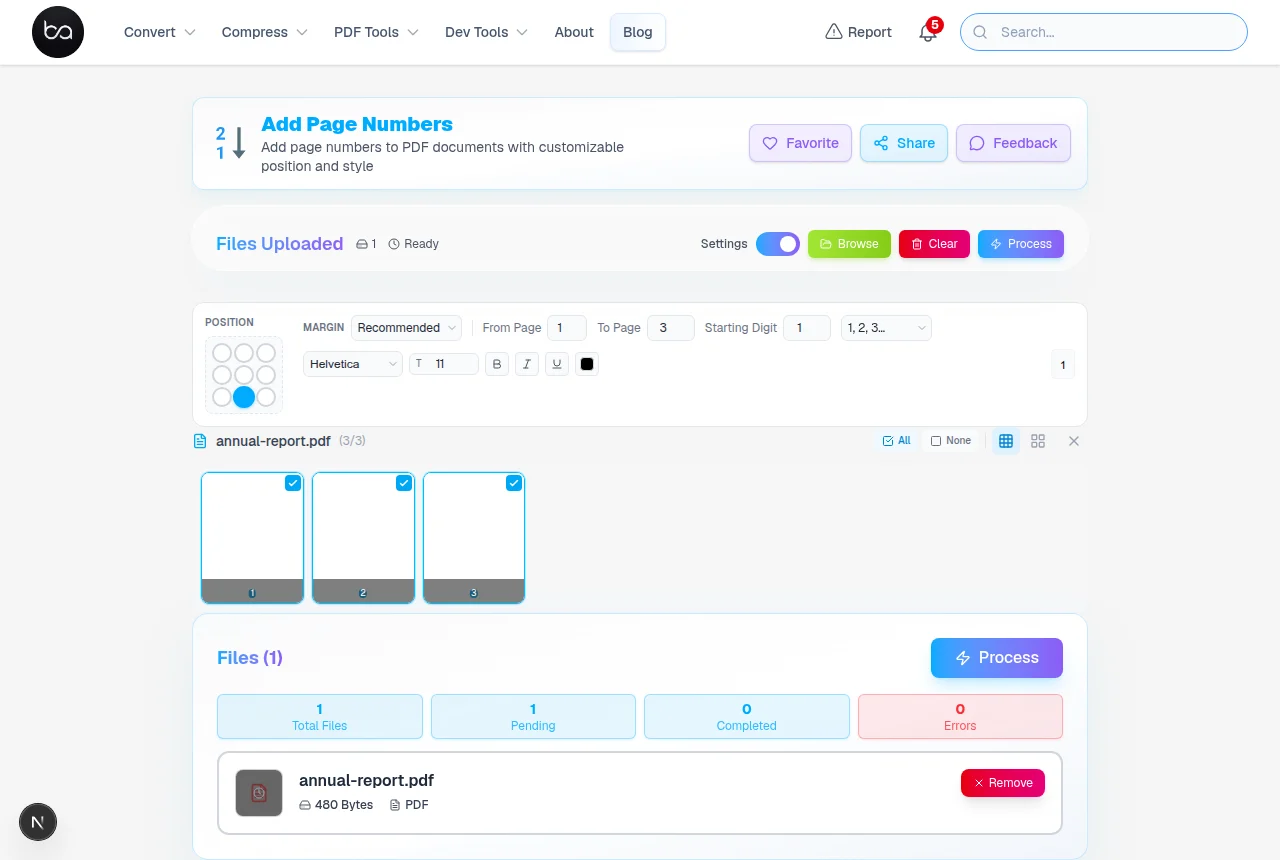
Add Page Numbers FreeHere's what the tool looks like once your file lands. The settings panel is on the left — position grid, format, font, size, color — and the page thumbnails load on the right so you can see exactly which pages will get numbers before you commit.
The Nine Position Options — And Which Ones Actually Matter
The position picker is a 3x3 grid: top, middle, and bottom rows crossed with left, center, and right columns. Nine options total. Realistically, most documents end up using one of maybe three. Here's how to think through the choice.
Bottom Center — Right for Most Documents
This is where readers instinctively look when flipping through a printed document. It sits below the main content area, stays out of the way of titles and headers, and doesn't clash with anything in the vast majority of layouts. Reports, proposals, exported presentations, scanned collections, instruction manuals — bottom center works for all of them.
One thing to watch: standard office laser printers have a physical minimum unprintable margin — typically 5mm on quality hardware, up to 10mm or more on budget models. Numbers placed very close to the page's bottom edge look correct on screen and get clipped when printed. If this document will ever be printed, bump the margin offset slightly above the default. The visual difference on screen is imperceptible. The difference on the physical page is very noticeable.
Top Right — For Academic and Formal Submissions
APA 7th edition specifies top-right. MLA 9th edition specifies top-right with your surname before the number. If you're submitting anything to a professor, journal, or court — look up the exact requirements before touching the settings. I know it sounds obvious, but APA papers submitted with bottom-center numbers get returned for revision. That check takes two minutes. A redo takes much longer.
Top center occasionally shows up for presentation handouts when the bottom of each page is already occupied by slide captions or speaker note areas the template reserves.
Bottom Right and Everything Else
Bottom right appears in technical documentation — engineering specs, hardware manuals, certain standards documents. Slightly more formal-looking than center. Bottom left is less conventional but useful when an existing footer element already occupies the right side of every page.
The middle-edge positions are corner cases. I've seen center-right used on landscape-format documents where the physical page is rotated so the "bottom" has become the far right edge of the sheet when printed. For standard portrait documents, these positions are available but rarely the right call.
Number Formats: More Options Than You'd Expect
Plain Numbers — 1, 2, 3
Honest answer: this is right for 80% of documents people bring here. Just the number, nothing else. It doesn't pull the reader's eye, doesn't fight with your header or branded footer, and scales cleanly from 8pt to 14pt. If you're not sure which format to use, pick this one first.
"Page X of Y" Format
More useful than it looks. "Page 4 of 17" tells the reader exactly where they are and how much is left — information that's surprisingly valuable when you're holding a physical printout and trying to gauge whether you're nearly done or barely started. For digital documents it's somewhat redundant since PDF viewers show you anyway, but for anything being printed and distributed, this format earns its space. Meeting handouts, contract copies, printed manuals — anything leaving your screen benefits from it. It's what I default to when a document will be printed.
Roman Numerals — i, ii, iii
Roman numerals have one well-established job: front matter in formal publications. Prefaces, forewords, tables of contents — these conventionally get lowercase Roman numerals while the main body starts at Arabic 1. If you're formatting a thesis, dissertation, or formal report, your style guide likely requires this. For most other documents, Roman numerals will look out of place. To achieve mixed numbering, run two separate passes: Roman numerals for the front matter pages, then Arabic starting at 1 for the main content. Takes maybe three extra minutes total.
Decorated Numbers and Custom Format
Decorated numbers (— 1 —) add typographic dashes around the number. They look appropriate in centered bottom positions for formal documents — event programs, ceremonial booklets, anything where aesthetics matter more than minimal design. I wouldn't use them on a business report.
The custom format option is more useful than it initially seems. The variables are simple: {n} for the current page, {total} for total pages. Some formats worth knowing:
Smith {n}— the MLA header format (your last name + page number, no "Page" prefix){n} / {total}— a compact alternative to "Page X of Y," useful when footer space is tightExhibit {n}— for legal exhibits numbered separately from the main document body
Font, Size, and Color — Getting the Details Right
Three font choices: Helvetica, Times New Roman, Courier. Helvetica is the one I use for almost everything — it's neutral and doesn't announce itself. Times New Roman makes sense specifically when the document body is already in Times; matching the page number font to the body text is one of those micro-details that makes a document look like it was designed rather than assembled. Courier is monospaced with a typewriter aesthetic — technically correct for certain legacy legal formats, looks dated everywhere else.
Font size: 10pt is the standard default. Below 8pt the numbers become hard to read in print. Above 14pt they compete with the content. That's the whole range — 10 to 12pt covers every normal case I've ever run into, and I've never had reason to go outside it.
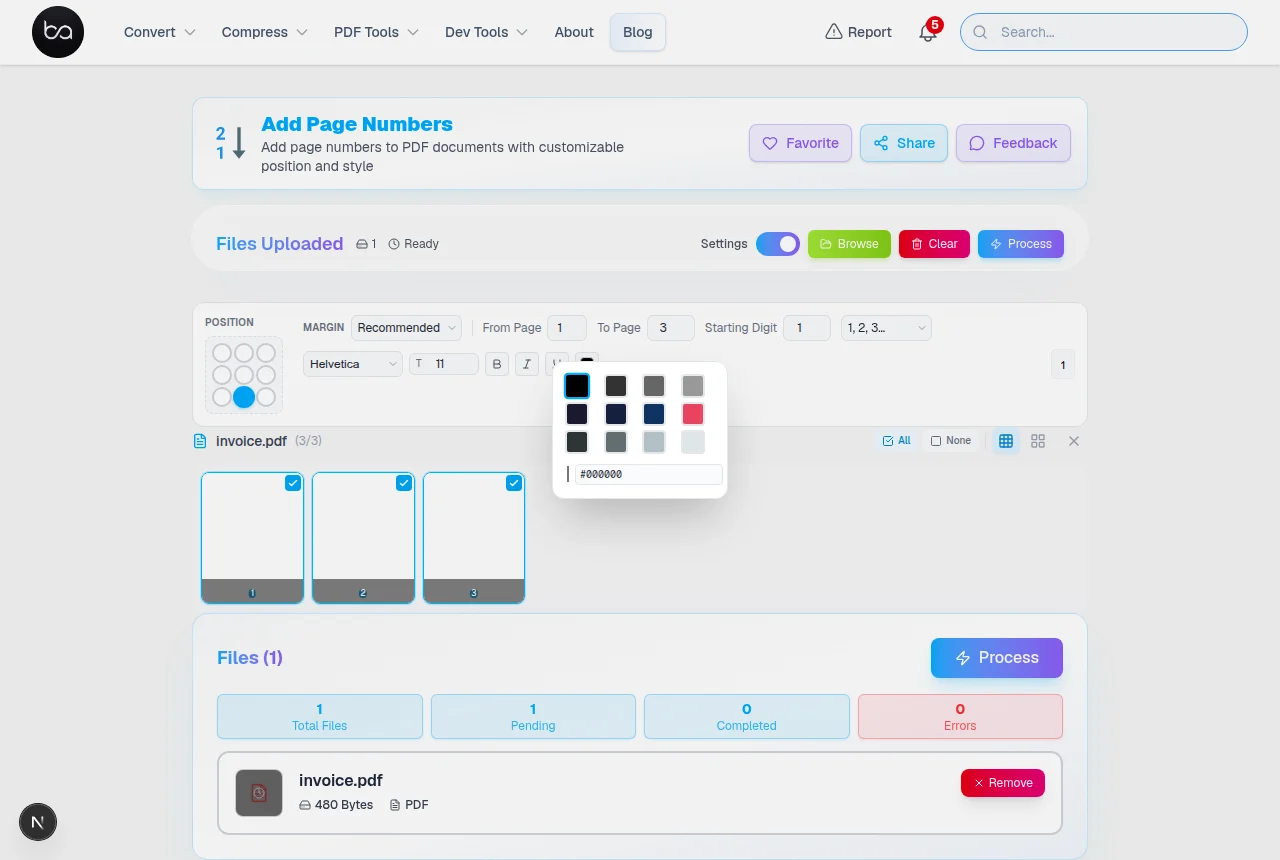
Color is worth a brief thought. Black works for almost everything. If your document uses a light-colored background consistently — some branded templates run off-white or pale gray on every page — dark gray can look slightly more intentional. For anything going to commercial print, stick with black. Color printing adds cost and "charcoal gray" renders unpredictably across different print houses and paper stocks.
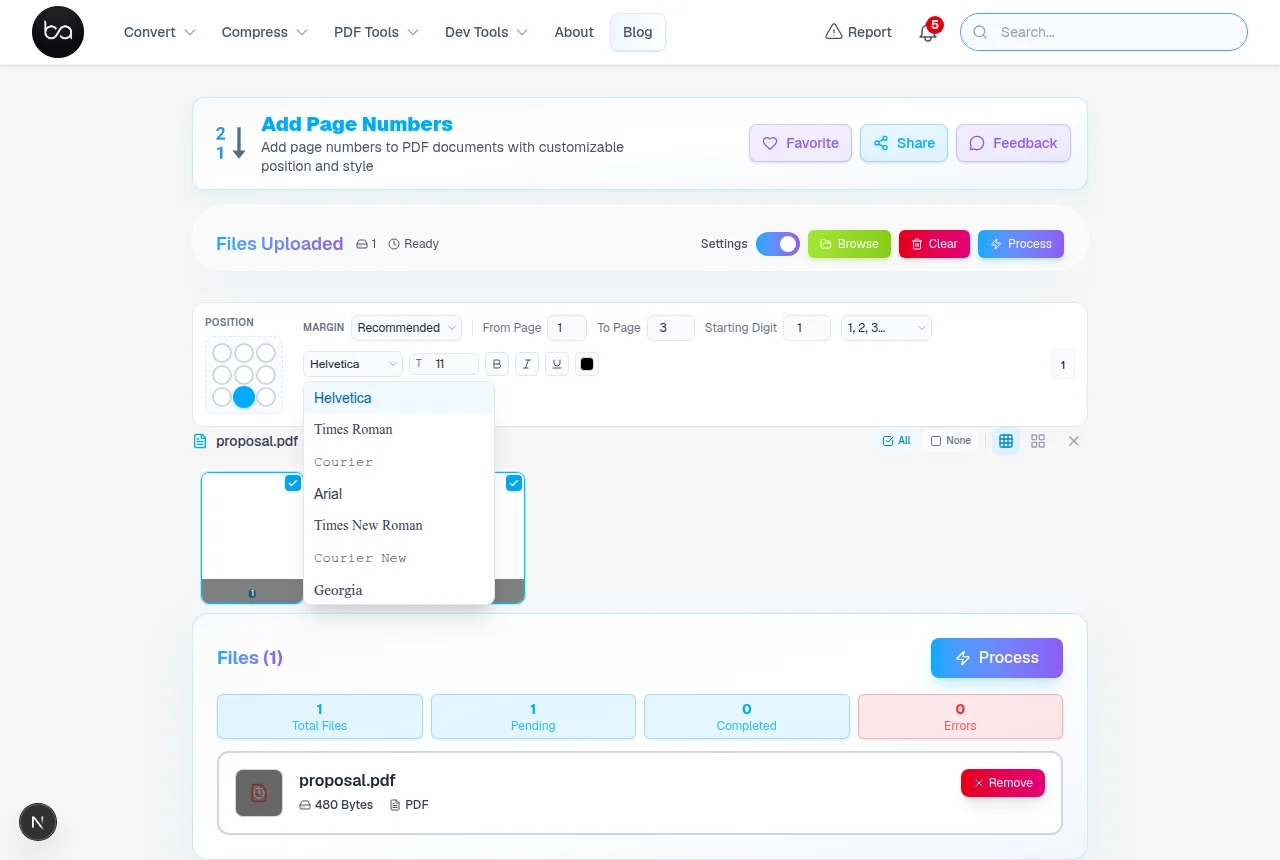
Font family and size are only half the story — colour choice matters just as much for documents where the numbers need to match brand guidelines or blend with existing header colours.
The Settings That Most People Overlook
Selective Page Inclusion
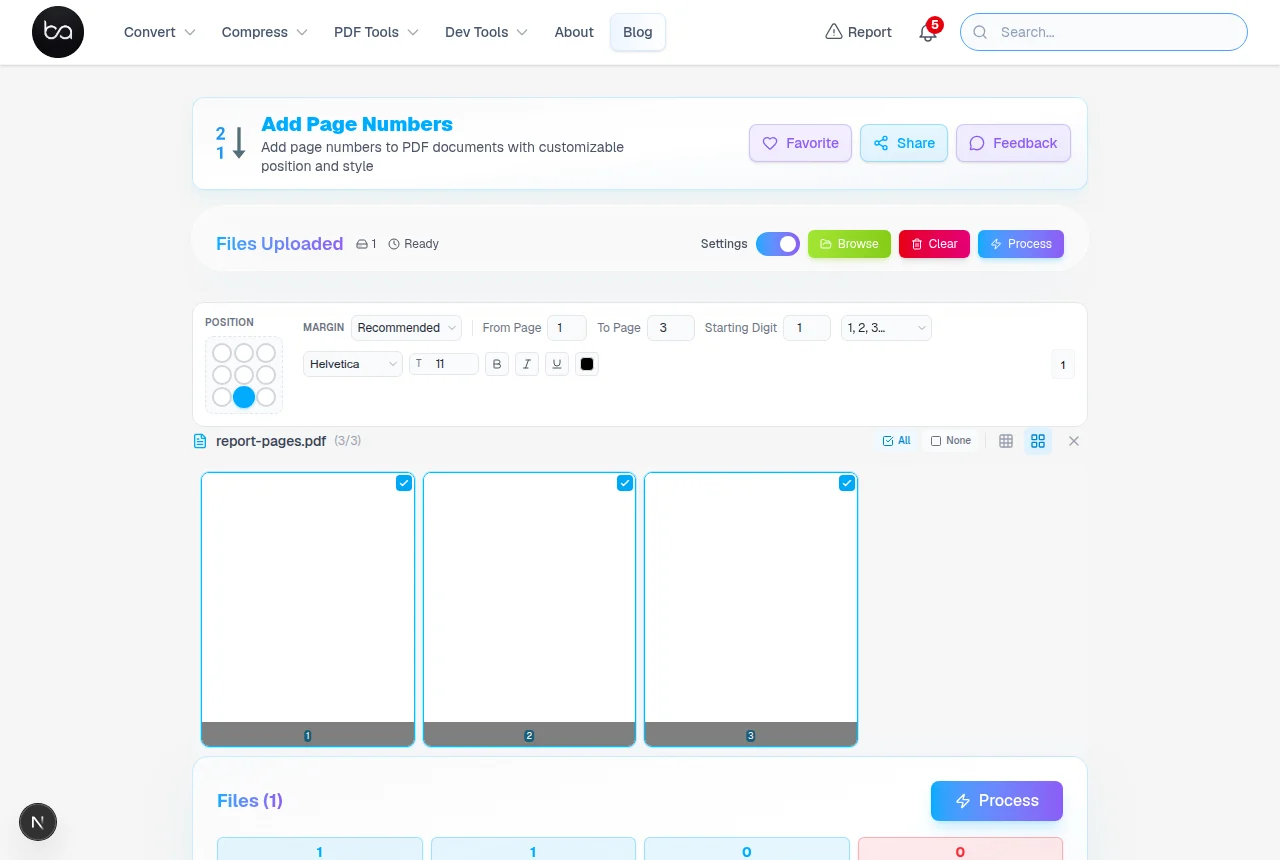
You don't have to number every page. Select pages individually in the thumbnail grid or specify a range. The most common scenario is leaving the cover page unnumbered — either exclude page 1 from the selection, or set the starting number to 0 so page 2 displays as "1." Both work. The second approach is slightly cleaner for documents that need to look like they were paginated from the beginning.
Custom Starting Number
Specifically useful when a document is part of a series. If Part 1 ran 22 pages and you're publishing Part 2, starting at 23 means anyone with both parts can reference the full collection by page number without confusion. I've also seen this used when an executive summary was distributed separately (pages 1–6) before the full report, so the full report started at page 7 to match what had already been shared.
Live Preview Before You Commit
Check the preview. It takes ten seconds and has saved me from downloading a broken file more than once. The preview shows exactly where numbers will land on the actual pages of your document — if a number is about to land on top of an existing footer line, or sits on a full-bleed image on page 8 while pages 1–7 look fine, the preview catches it. Scroll through at least the first few pages and any pages you know have unusual layouts.
Still working in Word? Convert your .docx to PDF first, then come back to add perfectly positioned page numbers. DOCX to PDF
Real Situations Where This Gets Used
Academic Submissions
Probably the most common reason people land here. Nearly every academic institution has pagination requirements, and they are more specific than "just add page numbers." APA 7th edition requires a page number in the top-right corner of every single page — including the title page and the abstract. MLA 9th edition requires your last name immediately before the number with a space (no comma), also top-right. Chicago style requirements vary based on notes-bibliography vs. author-date format.
The practical advice: look up the exact requirements for your specific submission before you configure anything. Reprocessing a 60-page thesis because the number was on the bottom instead of the top is five minutes of work you didn't need to spend.
Legal and Business Documents
Contracts, board presentations, regulatory filings, client proposals — these almost universally need page numbers. In legal work, "see clause on page 11" is unambiguous. "Near the indemnification section, about halfway through" is not. Courts in the US also publish local rules that often specify exact pagination formatting, including where page numbers go. Check before filing anything formal.
After Merging Multiple PDFs
The messiest situation, and the one where fixing the numbering makes the most visible difference. You merge four PDFs and each brings its own page numbers — the result counts 1 to 12, restarts at 1, then restarts again. Fix: after merging, use the edit or crop tool to remove the old number elements from each section, then apply fresh sequential numbering to the whole document. Takes 10 to 15 minutes and the result looks like a single coherent document instead of four files stapled together.
Scanned Document Collections
Scanned documents frequently have page number problems — pages scanned without numbers, numbers cut off during scanning, or handwritten numbers that don't follow any consistent system. Adding clean digital page numbers to these makes them actually navigable rather than just "technically a PDF file."
Problems I've Actually Run Into
Numbers Landing on Existing Footer Content
Some PDFs have footers — company branding, legal disclaimers, confidentiality notices — that run right to the bottom edge of the page. New numbers can land directly on top. The preview catches this before you download. Three fixes: switch to a top position, increase the margin offset to push the number inward above the footer, or remove the conflicting footer element first using the edit tool. Moving to a top position is usually fastest.
Password-Protected Files
If the PDF has modification restrictions, you'll be prompted for the owner password before any changes can be made. The tool can't bypass proper encryption, nor should it. If you don't have the password, you need to get it from whoever created or locked the file.
Font Rendering That Looks Wrong
Occasionally a font won't render cleanly on a particular PDF. This usually happens with documents that have unusual encoding, non-standard page dimensions, or were created by software that generates unconventional PDF internals. If numbers look blurry or misaligned — try switching to Helvetica first. It has the broadest compatibility. Times New Roman is usually the next most reliable fallback.
The Printer Margin Problem
Worth its own mention. Office laser printers have a physical unprintable zone around the page edge — typically 5mm on quality hardware, up to 10mm or more on budget models. Numbers at the very bottom of a page look fine in any PDF viewer and get clipped when the document is printed. If this file will ever be printed, set the bottom margin offset a few millimeters higher than default. Imperceptible on screen. Very noticeable on paper.
What Happens to Your Files
A fair question for any tool that handles work documents. Here's exactly what's happening:
- No account required — nothing is associated with you personally
- Files are deleted after processing — not retained, not analyzed, not used for anything after download
- No watermarks — what you download is your file with only what you asked for added
- HTTPS transfer — the same encryption protocol used by online banking
To be direct: if your document contains truly sensitive material — privileged legal communications, patient health records, classified information — desktop software that never sends the file anywhere is the right call. For the vast majority of business documents, proposals, academic papers, and personal files, browser-based processing is practical and reasonable.
💡 Mixed Numbering Styles (Roman + Arabic)
If you need Roman numerals for front matter and Arabic numbers for the main body — standard for theses, dissertations, and formal publications — process the document twice. First pass: select only the front matter pages and apply Roman numerals. Second pass: select only the main content pages and apply Arabic numbers starting at 1. A few extra minutes but works cleanly, no desktop software required.
Want to add headers, footers, or watermarks too?
The PDF Editor goes beyond numbering — add text overlays, stamps, and annotations anywhere on the page.
Need to edit the content first? Convert your PDF to Word, make changes, then come back and add page numbers. PDF to Word
Frequently Asked Questions
Is it actually free or is this a limited trial?
Actually free. No document limit, no watermarks, no hidden tier you get bumped to after 3 uses. There's nothing to sign up for and nothing to pay.
What's the maximum file size?
100MB. A 100-page document with embedded photos typically runs 10MB to 30MB. You'd need a very unusual file — high-resolution scan collections, uncompressed print production assets — to approach that limit. Most real-world PDFs are well under it.
Can I use Roman numerals on some pages and regular numbers on others?
Not in one pass. Each session applies a single format to whichever pages you select. For mixed front matter and body numbering, run two separate passes: front matter pages first with Roman numerals, then main content with Arabic numbers starting at 1. A few extra minutes, completely doable without desktop software.
Are the page numbers real text or baked in as an image?
Real text elements embedded in the PDF structure. Not pixels, not a flattened overlay. The numbers are searchable, screen-reader accessible, selectable, and render sharply at any zoom level. An image-baked page number looks fine until you zoom in and it goes blurry. These don't.
My PDF already has page numbers. Can I replace them?
Not directly in one step — the tool adds numbers, it doesn't detect and remove existing ones. To replace: use the edit or crop tool to remove the old number elements first, then add fresh numbers. If the existing numbers are part of a scanned page image, they can't be removed without more complex editing — cropping the margin or masking the area is the workaround.
Can I remove page numbers later if I change my mind?
Yes. Because they're real text elements, many PDF editors let you select them directly and delete them. Getting position and style right the first time using the preview is much less effort than removing and redoing, though.
Does this work on mobile?
Yes. The tool runs in the browser so it works on any device with a modern browser — phone, tablet, laptop. The settings interface is more comfortable on a larger screen, but uploading, configuring, and downloading all work on mobile without issues.
One Habit Worth Building
Most people who find this page have a finished PDF that just needs numbers before it goes somewhere. That takes about 60 seconds. But it's worth knowing the tool handles the less common cases too — partial page selection, continuation numbering across a series, mixed Roman and Arabic formats — if any of those come up later.
The one thing I'd actually suggest: make "add page numbers last" a consistent habit. Finalize the page order, complete your final content review, confirm everything is right — then number. I ignored this longer than I should have. The cost of numbering early and reorganizing afterward is small but completely pointless. Five minutes of avoidable rework, every time.
No sign-up required • Process files instantly • No watermarks
Related Articles
Merge PDF Files Free, No Watermark or Limit
Combine multiple PDF files into one document online. Drag to reorder, password protect output, add watermarks. Up to 50 files, 100MB each. Free tool with no signup.
Read articleHow to Fill PDF Forms Online: Complete Guide for Interactive PDF Form Management
Learn how to fill PDF forms online without software installations, create interactive form fields, and manage complex document workflows with professional-grade tools.
Read articleConvert iPhone HEIC Photos to PDF Instantly
Convert iPhone HEIC images to PDF documents with password protection and watermarks. Standard and optimized quality modes. Works in browser, no upload required.
Read article