
Free tool · No signup · Runs in browser
Convert APNG to GIF for Wider Compatibility
A loading spinner I built as an APNG worked perfectly in Chrome but showed as broken on two older browsers a client’s testing team flagged — a GIF fallback converted in seconds fixed every environment they reported. APNG is technically the better format — full colour depth, smooth alpha transparency, often a smaller file than a comparable GIF. But that only matters if the file actually opens. GIF is 30 years old and every browser, email client, messaging app, and CMS treats it as a known quantity. When reach matters more than fidelity, GIF wins.
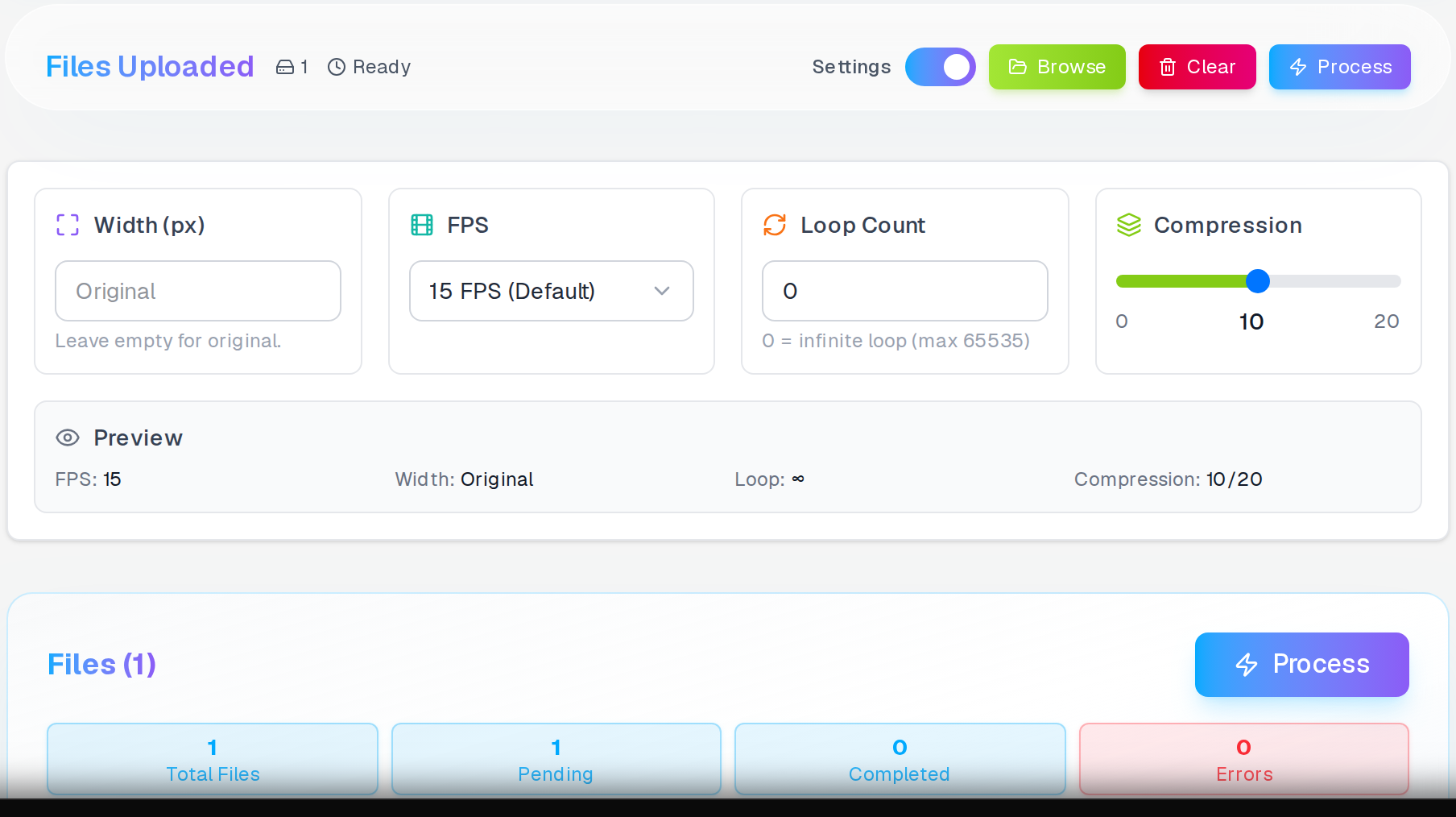
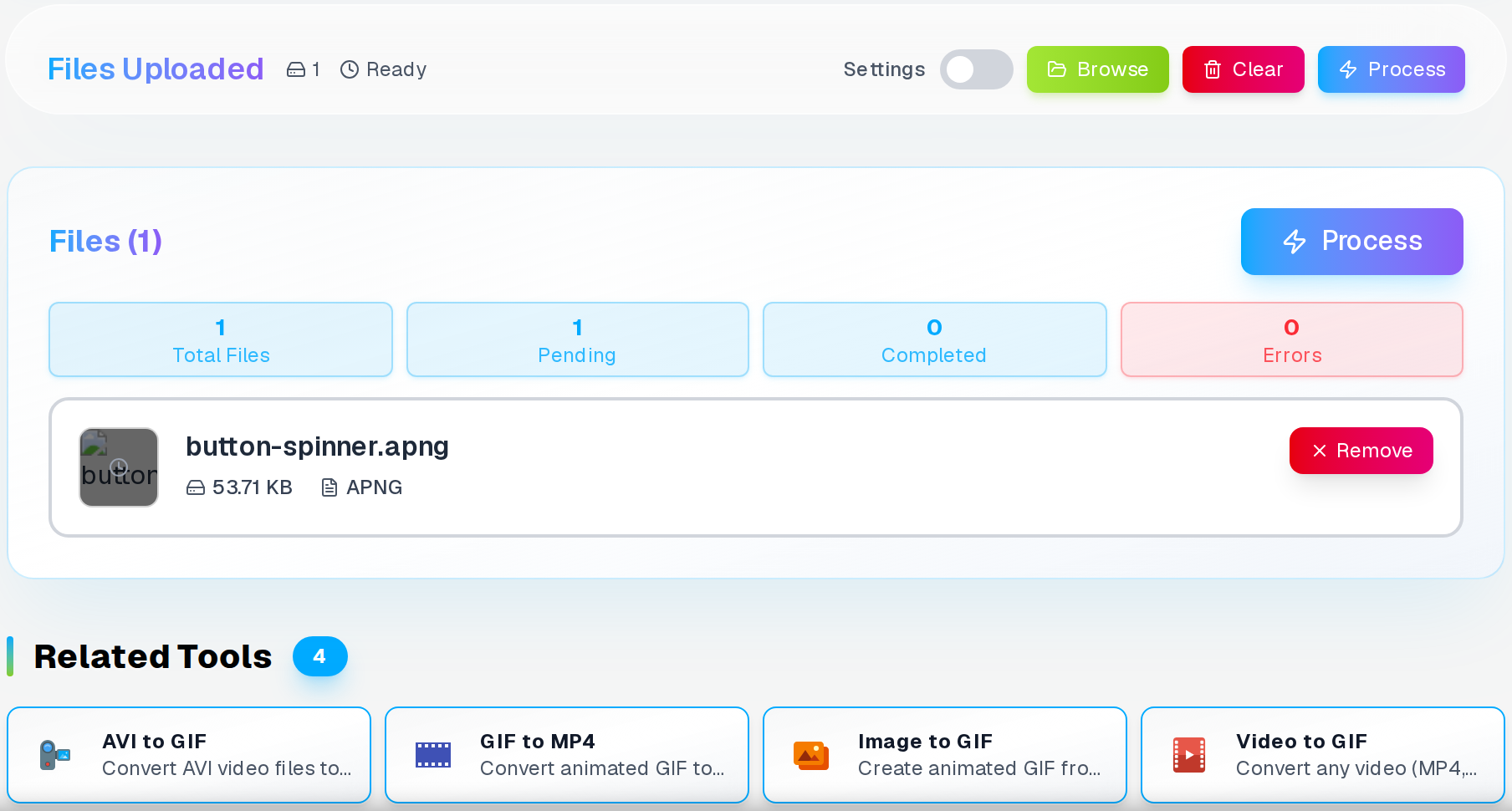
Here is what the tool looks like once it has read your APNG file — before any settings are touched.
What is APNG and Why Convert to GIF?
APNG stands for Animated Portable Network Graphics. Mozilla developed it in 2004 to fix what GIF got wrong: the 256-colour ceiling, 1-bit binary transparency, and inefficient compression. Each frame is stored as a full PNG with 24-bit colour and smooth alpha. Browsers that do not understand APNG simply show the first frame as a static image.
GIF is universal in a way APNG never quite reached. Platforms that technically support APNG still have edge cases: Discord renders it fine in the desktop client but not every browser version, Slack strips them in some notification contexts, and most email providers show only the first frame. For anything that has to work everywhere, GIF is the safe choice. If file size is a concern on a video platform, MP4 is a much better target.
Why Browser Compatibility Matters
Make GIFs even smaller?
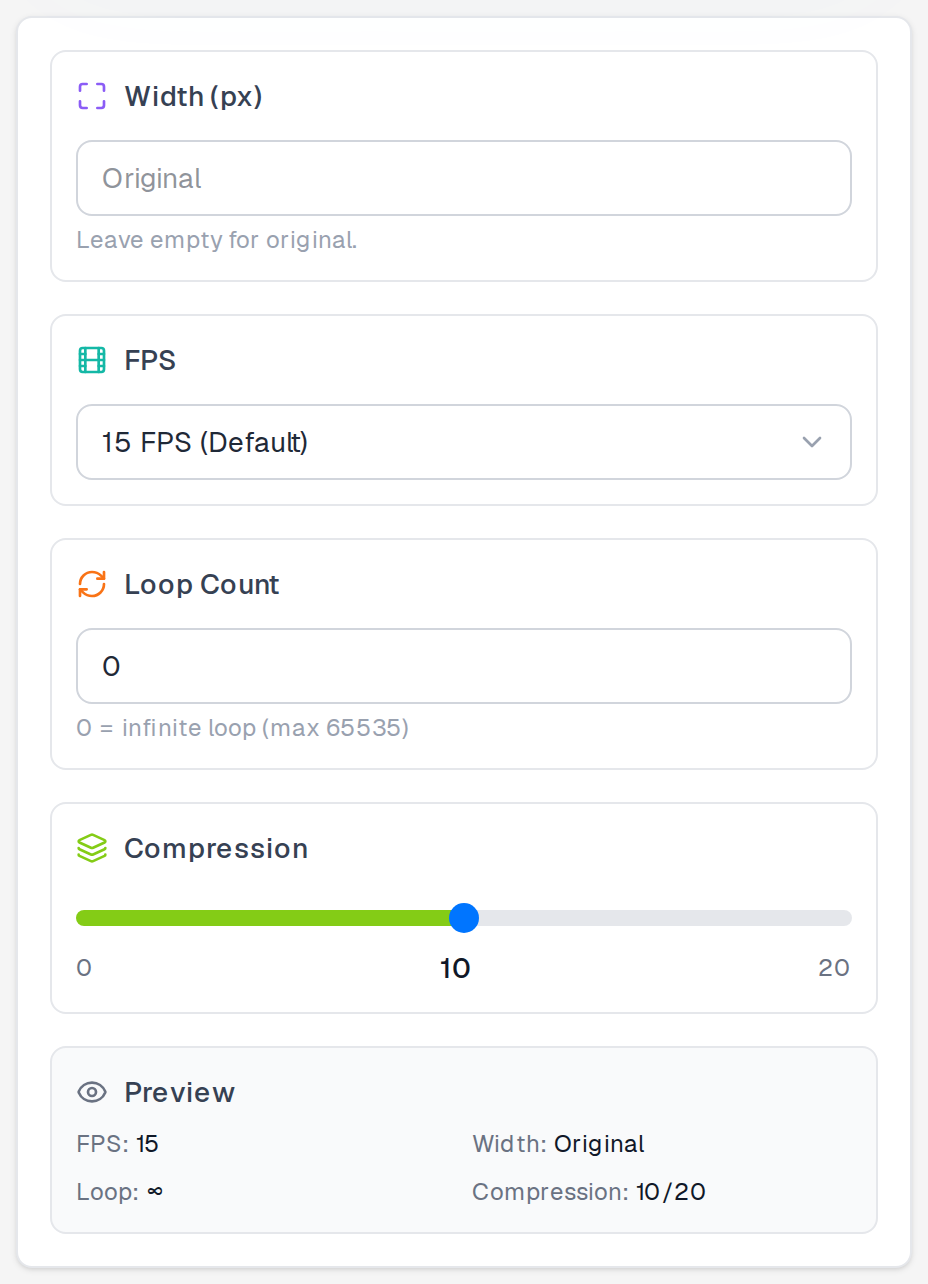
Opening the settings panel exposes the three controls that govern the output GIF.
Convert your GIF to MP4 — MP4 files are up to 60% smaller with far better image quality for video platforms.
GIF to MP4 →Chrome has supported APNG since version 59 (2017). Firefox shipped it earlier. Safari added support in version 8, but many WebKit-based apps and older iOS builds still lag. Internet Explorer never supported it. That sounds like ancient history until a client emails you saying their test users see a broken image.
Email is the worst case for APNG. Outlook on Windows renders via Word's engine and ignores anything animated that is not a GIF. Apple Mail on older macOS shows a static frame. Gmail handles it inconsistently by platform. The result: you spend time on an animation a large chunk of your list will never see move. GIF fails gracefully everywhere — the worst case is Outlook showing only the first frame, which you can design around.
How to Convert APNG to GIF
The converter runs entirely in your browser — your file never leaves your machine. Upload, adjust the settings that matter, and download.
APNG to GIF in Three Steps
- Drop or select your APNG file — frame count confirms immediately
- Open settings and set loop count, output width, and FPS to taste
- Hit Convert, then download when the size comparison appears
Conversion Settings Explained
Settings Card
Loop count — the most impactful toggle
For banner ads and email marketing animations, an infinite loop keeps the message cycling whether the viewer scrolls back or hovers. For instructional sequences, a single-play loop (1) feels intentional rather than repetitive.
The GIF spec supports loop counts up to 65 535. Values above a few hundred are indistinguishable from infinite in practice.
Width Control
Leave the width field empty and the output matches the source dimensions exactly. Enter a pixel value to resize — height scales automatically to keep the aspect ratio.
Halving the width quarters the file size — an 800px animation at 400px is roughly four times smaller. For general web use 480–640px is a reasonable range. For email, stay under 600px to fit most reading panes without horizontal scrolling.
Frame Rate (FPS) Options
FPS options run from 10 to 30. Each extra frame per second adds roughly proportional file size — 30 FPS is about three times heavier than 10 FPS for the same animation length.
For most UI animations — spinners, loaders, simple transitions — 15 FPS is indistinguishable from 24 to the human eye. Use 10 FPS only when you have a hard size limit, like email newsletters with a 500KB cap.
Loop Settings
Loop count 0 means infinite replay — the GIF cycles until the page closes. Any positive integer stops after that many plays. A count of 1 plays once and holds the last frame, useful for instructional sequences you only want to show a single time.
Banner ads and loading indicators almost always want infinite loops. Onboarding animations and feature callouts often land better at 2 or 3 — enough to catch the eye without becoming wallpaper.
Compression Control
Compression runs from 0 to 20. Zero keeps every pixel intact and produces the largest file. Twenty squeezes as hard as the format allows and may introduce dithering artefacts on gradients and blended colours.
For typical UI animations — spinners, icon hovers, loaders — values between 8 and 12 are visually identical to 0 at a fraction of the size. Start at 10 and only go higher if you have a hard size limit.
Common Use Cases for APNG to GIF Conversion
Create a GIF from images instead?
Turn a series of JPG or PNG frames into an animated GIF with custom speed, loop, and transition settings.
Email Marketing
GIF is the only animated format that renders consistently across Outlook, Gmail, Apple Mail, and every other major client. APNG simply will not animate in most of them.
Keep the file under 500KB if you can — some ESPs flag heavy attachments and mobile clients often stop loading past that threshold. Trim dimensions before touching compression; cutting width in half quarters the file size faster than any slider will.
Social Media Sharing
Twitter, Reddit, and most social platforms auto-convert GIFs to video on their back end anyway, so playback quality is largely determined by how cleanly the upload converts — and a standard GIF parses without issues everywhere.
Twitter caps uploads at 15MB, Reddit at 100MB for GIFs. In practice anything over 8MB feels sluggish on mobile. Resize width to 480px or below for social sharing and the size issue usually resolves itself without quality compromise.
Website Integration
For web use, neither GIF nor APNG is great for performance compared to a looping video element. That said, a well-optimised GIF at 480px with moderate compression is often smaller than its APNG equivalent, because LZW compression in GIF handles flat-colour frame transitions efficiently on simple graphics.
If performance matters, export two widths — full size for desktop and half size for mobile — and use a picture element or media query to serve the right one. The mobile version will typically be one-quarter the file size.
Quality vs File Size Balance
There is no single right setting because it depends entirely on what is in the animation. A spinning logo with two solid colours barely changes between compression 0 and 20. A UI screen recording with subtle gradients will look rough above 12.
The size comparison on the result screen is the fastest sanity check. If the output GIF is larger than the source APNG, the animation has too much per-frame variation for GIF compression to help — try reducing width or FPS first.
When APNG-to-GIF Output Looks Wrong
File Too Large
Width reduction is the most effective lever. Going from 800px to 400px cuts file size by roughly 75%. Dropping FPS from 30 to 15 halves the frame count. The compression slider helps last — useful but less dramatic than either of those.
If the animation runs more than 3 or 4 seconds, question whether it needs to. Looping animations read as seamless at 1.5–2 seconds; longer ones just bloat the file without adding much.
Quality Issues
If the output shows visible colour banding — flat bands where smooth gradients should be — that is the 256-colour ceiling of GIF, and no compression setting will fix it. The source has more colour variation than GIF can represent. Accept the trade-off or reconsider whether this animation suits GIF at all.
Flat vector-style animations — icons, loaders, simple UI feedback — convert to GIF cleanly. Photo-realistic content or anything rendered from a 3D engine will show colour artefacts that look fine in APNG and rough in GIF. That is a property of the format, not a flaw in the converter.
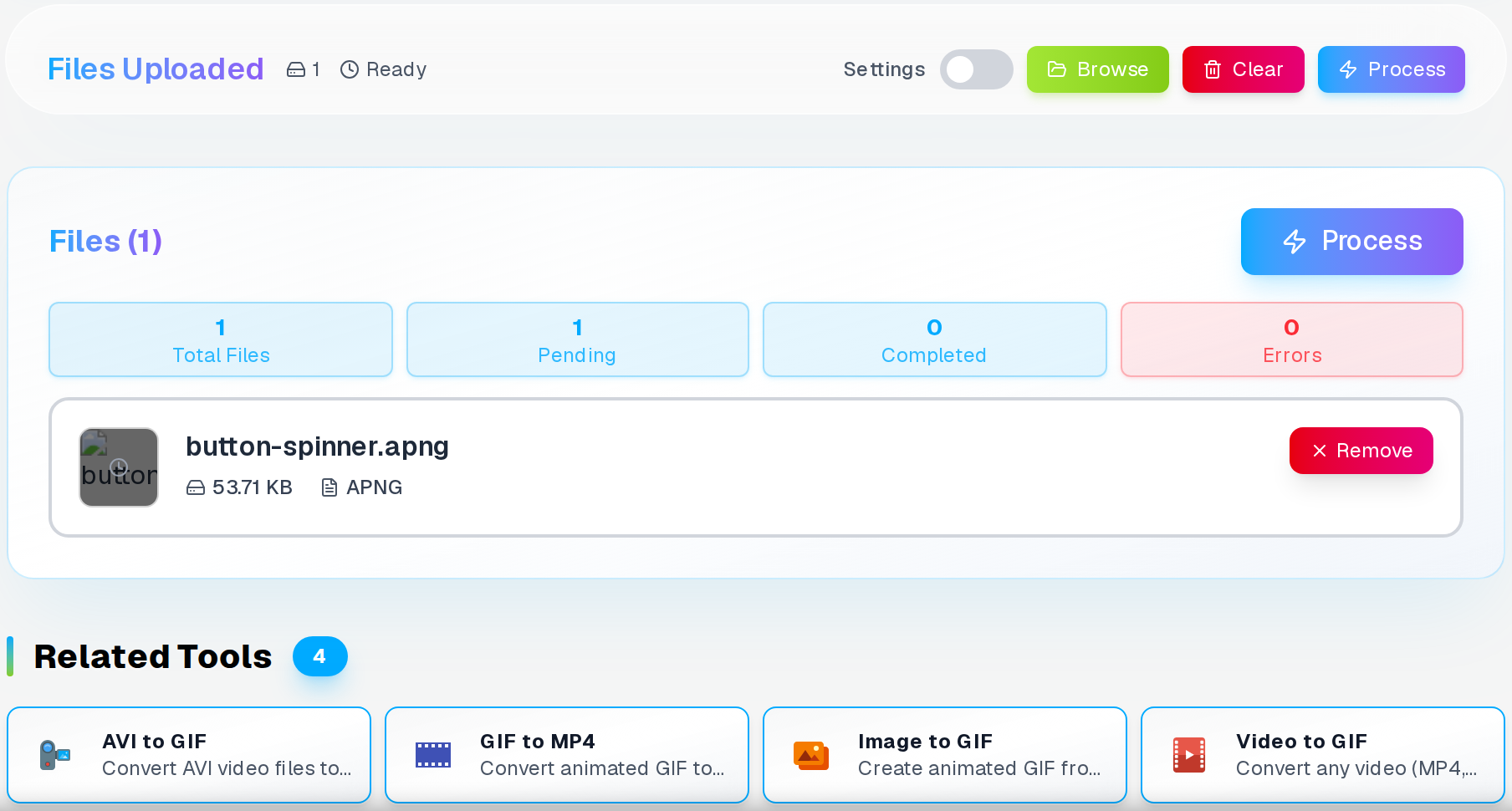
Once conversion finishes, the result screen shows original and output sizes side by side.
Frequently Asked Questions
Is APNG better quality than GIF?
Yes. APNG supports full 16-million-colour depth; GIF caps at 256.
Will converting APNG to GIF reduce quality?
Yes, and the reduction can be significant for complex graphics. APNG stores full 24-bit colour per frame; GIF builds a 256-colour palette for each frame from whatever colours appear most in that frame. Photos and gradients degrade visibly. Flat graphics — logos, icons, simple UI elements with solid fills — hold up much better because they already use a limited colour set. If your animation was created as flat artwork rather than rendered from video or photos, the quality drop in GIF will be small enough that most people will not notice.
What's the maximum file size for GIF conversion?
Large APNG files are fine to process, but most platforms prefer GIFs under 10MB. If the output is still too large, reducing the width or frame rate is more effective than adjusting compression.
Can I convert multiple APNG files at once?
Currently, our tool processes one file at a time to ensure optimal quality control. This allows you to fine-tune settings for each animation individually.
Do you store my uploaded files?
No, all conversion happens in your browser. Files are automatically deleted after conversion and we never store or access your content.
Want better quality than GIF?
Convert your APNG to APNG quality format — GIF to APNG gives you millions of colours and smooth transparency.
Related Articles
Add Page Numbers to PDF Free, No Sign-Up
Learn how to add professional page numbers to your PDF documents without any registration, watermarks, or hidden fees. Complete guide with customization options.
Read articleConvert PDF Tables to Excel, Editable and Free
Convert PDF documents to Excel spreadsheets online free. Keep rows, columns, and formulas accurate. Extract tables from PDFs to editable XLSX format instantly.
Read article
Resize Images for Instagram, Amazon, Shopify - Free Online Image Resizer
Resize photos without losing quality using advanced algorithms. Professional image resizing for social media, e-commerce, and web with smart presets and batch processing capabilities.
Read article