
iPhone HEIC Photos to PDF: Bundle Multiple Shots Into One Document
HEIC is Apple's default photo format since iOS 11 — efficient for storage, awkward for submissions. Here is how to turn those photos into a single PDF without installing any app.
I took photos of a repair receipt on my iPhone for an insurance claim. The insurer's portal accepted PDF, JPG, and PNG — HEIC was not listed. My laptop is Windows, which at the time could not open HEIC without a paid codec. I spent twenty minutes finding a workaround. The actual conversion, once I had the right tool, took under three minutes.
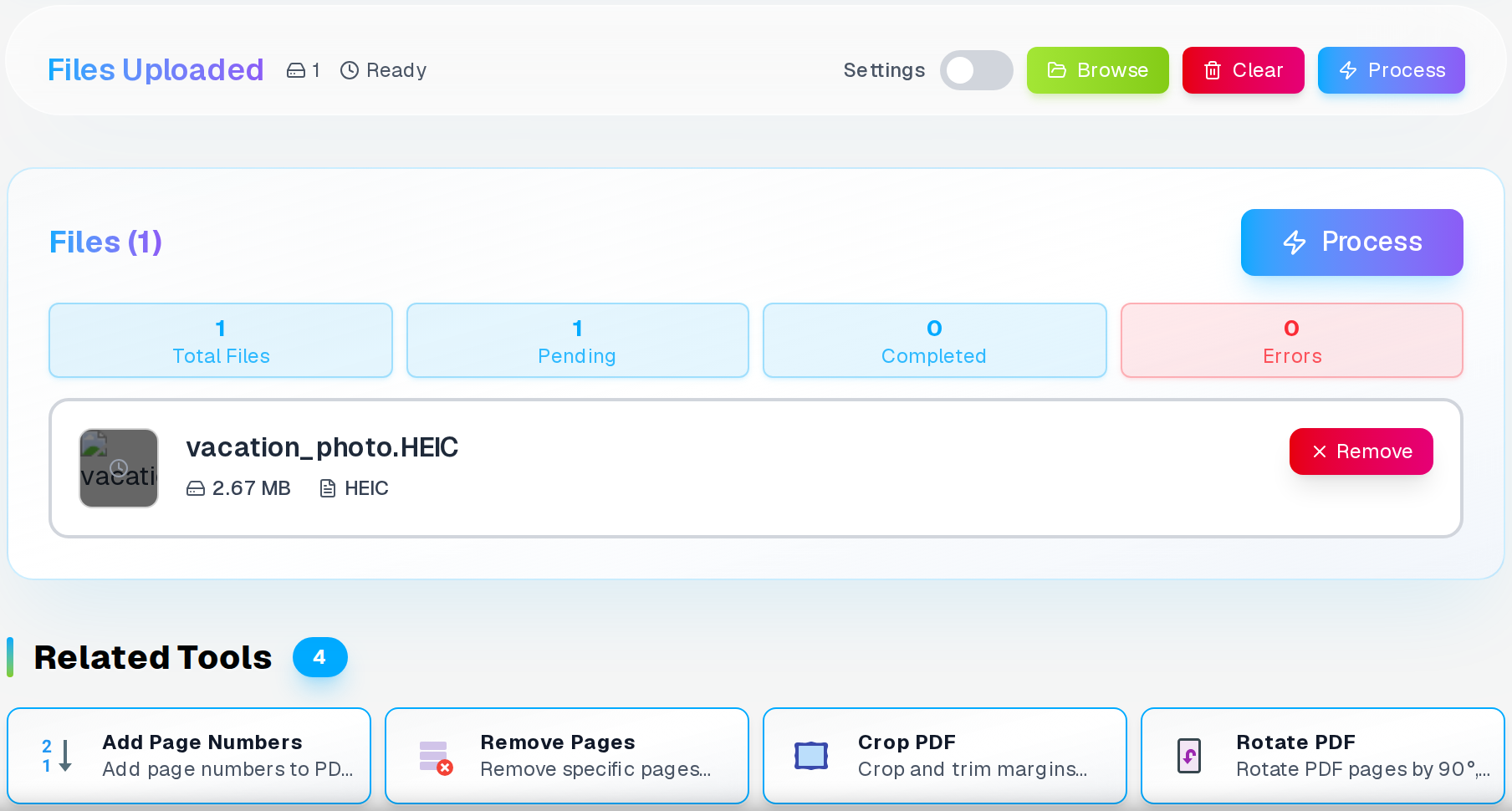
The HEIC to PDF converter runs in a browser tab. Drag in the HEIC files, pick the page size and quality, download the PDF. Your photos never touch a server.
Why HEIC Creates Compatibility Problems
HEIC produces files roughly half the size of an equivalent JPEG at the same visual quality — great for iPhone storage, problematic everywhere else. Windows needs a paid codec to open it. Most upload portals, government systems, and document review tools do not accept it. PDF, by contrast, is universally understood and can bundle multiple photos into one submission-ready file.
Standard vs Optimized Quality
Standard mode uses 90% quality with moderate compression — sharp output suitable for email and form uploads. Optimized mode uses 95% quality with less compression, producing crisper images at roughly double the file size. For documents that will be printed or examined at high zoom, use Optimized. For portal submissions with file size limits, Standard is the sensible choice.
Ordering and Page Size
Upload multiple HEICs and drag the thumbnails into the order you want before converting. Each photo becomes one page. A4 and Letter are the standard page size options for submissions. “Match image” creates pages at the exact photo dimensions if you prefer no margins.
Adding a Password
For sensitive photos — medical images, identity documents — you can set an open password on the output PDF. Anyone receiving the file will need that password to view it. Store it in a password manager before sending; there is no recovery mechanism.
Frequently Asked Questions
Are my photos uploaded to a server?
No. All processing happens in your browser. Photos never leave your device. Only the PDF you choose to download goes anywhere.
Can I convert HEIC files from an iPad?
Yes. iPads running iOS 11 or later also default to HEIC for Camera app photos. The converter handles HEIC from any Apple device.
Why is the converted PDF larger than the original HEIC files?
HEIC uses very efficient compression. Converting to PDF — which stores images in JPEG format internally — produces a larger file even at the same perceived quality. If the PDF is too large for a submission portal, use Standard quality mode or reduce image dimensions before converting.
Does metadata like GPS location transfer to the PDF?
No. EXIF metadata (GPS, date, camera settings) is not embedded in the PDF output. Only the image pixels are included.
No app needed · Photos stay on your device · Instant download
Need individual JPEG files from those same HEIC photos? The HEIC to JPG converter handles that in the same browser-based way.
Related Articles
Convert WebP to JPG Fix Images That Won't Open
Convert WebP images to JPG format for universal compatibility. Fix images that won't open in older software. Free online converter with background removal.
Read articleConvert iPhone Photos to JPG for Any Device
Convert iPhone HEIC photos to JPG format with AI background removal, custom dimensions, and quality control. Batch convert, no quality loss. Works on all devices.
Read articleEdit PDF Online Free - Professional PDF Editor Without Adobe or Sign-Up
Edit PDF documents online with advanced text editing, drawing tools, shape insertion, image manipulation, and page management. Professional-grade PDF editor with Microsoft Word-style interface running entirely in your browser.
Read article