
No signup · Landscape orientation fix · Free
Convert Excel to PDF Without Cutting Off Columns - Free Tool
I sent a quarterly budget to a client as PDF and three columns on the right were cut off entirely — the landscape orientation setting here fixed every export after that and all columns were visible. The fix is landscape orientation and fit-to-page — two settings that prevent the right edge cutoff. Wide spreadsheets become readable PDFs without manual column resizing.
This is the tool after the spreadsheet is accepted — sheet count and column widths are read before layout options appear.
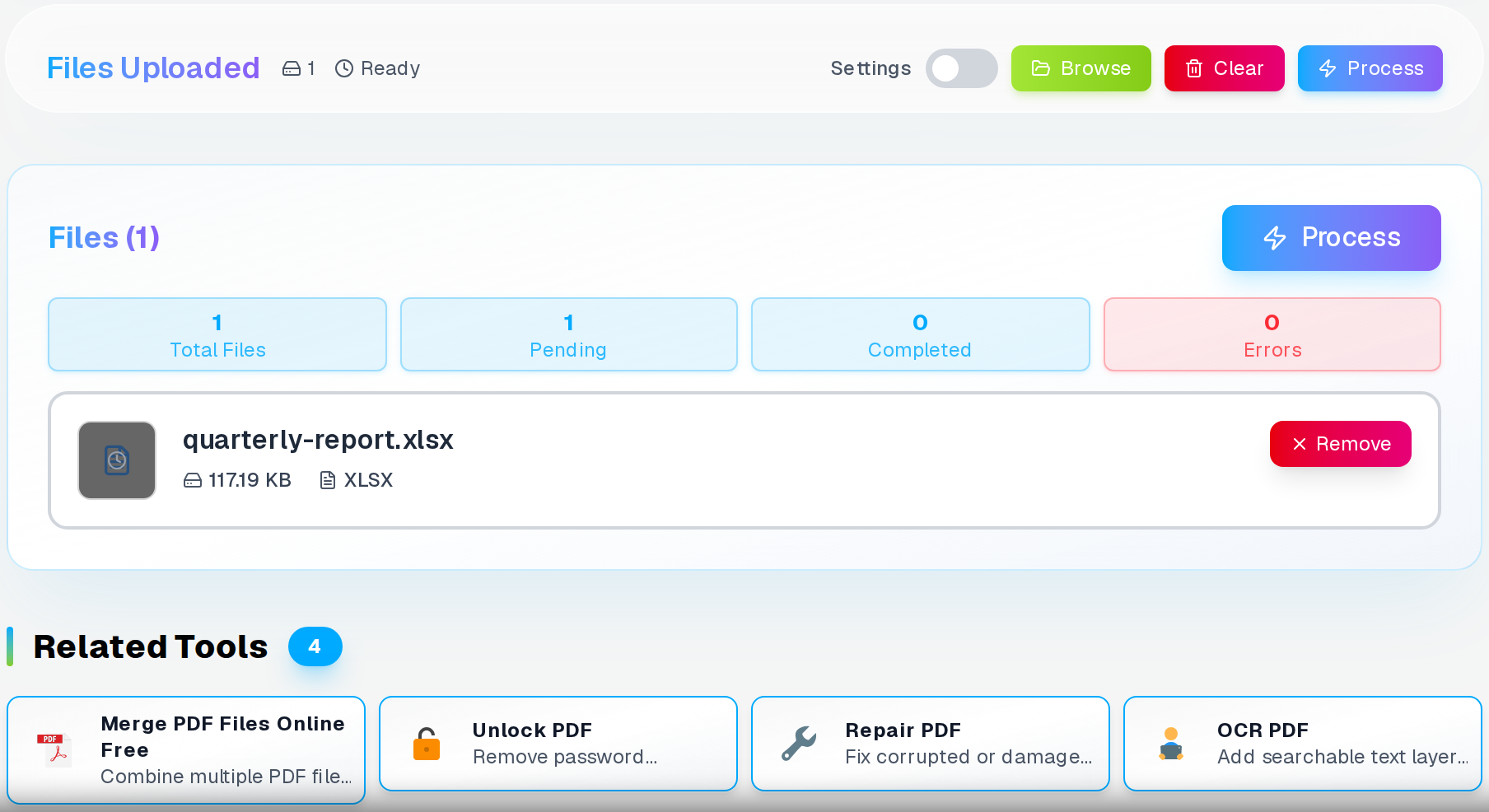
The fix is landscape orientation and fit-to-page — two settings that online converters often ignore. These controls let you tell the converter exactly how to handle wide data, so nothing gets cut off. cramped data.
Why Excel Files Need PDF Conversion
Excel files cause problems when you need to share data professionally. Not everyone has Microsoft Excel installed. Even worse, different Excel versions can mess up your formatting and formulas.
PDF solves these issues permanently. You can also password-protect the PDF to prevent unauthorized access to sensitive financial data. Your spreadsheet becomes a locked document that displays identically on every device. Recipients see your data exactly as you designed it.
PDFs also prevent accidental editing. Important financial reports and data summaries stay protected from unwanted changes.
The Column Cut-Off Problem
Need the PDF back in Excel?
Three settings prevent the most common PDF-from-Excel problem: columns cut off at the page edge.

Convert any PDF with tables back into an editable Excel spreadsheet — no manual re-entry needed.
PDF to Excel →Most Excel to PDF converters use portrait orientation by default. This works fine for narrow spreadsheets with 5-6 columns.
But wide spreadsheets with 10+ columns get butchered. Columns get cut off at the page edge. Data becomes unreadable. Recipients cannot see your complete analysis.
This converter detects wide spreadsheets automatically. It switches to landscape orientation when needed. Every column stays visible in the final PDF.
Common Spreadsheet Problems
- Financial reports with cut-off totals and calculations
- Project timelines missing critical deadline columns
- Sales data with hidden commission and performance metrics
- Budget sheets where expense categories disappear
- Inventory reports missing stock level information
How to Convert Excel to PDF
Converting your Excel spreadsheet takes just four simple steps. The tool handles both XLS and XLSX file formats automatically.
- Upload your Excel file: Click the upload area or drag your XLS/XLSX file directly into the converter
- Choose settings: Select page size (A4, Letter, Legal) and orientation (Portrait or Landscape)
- Convert: Click the Convert button and wait for processing to complete
- Download: Save your PDF file with all columns properly displayed
The converter processes most files in under 30 seconds. Large spreadsheets with complex formulas might take up to two minutes.
Page Size and Orientation Options
The converter offers three standard page sizes to match your printing needs and regional preferences.
Page Size Options
- A4: Standard international format (210 x 297 mm)
- Letter: US standard format (8.5 x 11 inches)
- Legal: US legal format (8.5 x 14 inches)
Orientation Settings
Portrait orientation works best for narrow spreadsheets with 6 columns or fewer. The data fits naturally without compression.
Landscape orientation handles wide spreadsheets perfectly. Columns that would get cut off in portrait mode display clearly across the wider page.
Where Excel-to-PDF Actually Gets Used
Settings Card
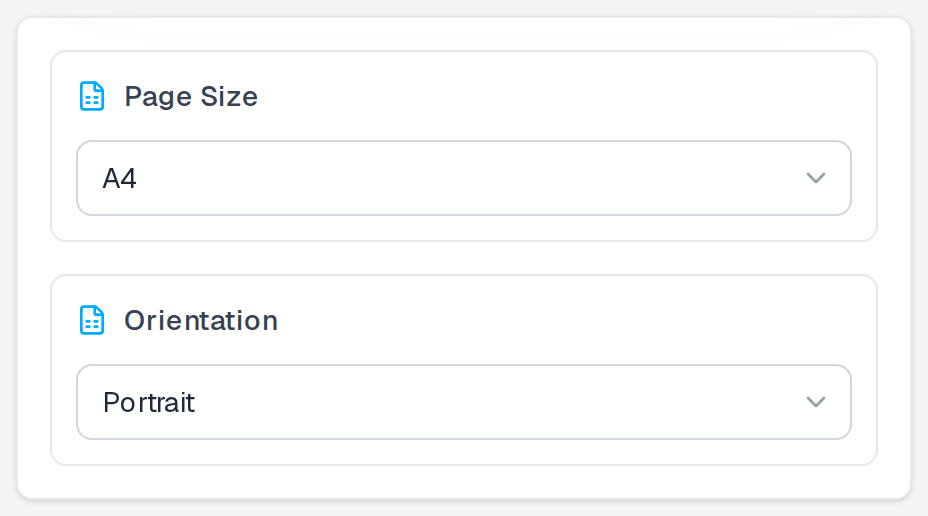
Page and orientation — the column-preservation controls
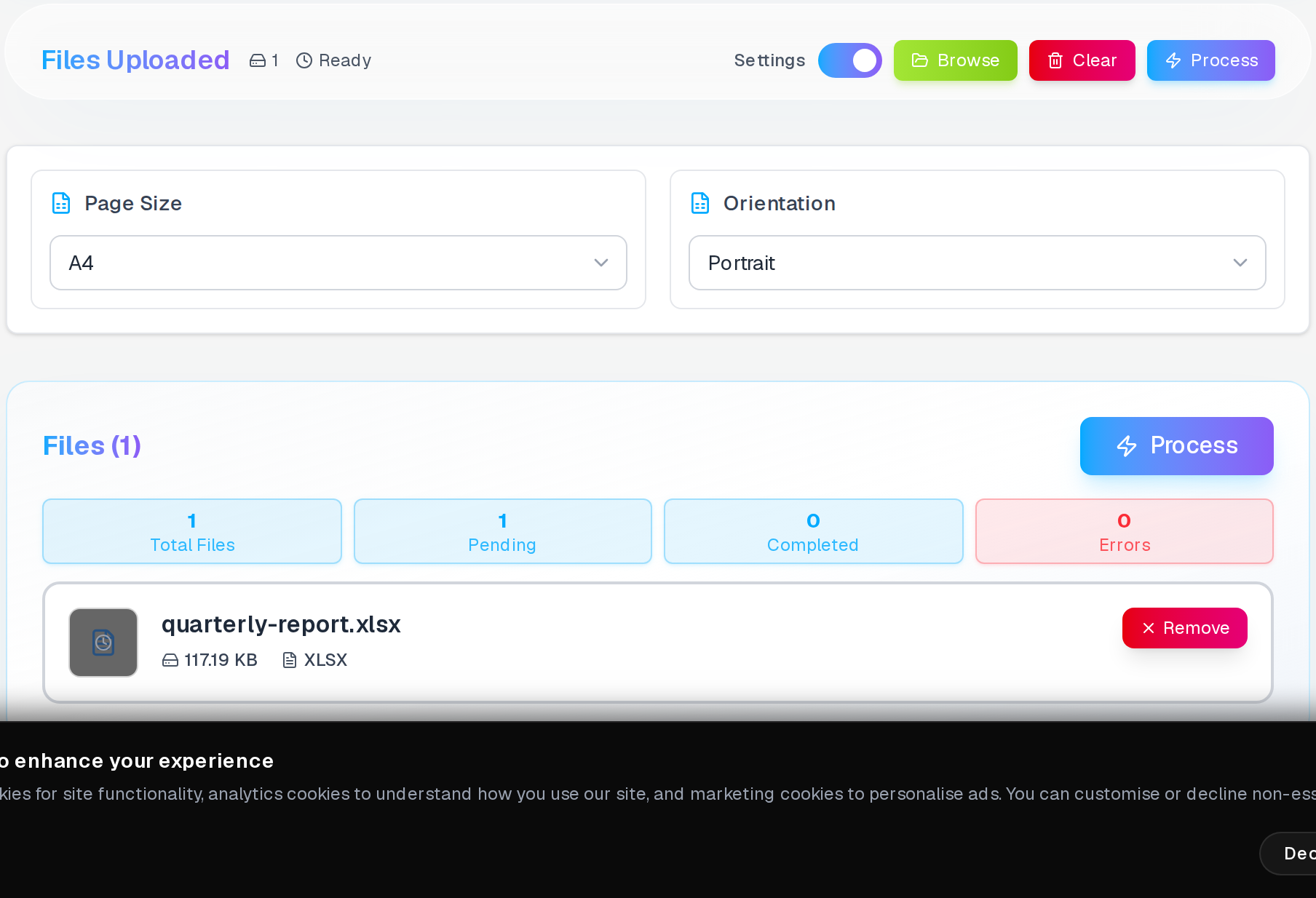
The settings panel has three controls that directly determine whether your columns fit. Page size (A4, Letter, Legal) sets the physical canvas. Orientation (Portrait or Landscape) rotates it. Auto-scale shrinks column widths just enough to fit everything onto the page without truncation.
For spreadsheets with more than 8 columns, switch to Landscape first. If columns still overflow, enable Auto-scale. Legal paper (8.5 × 14 in) gives you extra horizontal room without the small-font penalty of aggressive scaling.
I sent a 14-column budget spreadsheet as a PDF to a client using the default Excel export. Column N was cut off on every page. The client printed it out and spent 20 minutes trying to reconcile numbers that were literally missing from the printout. Converting the same file with automatic landscape orientation showed all 14 columns.
Protect your financial PDF?
Add a password to your converted spreadsheet PDF so only authorised recipients can open or print it.
Financial Reporting
Monthly financial reports with multiple quarters of data. All numbers and totals stay visible when shared with stakeholders.
Project Management
Project timelines with task names, dates, assignees, and status columns. Teams see the complete project overview.
Sales Analytics
Sales performance sheets with rep names, territories, quotas, and commission calculations. Nothing gets hidden from management.
Inventory Management
Product catalogs with SKUs, descriptions, quantities, costs, and supplier information. Warehouse teams access all critical data.
What Gets Preserved in PDF
The conversion process maintains all your spreadsheet formatting and structure. Your PDF looks professional and remains fully readable.
Data and Text
All cell values, labels, headers, and calculated results transfer perfectly
Cell Formatting
Colors, borders, alignment, and font styles remain exactly as designed
Column Structure
Column widths and row heights maintain proper proportions and spacing
Elements Not Included
Interactive Excel features do not transfer to PDF since it becomes a static document. This includes formulas, macros, and pivot table functionality.
However, all calculated values appear in the PDF exactly as they displayed in Excel when you converted the file.
File Size and Quality
PDF file sizes depend on your spreadsheet complexity and the amount of data it contains.
- Simple data sheets: Usually produce small PDFs under 500KB
- Complex formatting: May create slightly larger files but still very manageable
- Large datasets: Scale proportionally but remain much smaller than the original Excel file
What Happens to Your Data During Conversion
This converter works in all modern web browsers without requiring plugins or extensions. Chrome, Firefox, Safari, and Edge all handle the conversion process smoothly.
Your files process entirely within your browser for maximum security. No uploads to external servers during conversion.
The tool deletes all file traces when you close the browser tab. Your sensitive business data never gets stored or accessed.
After conversion, the result screen shows how far the file shrank — most spreadsheets compress well into PDF.
Frequently Asked Questions
Will all my columns show up in the PDF?
Yes. Wide sheets switch to landscape automatically.
Do formulas work in the converted PDF?
No — PDFs store printed values, not live formulas. You will get the numbers your formulas produced at the time of conversion, and those numbers are correct. But the underlying logic is gone. If someone opens the PDF and tries to verify a calculation, they are reading output, not a working spreadsheet. This is the expected behaviour for every Excel-to-PDF tool, not a limitation specific to this one.
Can I convert password-protected Excel files?
No, password-protected Excel files cannot be converted. You must remove the password protection in Excel first, then upload the unlocked file for conversion.
What is the maximum file size I can convert?
The converter handles Excel files up to 25MB in size. This covers most business spreadsheets comfortably. Larger files may need to be simplified before conversion.
Does this work with Google Sheets files?
No, this tool only converts Excel files (XLS and XLSX formats). To convert Google Sheets, first download them as Excel files from Google Sheets, then use this converter.
Need to add page numbers to your report PDF?
Stamp page numbers onto your converted Excel PDF in any position and style for professional distribution.
Related Articles
Convert SVG to JPG for Social Media Posts - Keep Quality Sharp
Convert SVG vector graphics to JPG images online free. Perfect for social media, web use, and sharing. Control resolution and quality. Works in browser, no signup required.
Read articleRemove Pages From PDF Free to PDF Page Deletion
Remove unwanted pages from PDF documents instantly. Delete specific pages, ranges, or multiple selections with interactive thumbnails. Learn performance benchmarks, troubleshooting tips, and browser compatibility requirements for professional PDF page removal.
Read articleConvert GIF to APNG for Better Color Quality - Fix Color Banding Free
Convert GIF to APNG online free. Fix color banding and poor color quality in animations. APNG supports millions of colors vs GIF 256 limit. Better transparency and quality.
Read article