
No signup required • Works in your browser • All encryption types supported
How to Remove PDF Password Protection and Restrictions
Locked PDFs you legitimately own are a genuine annoyance — you can't print, copy, or edit them even though they're your documents. Modern tools handle RC4, AES-128, and AES-256 encryption to restore full document access. Once access is restored, you can merge the file with other PDFs or edit its contents directly without extra steps.
The two types of PDF passwords behave differently. A user password locks the file entirely — you need it just to open the document. An owner password restricts what you can do with an open file: printing, copying, editing, or form filling. Below are the details on both types and which can be removed.
Understanding PDF Password Types and Encryption Standards
There are two distinct types of PDF passwords. A user password (sometimes called an open password) prevents the file from opening at all — you need to enter it before you can view anything. An owner password restricts what you can do with an already-open document: printing, copying text, editing, filling forms. You can see the document but can't do much with it.
Owner password restrictions can be removed without knowing the actual password — the tool modifies the permission flags in the file's metadata. This is how "unlock PDF" tools work and why they work without asking you for a password. It's not cracking anything; it's just clearing the restriction flags on a file you legitimately own.
User passwords are different. To remove an open-file password, you have to know it. The tool asks you to enter the password, decrypts the file, and saves a copy without the password requirement. There's no way around this — a strong AES-256 user password that you don't know can't be removed.
RC4 40-bit (used in old PDFs pre-2000), RC4 128-bit, AES-128, and AES-256 are the four encryption types you'll encounter. All four can be removed if you know the password. Owner restrictions can be removed on all four without a password.
| Password Type | Access Level | Removal Method | Processing Time |
|---|---|---|---|
| User Password | No access | Requires correct password | 3-25 sec/document |
| Owner Password | View only | Direct removal | 0.1-0.5 sec |
| Mixed Protection | Limited access | Password + direct removal | 5-30 sec/document |
Encryption Algorithm Analysis and Performance Benchmarks
Upload your protected PDF and the tool detects the encryption type automatically.
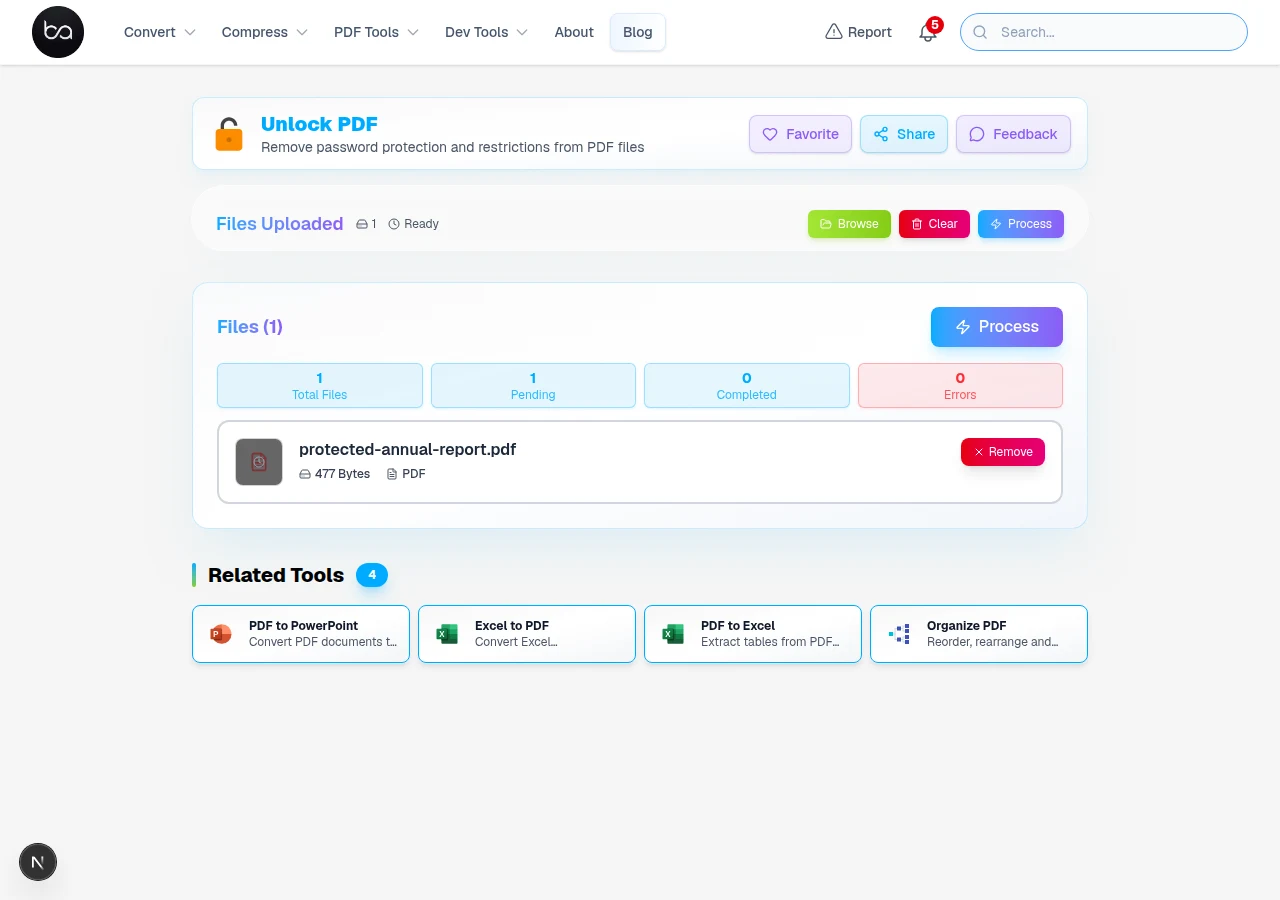
PDF encryption comes in several versions. Older documents use 40-bit or 128-bit RC4 — legacy standards that are faster to process but considered weak by modern security standards. Newer PDFs typically use AES-128 or AES-256, which are the current standard for properly protected documents. The tool handles all of these automatically.
The important distinction from a user's perspective: RC4-encrypted files (the older standard) are weaker cryptographically and easier to unlock given the right password. AES-256 is the strongest protection level in common use — if you have a document with high-security encryption, ensure you have the correct password before starting.
All decryption runs locally in your browser. No file content is sent to any server during the unlock process.
| Encryption Type | When Used | Security Level |
|---|---|---|
| 40-bit RC4 | Older PDFs (pre-2000s) | Weak (legacy) |
| 128-bit RC4 | Acrobat 5–8 era | Moderate |
| AES-128 | Acrobat 7+ era | Strong |
| AES-256 | Current standard | Very strong |
When PDF Unlock Fails in Your Browser
When a password-protected file is detected, a prompt appears to enter the password before unlocking.
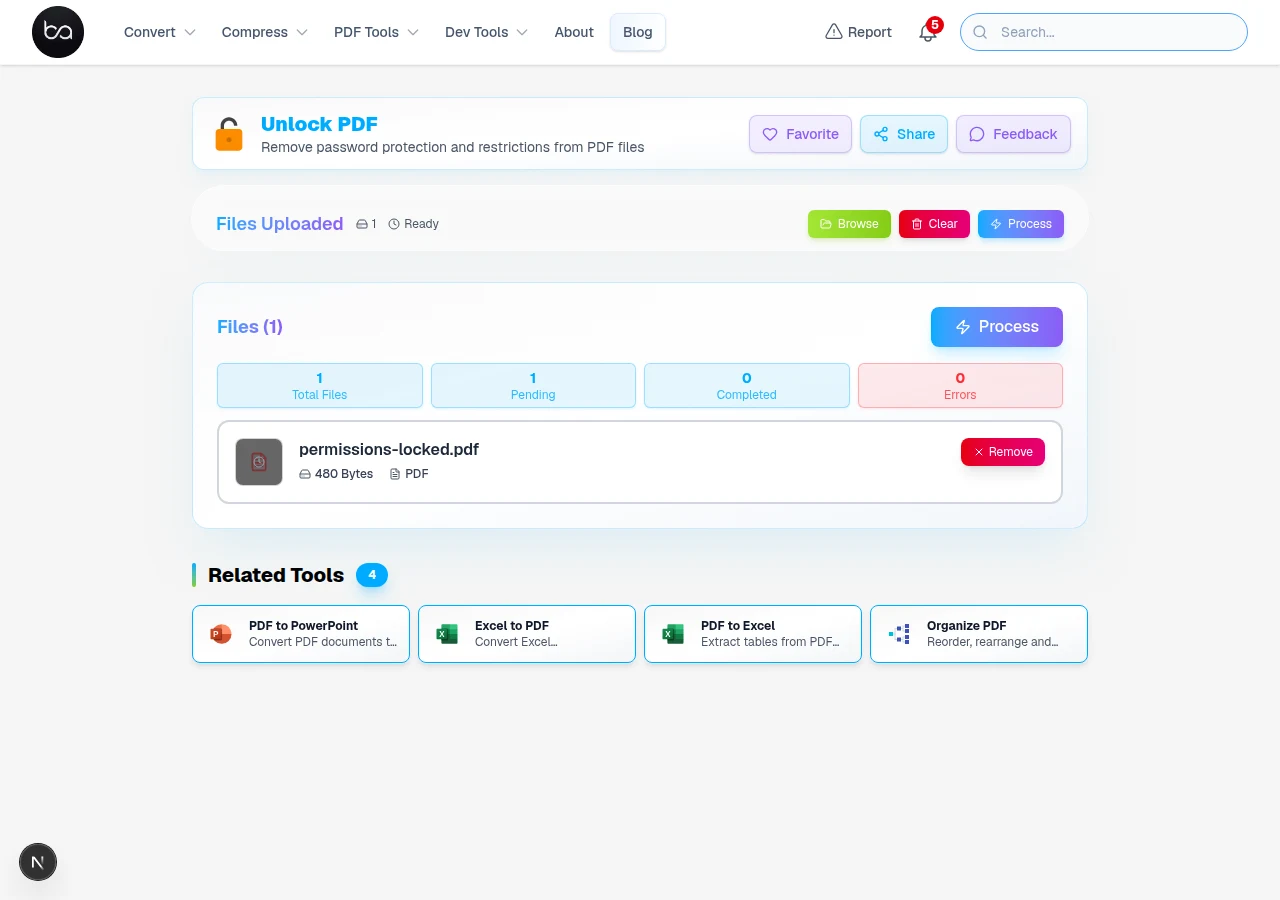
The unlock tool runs entirely in your browser — the file is never uploaded to a server. Chrome and Edge are the most reliable browsers for this. Firefox works well too. Safari handles most files correctly but can be slower with large AES-256-encrypted documents.
On mobile, the tool works for standard business documents. For very large files with complex encryption, a desktop browser gives you more memory to work with and generally completes faster.
Memory requirements scale with file size. A typical 5–20MB business document processes without issue on any modern device. Files over 100MB may benefit from having other browser tabs closed to free up available memory.
The tool loads its processing library locally. After the page is loaded, the actual unlock operation works offline — no network connection needed for the decryption step itself.
- Chrome and Edge are fastest and most reliable for unlocking
- Firefox is a good alternative with consistent results across file types
- Safari works for most files; may be slower on large AES-256 encrypted documents
- Mobile browsers work fine for smaller documents; use a desktop for large files
- All processing is local — the file never leaves your browser
- After the first page load, unlocking works without a network connection
Done unlocking? Consider re-securing it.
Set a new password to make sure only authorized people can open or modify the document going forward.
When PDF Unlock Errors Block You
If you get "Invalid password," the most common reason is a case error. PDF passwords are case-sensitive. Try retyping rather than copy-pasting — some apps add a space when you copy from a password manager. Spaces at the start or end of the password are invisible and will cause a mismatch.
If the file opens in your PDF reader but throws an error in the unlock tool, the PDF may have non-standard encryption or be generated by software that doesn't follow the spec precisely. Try opening and re-saving it in Adobe Acrobat or Chrome's print-to-PDF, then run the unlock on the new file.
Browser freezing or crashes on large files usually means the browser ran out of memory. Close every other tab you have open, force-reload the unlock page, and try again. On a machine with limited RAM, process one file at a time.
Timeouts on very large or complex files are rare but happen. If the progress bar stalls for more than a few minutes, reload and try again. If the same file consistently times out, try it in Chrome if you're on another browser — Chrome typically has better memory handling for large file operations.
Very old PDFs (version 1.2 and earlier, created in the late 1990s) occasionally use encryption methods that aren't well-supported by browser-based tools. If you have one of these, desktop tools like Adobe Acrobat or PDF-XChange Editor are more reliable for legacy format handling.
- Check the password is exactly right — case matters, and invisible spaces cause mismatches
- If the file also seems corrupted, run the PDF repair tool first, then try unlocking
- Close other tabs to free memory before processing large files
- For owner-restriction-only files, no password is needed — just drop it in and it unlocks
- If one browser fails, try Chrome — it tends to have the best memory handling
- Very old PDFs (pre-2000) may need a desktop tool like Acrobat if browser-based tools don't work
Security Implications and Privacy Considerations for PDF Unlocking
All processing runs locally in your browser. The password you enter and the document content never leave your device — there's no server-side component that handles the decryption.
On the legal side: removing restrictions from a PDF you own or created is straightforwardly legal. Removing an open-file password from a document you legitimately own is also legal. What's not legal is using these tools to access documents you don't have authorization to view.
For work documents: if you're removing restrictions on a file your employer or a client sent you, check whether that's permitted. Some organizations have policies requiring documents to remain locked. When in doubt, ask the document owner to send an unrestricted version rather than unlocking it yourself.
For sensitive documents (medical, financial, legal): once you've unlocked a file, treat it carefully. The encryption was presumably there for a reason. Unlock it for the task you need, then either re-encrypt it or be deliberate about where you store the unlocked copy.
In regulated environments (healthcare, finance, law), document access and modification often needs to be logged. Browser-based tools don't create an audit trail. If your environment requires that, use your organization's document management system instead.
File unlocked and ready to use? You can now combine it with other PDFs into a single document. Merge PDFs for free
Frequently Asked Questions
Can I unlock a PDF without knowing the password?
Yes, if the PDF has owner password restrictions (you can view but cannot print, copy, or edit), you can remove these restrictions without knowing the password. User passwords that prevent opening the document require the correct password for unlocking.
What types of PDF encryption can be unlocked online?
All standard PDF encryption types can be handled: 40-bit RC4 (legacy), 128-bit RC4, AES-128, and AES-256. For owner restrictions, no password needed. For open-file passwords, you must supply the correct password.
Is browser-based PDF unlocking secure for sensitive documents?
Yes — the file never leaves your browser. The password you enter and the document content are processed locally, not on a server. Nothing is uploaded or logged.
Why does my PDF unlocking fail with large documents?
Large files need more browser memory. Close all other tabs first and try again. If it still fails, try Chrome — it generally handles large file operations more reliably than other browsers.
What browsers work best for PDF password removal?
Chrome and Edge are the most reliable. Firefox is close behind. Safari works for most files. All are fine for standard business documents — only very large or unusual encrypted files show meaningful differences between browsers.
File unlocked — ready to update the content? Jump straight into the PDF Editor to rewrite text, add annotations, or insert images. Edit PDF
Related Articles
Convert SVG to PDF for Print-Ready Files - Keep Vector Quality at Any Size
Convert SVG vector graphics to PDF documents online free. Perfect for printing, professional publishing, and universal compatibility. Maintains vector quality at any size.
Read articleHow to Crop PDF Pages: Remove Margins and Trim Documents Online
Learn how to crop PDF pages to remove unwanted margins, trim scanned documents, and resize PDF content using professional online tools. This guide covers three different cropping methods with real performance data and troubleshooting tips for common PDF margin problems.
Read articleConvert GIF to MP4 for Smaller, Sharper Files - Free Online Tool
Convert GIF to MP4 online free. Make animated files 60% smaller with better quality. MP4 supports modern codecs and plays everywhere. No upload limits.
Read article