
PDF to JPG: Export Pages as Images Without Losing Sharpness
Blurry PDF-to-image conversions come from low DPI settings, not from the conversion itself. Below are the quality settings that matter, when to use JPEG vs PNG vs WebP, and how batch download works.
A client asked me to supply slide images from a presentation PDF so they could use individual slides in a CMS that only accepted images. I used a free online tool, downloaded the results, and discovered every page was 72 DPI — technically a JPEG but completely unusable for anything larger than a thumbnail. The second tool I tried let me set 150 DPI per image, which produced sharp, usable outputs that looked identical to the original slides at full screen.
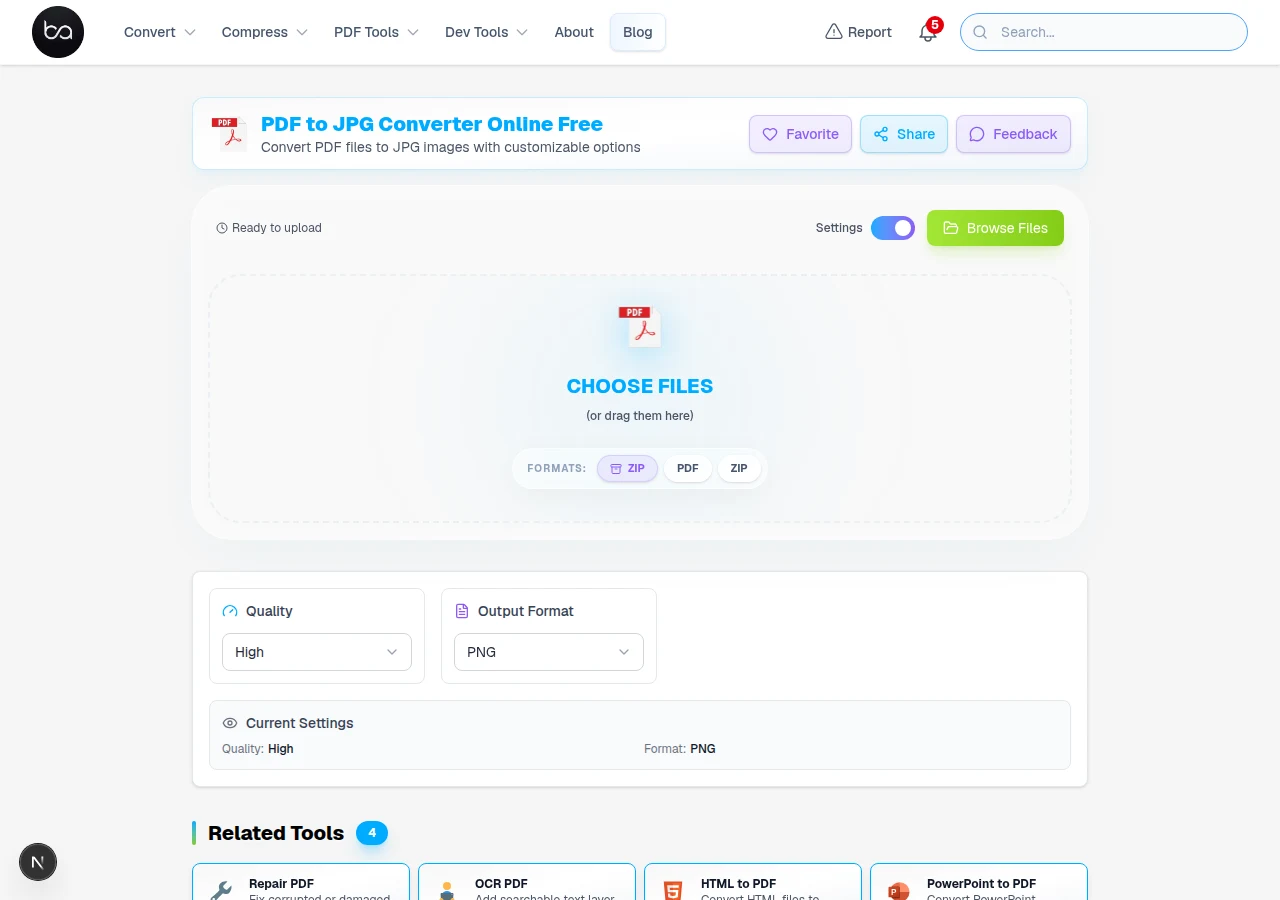
Blurriness in PDF-to-image conversion always comes from the DPI setting. The PDF to JPG converter offers three quality modes that control rendering resolution, so you can match the output to whatever you are going to do with the images.
The Three Quality Modes
Standard renders pages at 96 DPI. Adequate for web thumbnails or preview images where file size matters more than sharpness. High renders at 150 DPI, which produces sharp images for most on-screen uses and standard print sizes up to A4. Ultra renders at 300 DPI, appropriate for large-format print or when the image needs to stay sharp at significant zoom. Higher DPI means larger files — an A4 page at 300 DPI produces a much larger JPEG than at 96 DPI, so choose the setting that matches your actual use case.
Output Format: JPEG, PNG, or WebP
JPEG is the right choice for most uses: photographs, presentations, documents with lots of imagery. It produces the smallest files and is supported by everything. PNG is lossless and produces sharper results for documents with fine text and thin lines, because JPEG compression can create visible artefacts around sharp edges at lower quality settings. Use PNG when the document has detailed diagrams, small text, or technical drawings that need to look exactly right. WebP offers the best compression-to-quality ratio of the three and is ideal for web use, but older applications and email clients may not support it.
Batch Conversion and Download
For multi-page PDFs, every page is converted and packaged into a single ZIP file for download. Each file inside the ZIP is named with the page number, so pages land in the correct sequence when you extract them. This is especially useful when supplying slide images to a CMS that processes files in alphabetical order — the sequential numbering ensures correct ordering without any manual renaming.
Frequently Asked Questions
Why are my converted images blurry?
Blurriness comes from too-low DPI. Switch from Standard to High or Ultra mode. Also check that you are not scaling the exported images up above their native resolution after downloading — that will also cause blur regardless of the DPI setting used during conversion.
Can I convert a multi-page PDF to separate image files?
Yes. Every page becomes its own numbered image file, and they are packaged into a ZIP for download. You get all pages in one download without renaming anything.
Are my PDF files uploaded to a server?
No. All conversion happens in your browser. Your PDF never leaves your device. Only the images you download go anywhere.
Which format should I use for presentation slides?
PNG if the slides contain detailed text or technical diagrams that must remain crisp. JPEG if they are mainly photographic. For web embedding, WebP is the most efficient. When in doubt, PNG at High quality is the safe choice for slide images — it handles text sharply and the files are not unmanageably large at standard screen resolutions.
No server upload · Three quality modes · Batch ZIP download
Need to go the other direction? The JPG to PDF converter bundles images back into a single document.
Related Articles
Convert SVG to PDF for Print-Ready Files - Keep Vector Quality at Any Size
Convert SVG vector graphics to PDF documents online free. Perfect for printing, professional publishing, and universal compatibility. Maintains vector quality at any size.
Read articleHow to Extract PDF Pages: Split, Select, and Save Specific Pages Online
Learn how to extract specific pages from PDF documents using professional online tools. This comprehensive guide covers advanced extraction methods, performance benchmarks, and troubleshooting tips for managing large documents with precision page selection and batch processing capabilities.
Read articleConvert GIF to APNG for Better Color Quality - Fix Color Banding Free
Convert GIF to APNG online free. Fix color banding and poor color quality in animations. APNG supports millions of colors vs GIF 256 limit. Better transparency and quality.
Read article