
Editable PPTX output · No signup · Free
Convert PDF to Editable PowerPoint Slides
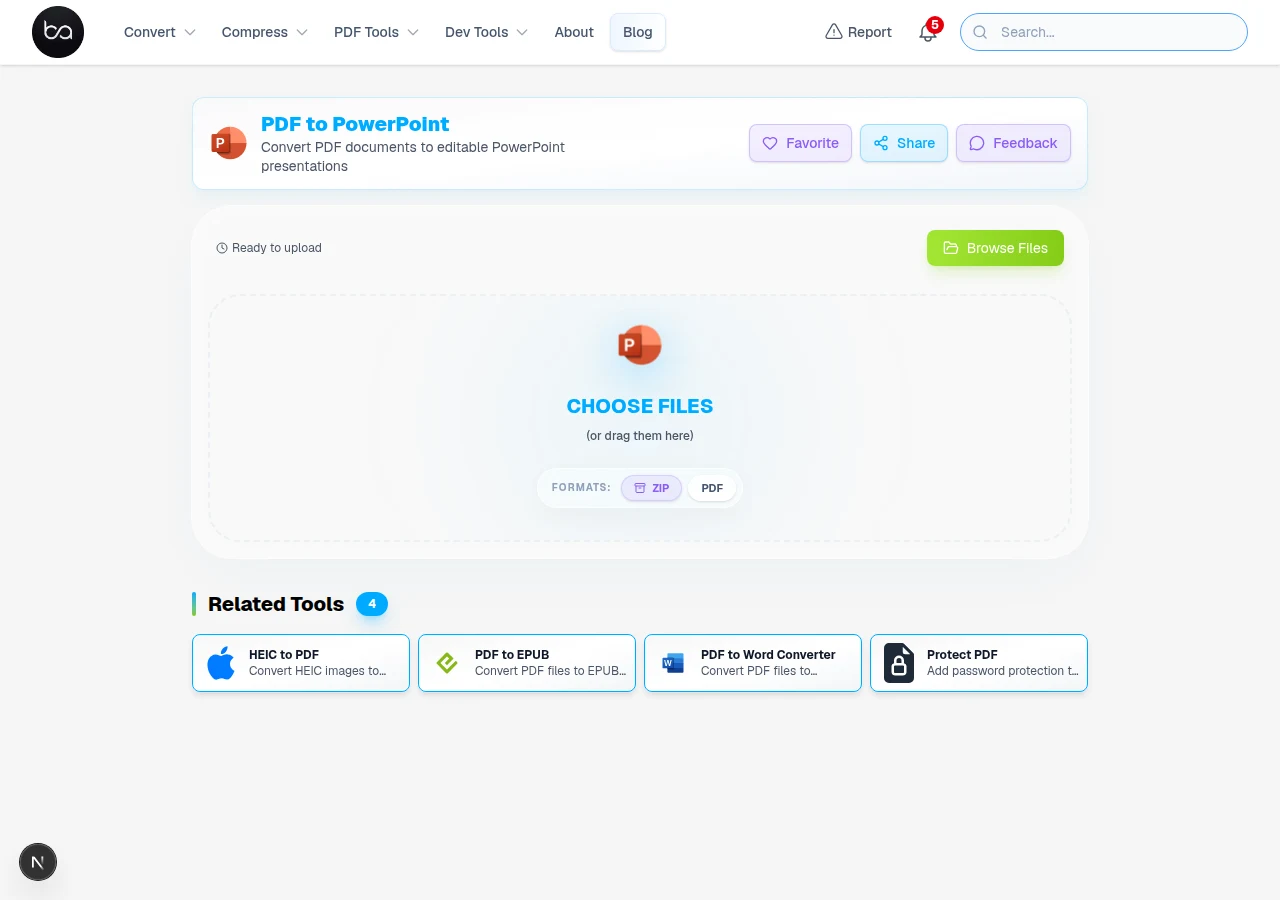
A colleague needed to update a conference deck that only existed as a PDF — the original PowerPoint had been lost — and converting to PPTX gave her editable slide layouts to rework without rebuilding from scratch. Convert your PDF files to editable PowerPoint presentations in seconds. This tool helps you turn static PDFs into slides you can edit and present.
Why Convert PDF to PowerPoint
PDF files lock your content in a fixed format. You cannot edit text or change images. When done editing, convert PowerPoint back to PDF.
PowerPoint files let you make changes. You can edit text, swap images, and add animations to your slides.
Common Problems with PDF Presentations
People face these issues when working with PDF presentations:
- Cannot update text content for different audiences
- Unable to change images or graphics
- No way to add speaker notes or animations
- Difficult to customize branding and colors
- Hard to extract specific slides for new presentations
How PDF to PowerPoint Conversion Works
Scanned PDF? OCR it first
If your PDF is a scanned document, run OCR on it first so the converter can read the text properly.
OCR PDF →The tool analyzes your PDF and identifies text, images, and layout elements. It then recreates each page as a PowerPoint slide.
Your original formatting stays intact. Colors, fonts, and positioning remain the same while making everything editable.
PDF to PowerPoint: Upload, Convert, Download
Follow these simple steps to convert your PDF:
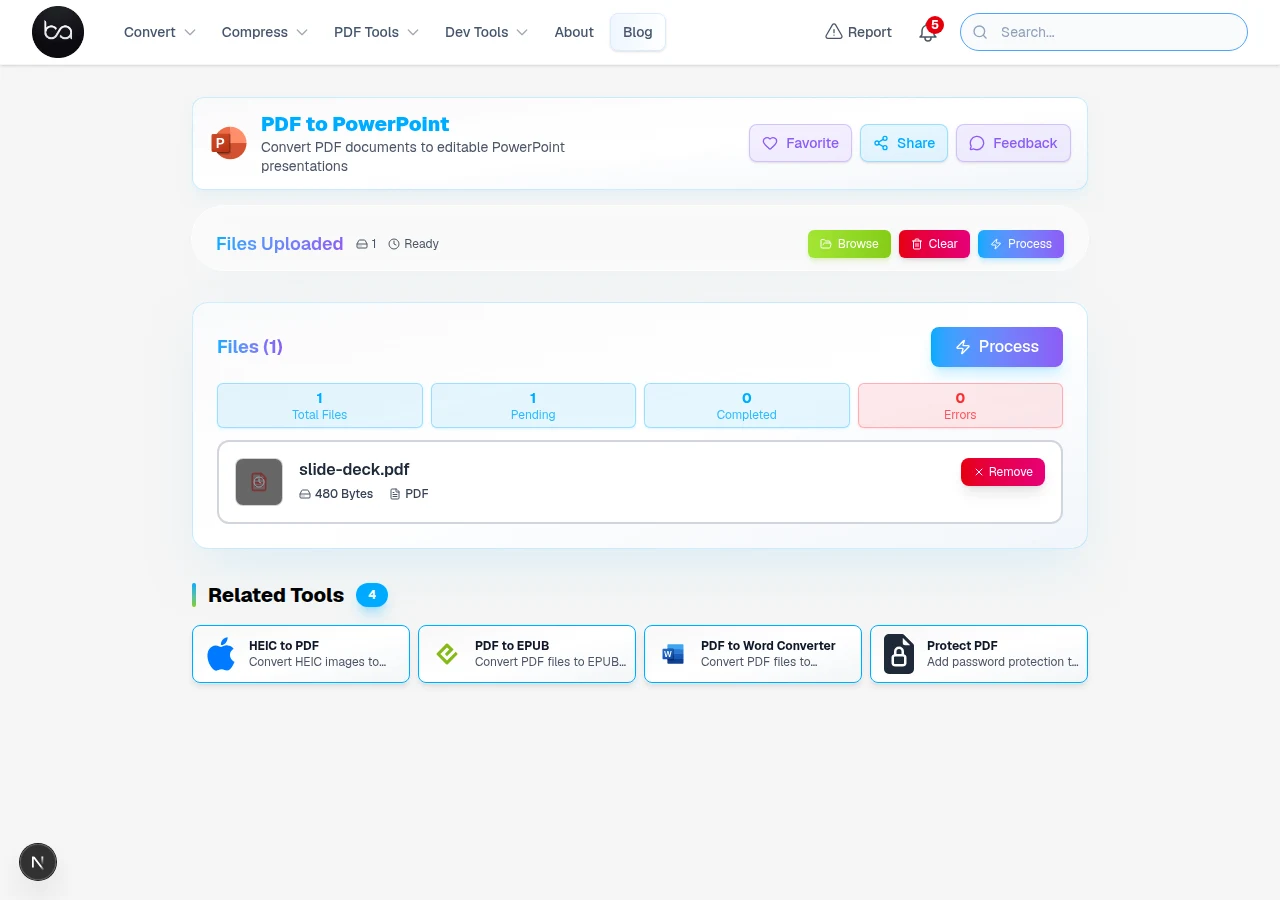
- Upload PDF File: Click the upload button and select your PDF from your computer
- Choose Settings: Pick quality options and select pages if you only need some slides
- Start Conversion: Click convert and wait while the tool processes your file
- Download PowerPoint: Get your new PPTX file when conversion finishes
- Edit in PowerPoint: Open the file in PowerPoint to make your changes
Best Results for Different PDF Types
Presentation PDFs work best because they already have slide layouts. These convert with high accuracy for text and images.
Scanned PDFs may need some manual fixes after conversion. The tool uses text recognition which works better on clear, high-quality scans.
Getting Better Conversion Quality
Use these tips to improve your results:
- Start with high-resolution PDF files for clearer output
- Use text-based PDFs instead of scanned images when possible
- Check converted slides and fix any formatting issues manually
- Choose higher quality settings if file size is not a concern
For best results, use PDFs that were created from presentations originally. These keep cleaner layouts and convert better than scanned documents.
Quality Settings and Options
The converter offers different quality levels. Higher quality keeps more details but creates bigger files.
You can convert specific page ranges instead of the whole document. This saves time and creates smaller files when you only need certain slides.
Editing Your Converted Slides
Need the PDF in Excel instead?
Convert your PDF tables and data directly into an editable Excel spreadsheet without manual re-entry.
Your PowerPoint file opens in any presentation software. All text becomes editable so you can fix mistakes or update content.
Charts and graphs become editable PowerPoint objects when possible. You can change data, colors, and chart types instead of having static images.
File Security and Privacy
All files are deleted automatically after conversion. Your documents are never stored or shared with anyone.
Password-protected PDFs work fine. Just enter your password during upload and the tool will handle the rest.
Common Conversion Problems
Garbled text usually means the PDF uses non-standard fonts. Try a different quality setting or fix the text manually in PowerPoint.
Blurry images come from low-quality PDFs. The converter cannot improve image quality beyond what the original file contains.
Frequently Asked Questions
Can I convert password-protected PDFs?
Yes. Enter the password when uploading and the tool converts normally.
Will animations be kept during conversion?
No. PDF files do not store PowerPoint animations. Add animations manually after conversion.
How accurate is text recognition for scanned PDFs?
It depends heavily on scan quality, original font legibility, and whether the scan was straight or skewed. A clean, 300 DPI scan of a standard printed document typically achieves 95% character accuracy, which sounds good until you realise a one-page letter at 95% accuracy still has roughly 30 incorrect characters. For anything requiring verbatim accuracy — contracts, technical specs, quotes — always proofread OCR output before using it.
Does each PDF page become a separate slide?
Yes. Each page converts to one slide. You can also choose specific page ranges.
What PowerPoint versions work with the output files?
The tool creates PPTX files compatible with PowerPoint 2007 and newer, plus Google Slides.
Want Word instead of PowerPoint?
Convert your PDF to a fully editable Word document for reports, proposals, or any document-style content.