
No signup required • Works in your browser • 100% secure
How to Extract Text from Scanned PDF Documents with OCR
I once had to pull data from a 200-page scanned report — copying it by hand wasn't an option, and OCR turned a day of work into about fifteen minutes. OCR technology makes image-based PDFs searchable and editable. Once you have the text, you can convert the PDF to Word for further editing.
The two settings that affect accuracy most are the language profile and whether preprocessing is enabled. Below are the practical details.
Understanding OCR Technology and How It Works
OCR converts a scanned image — which is just a grid of pixels — into text a computer can read and search. It does this by analyzing character shapes, matching them against patterns for each letter in the chosen language, and placing the resulting text as a layer over (or instead of) the original image.
The process has a few steps: first, the image is preprocessed to improve contrast and straighten tilted scans. Then the engine segments the image into individual characters and words. Finally, each character is matched against the language model. Accuracy depends heavily on scan quality — 300 DPI or higher gives the best results, and documents with consistent fonts beat handwriting every time.
Most browser-based OCR tools today are built on Tesseract, an open-source engine with broad language support. On a clean English document scanned at 300 DPI, accuracy reaches 97–99%. It drops significantly on low-resolution scans, unusual fonts, or handwriting. The settings panel (language, deskew, Smart Mode vs Force Deep Scan) exists to close that gap on problem documents.
| Document Type | Typical Accuracy | Best Settings | Notes |
|---|---|---|---|
| Clean Typed Text | Very high | Smart Mode enabled | OCR's best case; 300 DPI scans are the minimum |
| Handwritten Notes | Variable | Force Deep Scan | Depends heavily on handwriting clarity |
| Mixed Text/Images | High for text regions | Deskew enabled | Images are not extracted as text |
| Low Quality Scans | Lower — scan quality is the ceiling | All enhancements on | Re-scanning at higher DPI helps more than any setting |
Text extracted — now want to edit it directly inside the PDF?
The PDF Editor lets you click any text block and retype it without converting to another format.
Language Support and Accuracy Optimization
Start by uploading your scanned PDF. The tool begins OCR processing as soon as the file is loaded.
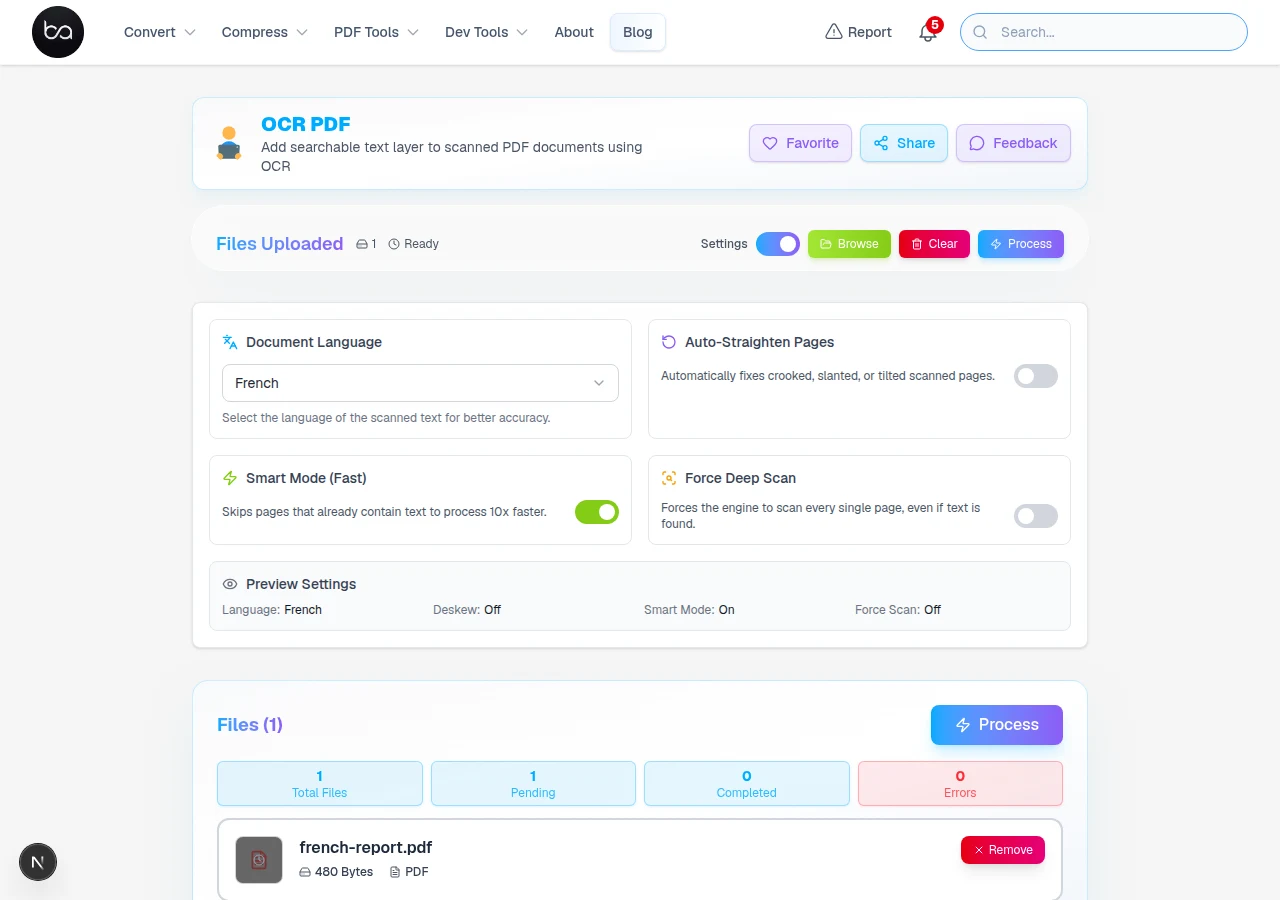
Language selection matters because the OCR engine uses a different character set and pattern library for each language. If you run English OCR on a French document, the engine will misread accented characters like é, à, and ç. Selecting the correct language first is the single most effective thing you can do for accuracy.
For documents with mixed languages (e.g., a French report with English tables), try running OCR with the primary language first. Most engines handle occasional foreign words without problems. Documents that are genuinely multilingual throughout — such as bilingual legal contracts — may need two separate passes with different language settings and some manual cleanup afterward.
Asian languages (Chinese, Japanese, Korean) have the most complex character sets, which is why they generally score lower on automated accuracy benchmarks. If you're OCR'ing CJK documents, make sure to select the specific variant (Simplified Chinese vs Traditional Chinese, for example) rather than a generic setting.
| Language Group | Accuracy on Clean Scans | Common Challenges |
|---|---|---|
| English | Very high | Unusual fonts, low scan resolution |
| Western European | Very high | Accented characters need correct language selected |
| Cyrillic Scripts | High | Similar-looking characters can confuse recognition |
| Arabic Scripts | Good on clean scans | Right-to-left flow; connected script is harder |
| Asian Languages | Good on clean scans | Complex character sets; select the specific variant |
Advanced OCR Features and Processing Modes
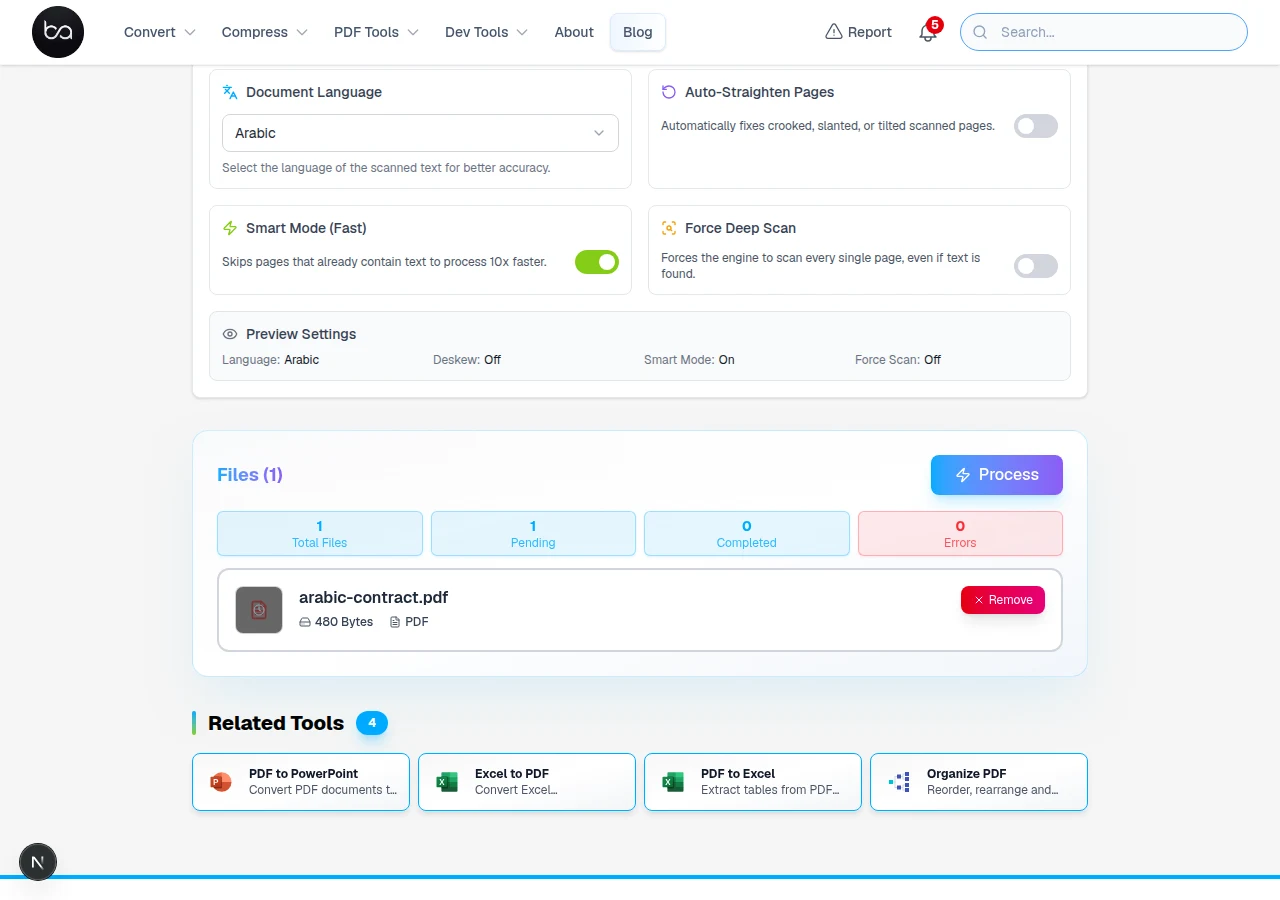
The settings panel lets you pick the document language and enable auto-deskew for pages that were scanned at an angle.
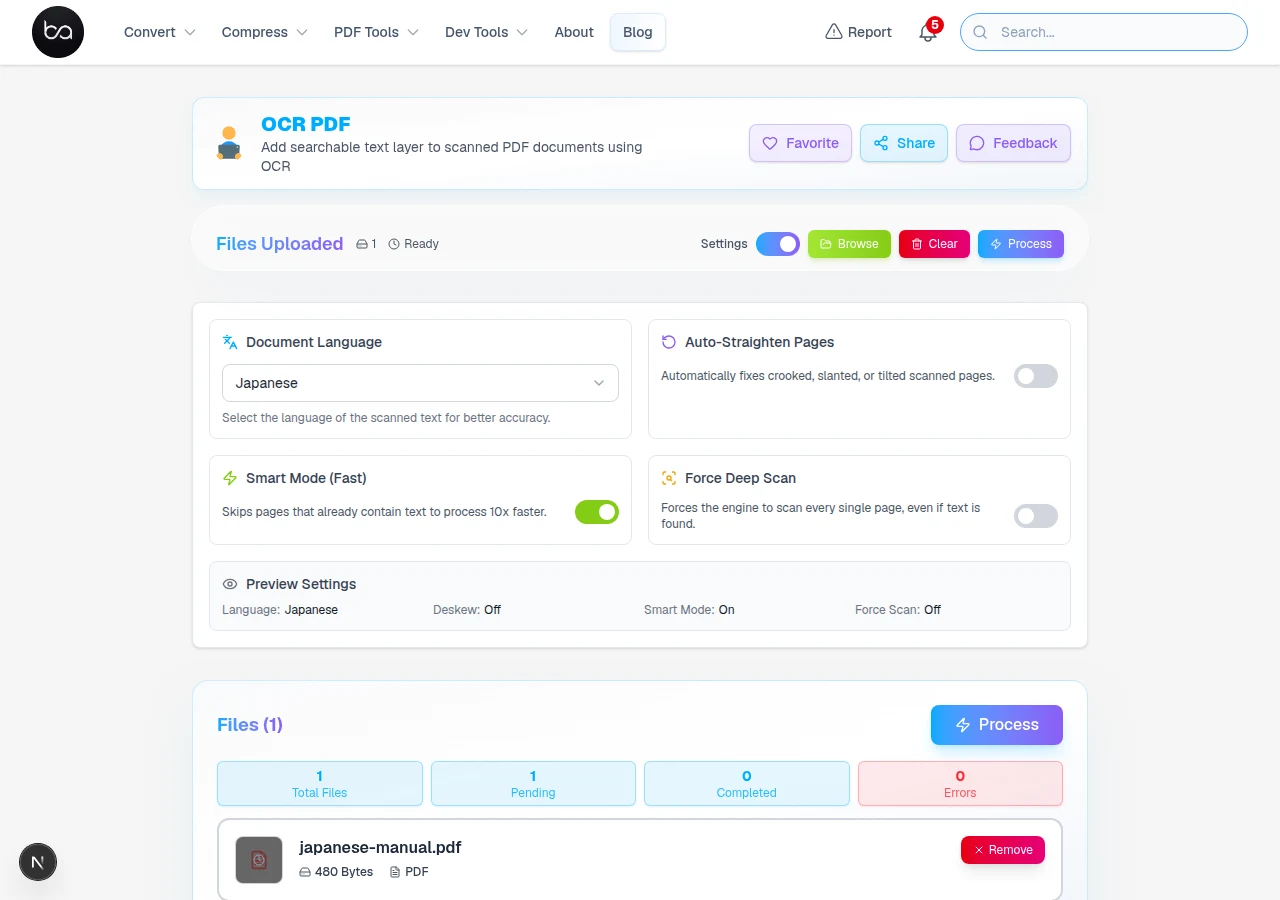
Smart Mode checks each page before running OCR. If a page already has a real text layer — the kind where you can click and highlight text in a PDF viewer — it skips that page and moves on. This makes a big difference on hybrid documents where only some pages were scanned, while others were created digitally. Without Smart Mode, OCR would re-process already-good text and potentially introduce errors.
Auto-straighten (deskew) is worth enabling whenever you're not sure how flat the scan is. Even a 2–3 degree tilt reduces recognition accuracy noticeably. The tool detects the text baseline angle and rotates the image to compensate before OCR runs. The small overhead per page is always worth it on scanned physical documents.
Force Deep Scan is the nuclear option — it reprocesses every page regardless of whether it already has text, and uses more aggressive enhancement settings. Use it when standard OCR is missing content, when the embedded text in a PDF is garbled or placeholder text, or for archival work where accuracy matters more than speed. Expect processing to take 3–4× longer than standard mode.
- Smart Mode: skips text-enabled pages — faster on hybrid documents
- Auto-Straighten: corrects tilt before OCR — worth enabling for physical scans
- Force Deep Scan: complete reprocessing for maximum accuracy on problem documents
- Language Detection: identify the language first for best character recognition
- Layout Preservation: maintains original document structure
- Multi-Column Support: handles multi-column layouts like academic papers
Need the text in a fully editable Word document?
After OCR runs, convert the searchable PDF straight to .docx — formatting, headings, and all.
How Long OCR Takes and What Affects It
Force Deep Scan reprocesses every page completely. Use it for archival documents where accuracy matters most.
How long OCR takes depends mainly on the number of pages, the mode you chose, and how powerful your device is. A simple 10-page scanned document in Smart Mode typically finishes in under 30 seconds on a modern laptop. A 50-page document with deskewing enabled and Force Deep Scan active might take 5–8 minutes on the same machine. All processing runs in your browser, so a faster CPU means faster OCR.
RAM matters for larger documents — the browser holds the entire file in memory while processing. 4GB of available RAM is usually enough for documents under 30 pages. Above 50 pages, or with Force Deep Scan on, 8GB or more keeps things running smoothly. If the browser tab crashes on a large document, close other tabs to free memory and try again.
Files processed entirely in your browser don't go to a server — there's no upload step and no waiting for a remote queue. The tradeoff is that very large files take longer than they would on a server with dedicated hardware. For most PDFs up to 25 pages, you won't notice the difference.
| Processing Mode | Speed | Accuracy Trade-off | Notes |
|---|---|---|---|
| Smart Mode Only | Fastest | Skips pages with existing text — no OCR overhead | Best for hybrid docs |
| Standard OCR | Moderate | Good for clean typed text scans | Default mode |
| With Deskewing | Slower | Better on tilted scans | Worth enabling for physical scans |
| Force Deep Scan | Slowest (3–4×) | Highest accuracy on problem documents | For archival or garbled output |
When OCR Skips Pages or Reads Them Wrong
The tool runs in your browser using WebAssembly, which all modern browsers support. Chrome and Edge tend to be fastest for this kind of computation-heavy work. Firefox is close behind. Safari works on Mac and iOS but may be slower on very large documents. If you hit issues on Safari, try Chrome — it's worth the switch for a 50+ page document.
The device matters more than the browser version. A recent laptop in any modern browser will outperform an older desktop with the same browser. If OCR is running noticeably slow, check that you're not in low-power mode and that the browser has enough memory available.
On phones, OCR works for smaller files but can be slow and occasionally stalls on large documents. Phones have limited RAM and mobile browsers throttle background processing more aggressively than desktop browsers. For any document over 20 pages, a desktop browser is a better choice if you have one available.
| Browser | Supported? | Notes |
|---|---|---|
| Chrome | Yes ✓ | Best overall; good mobile support |
| Firefox | Yes ✓ | Reliable on desktop |
| Safari | Yes ✓ | Works well; some versions slow on large files |
| Edge | Yes ✓ | Same engine as Chrome, reliable |
When OCR Output Contains Wrong Characters
Wrong output characters usually mean the wrong language was selected. If "O" and "0" are getting confused, or letters are being replaced with similar-looking characters from another alphabet, switching to the correct language model is the first thing to try. Character substitution is the most common OCR error and the easiest to prevent.
Missing text sections usually come from low contrast — pale ink on white paper, or text that overlaps with an image. Force Deep Scan applies more aggressive preprocessing to recover low-contrast content. If a specific section is still wrong after that, consider cropping just that section and running OCR separately with all enhancements enabled.
Multi-column layouts trip up OCR engines that read left-to-right across the full page width — the columns get interleaved and the output becomes unreadable. If your document has two or three columns, try Force Deep Scan first. If that still produces jumbled output, extracting each column as a separate image and OCR'ing them individually gives the cleanest result.
| Problem | Likely Cause | Fix |
|---|---|---|
| Wrong characters output | Wrong language selected | Select the correct language and rerun |
| Missing text sections | Low contrast scan | Force Deep Scan with all enhancements on |
| Skewed output lines | Tilted document scan | Enable deskewing |
| Interleaved column text | Multi-column layout | Try Force Deep Scan; or process columns separately |
- Always match language setting to document language for best accuracy
- Enable deskewing for scans that weren't perfectly flat
- Use Force Deep Scan for archival work or when standard mode misses content
- For complex multi-column layouts, process sections separately if needed
- Close other browser tabs before OCR'ing large documents to free memory
Scanned pages have wide margins or black borders?
Crop the page to the content area before running OCR — cleaner input means higher recognition accuracy.
Crop PDF pages →Frequently Asked Questions
What languages does OCR PDF support for text recognition?
25+ languages. English on clean typed text reaches very high accuracy. Other Latin-alphabet languages perform similarly. Scripts with more complex characters (Arabic, Chinese, Japanese, Korean) work well on clean scans but are more sensitive to scan quality than Latin text.
How does Smart Mode improve OCR processing speed?
Smart Mode checks each page before running OCR. If a page already has a real text layer — the kind where you can click and highlight in a PDF viewer — it skips OCR on that page entirely. On a hybrid document (say, a 20-page PDF where half the pages are scanned images and half are digital text), Smart Mode only processes the scanned pages, which can save significant time. It also avoids adding a second text layer over pages that already have one, which can cause problems.
When should I use Force Deep Scan instead of standard OCR?
Use Force Deep Scan when standard OCR misses content or produces garbled output. It's also the right choice for archival documents where accuracy matters more than speed. Expect it to take roughly 3–4 times longer than standard mode — worth it when you can't afford errors.
What causes OCR accuracy problems and how can I fix them?
Wrong characters almost always mean the wrong language was selected. Change it and rerun — that fixes most substitution errors. For missing sections, enable Force Deep Scan. For tilted scans producing skewed lines, turn on deskewing. Multi-column layouts sometimes need columns processed separately.
What are the system requirements for optimal OCR performance?
Any recent browser works fine — Chrome and Edge are fastest for computation-heavy OCR. RAM matters more than browser version: 4GB handles small documents, 8GB is comfortable for most, and very large files (50+ pages with Force Deep Scan) benefit from more. Phones work for small files; use a desktop for anything substantial.
Related Articles
DOCX to PDF Free: Fonts and Layout Preserved
Convert Word documents to PDF online free. Keep all fonts, tables, images, and formatting intact. No Microsoft Word needed. Works on mobile.
Read articleConvert PDF to EPUB for Kindle and E-Readers - Free Online Tool
Convert PDF documents to EPUB format for Kindle and e-readers. Fix text reflow issues and make your PDFs readable on any device. Free online converter.
Read articleOrganize PDF Free - Rearrange, Rotate, and Merge Pages Without Software
Organize PDF pages with drag-and-drop reordering, rotation, blank page insertion, and multi-file merging. Professional PDF management with real-time preview and batch operations. Advanced document workflows with touch-optimized controls.
Read article