
Free to use · No watermark · Browser-based
How to Create Animated GIFs from Multiple Photos
A friend asked me to help turn a sequence of food photos into a GIF for her restaurant’s social posts — I uploaded the images, set 600ms frame delay, and had a smooth looping animation ready in under two minutes. The frame delay is the main thing to understand: too fast and it looks like a glitchy slideshow, too slow and it feels like a bad PowerPoint. Once you have the GIF, platforms that prefer video are easy to handle — just convert it to MP4 for a much smaller file.
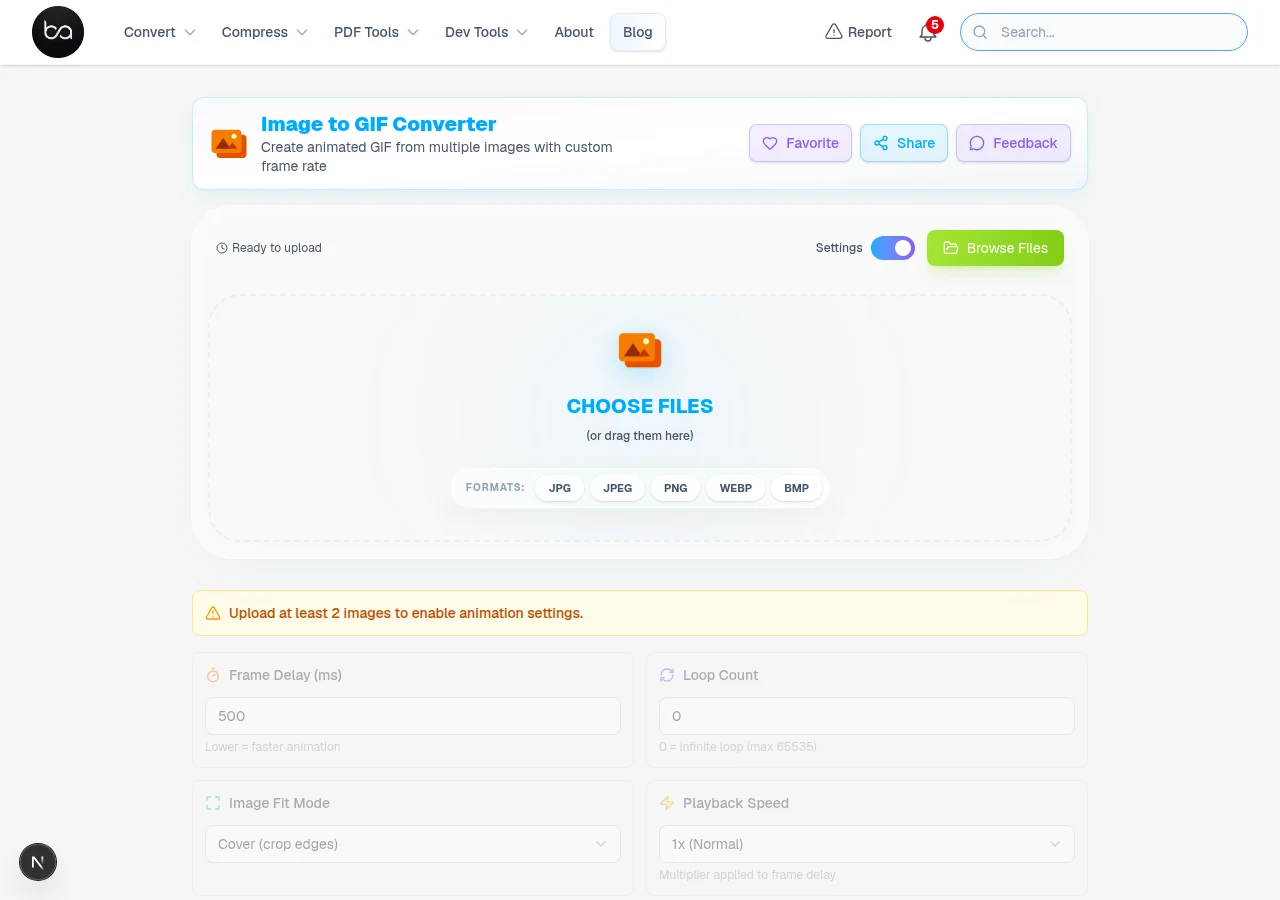
The settings that matter most are frame delay, loop count, and image fit mode. Get those three right and everything else is fine-tuning.
Understanding GIF Animation Technology and Format Specifications
GIF from a video instead?
Convert MOV, AVI, WebM, or MP4 video clips directly to animated GIF with frame trimming and speed control.
Video to GIF →GIF is an old format — GIF89a dates to 1989 — but it still works everywhere without a special player. Each frame is a palette-mapped image with up to 256 colours, and the delay between frames is stored as a centisecond value in the file header.
Browsers clamp delays below 20ms to 100ms — the main reason very fast GIFs can look sluggish in some players. For smooth motion, 50–100ms per frame works well. For a slideshow where each image lingers, 500–2000ms is the right range.
GIF only supports 256 colors per frame. When your source photos use millions of colors, the format has to reduce them to fit that limit — a process called color quantization. Dithering softens the color reduction by mixing nearby pixels to simulate colors that aren't in the palette. For photos with smooth gradients (sky, skin tones), dithering significantly improves the result. For flat-color illustrations or screenshots, you may not need it at all.
| Animation Parameter | Optimal Range | File Size Impact | Quality Impact |
|---|---|---|---|
| Frame Delay | 100-500ms | None | Smoothness varies |
| Frame Count | 5-30 frames | Linear increase | More detail |
| Image Dimensions | 400x400px max | Quadratic growth | Higher resolution |
| Color Count | 32-128 colors | Moderate increase | Better gradients |
Advanced Animation Settings and Customization Options
The frame delay setting applies the same duration to every frame. If you want some frames to linger longer, adjust the images before uploading. The speed multiplier is a quick override: 2x doubles animation speed without recalculating each frame individually.
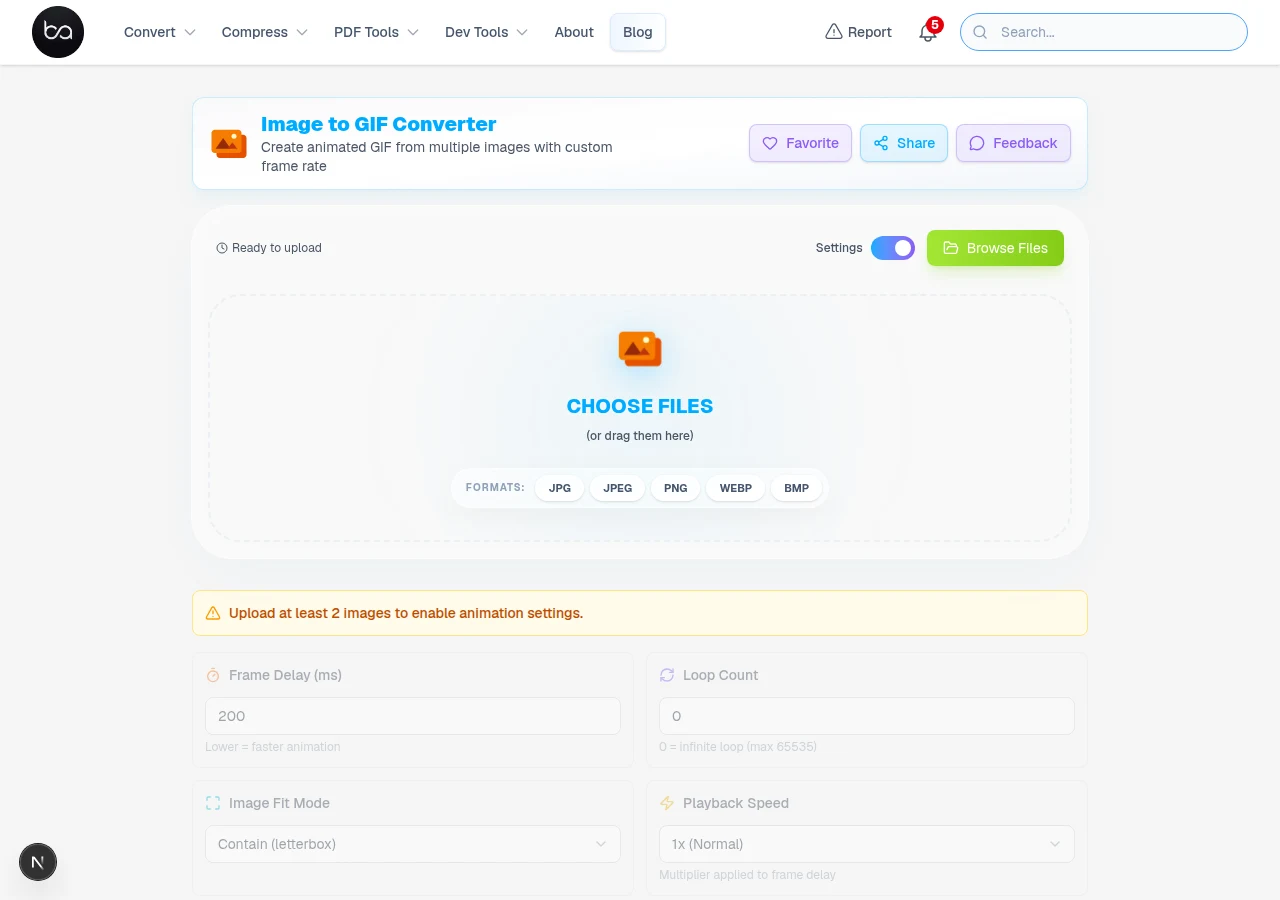
Setting loop count to 0 makes the GIF repeat forever — right for social media avatars, loaders, and reaction GIFs. A value of 1–3 is better for presentations where you want the animation to stop after making its point. Some platforms override loop count and force infinite play regardless.
If your images have different aspect ratios — common when mixing photos from different cameras — the fit mode determines how they're handled. Contain keeps each image intact with letterboxing. Cover crops edges to fill the frame. Stretch distorts to fit exactly. For mixed photos, Contain is usually cleanest.
| Fit Mode | What It Does | Visual Impact | Best Use Cases |
|---|---|---|---|
| Contain (Letterbox) | Shows full image with bars | Medium | Mixed aspect ratios |
| Cover (Crop) | Crops edges to fill frame | High | Consistent framing |
| Stretch (Distort) | Fills frame by distorting image | Low | Uniform dimensions |
Transition Effects and Advanced Animation Techniques
GIF too large for your platform?
Convert your GIF to MP4 — up to 60% smaller file size with far sharper quality for social media and messaging.
Transition effects fill the gap between source photos with generated intermediate frames. A hard cut switches instantly — no extra frames, smallest file. A fade or crossfade blends from one image to the next over several frames, which looks smoother but adds to the file size because those intermediate frames have to be stored.
Slide transitions shift one image out while the next slides in. They look professional for presentations and product showcases. Zoom transitions scale up or down between frames — useful for dramatic effect but adds the most extra frames of any transition type.
In general: transitions that generate more intermediate frames produce larger files and take longer to process. For a quick reaction GIF or a simple photo loop, a hard cut or short fade is usually the right call. Reserve elaborate transitions for content where the animation quality is the point.
- Hard Cut (None): Instant frame changes, smallest file, fastest processing
- Fade/Crossfade: Smooth blend between frames, moderately larger file
- Dissolve: Organic pixel-by-pixel transition, similar size to fade
- Slide Effects: Directional motion, more intermediate frames generated
- Wipe Transitions: Masked reveals, largest output among standard transitions
- Zoom Effects: Scale changes, also generates many intermediate frames
Compression Optimization and File Size Management
GIF compression uses lossless LZW algorithm combined with color quantization to achieve optimal file sizes. Compression levels from 0-20 control color reduction aggressiveness, with level 0 preserving maximum quality and level 20 minimizing file size. Higher compression reduces color palettes from 256 to as few as 16 colors, creating posterization effects.
File size calculation depends on multiple factors including frame count, dimensions, color complexity, and compression settings. Typical 400x400 pixel GIFs range from 500KB (10 frames, high compression) to 8MB (50 frames, no compression). Social media platforms impose size limits requiring optimization strategies for platform-specific requirements.
Color optimization techniques significantly impact final file sizes without apparent quality loss. Images with gradients benefit from medium compression (level 8-12), while flat graphics perform well with high compression (level 15-20). Photographic content requires careful balance between compression and visual acceptability.
| Content Type | Optimal Compression | Expected File Size | Quality Rating |
|---|---|---|---|
| Flat Graphics/Icons | 15-20 | 200-800KB | Excellent |
| Screenshots/UI | 10-15 | 400-1.2MB | Good |
| Illustrations | 8-12 | 600-1.8MB | Good |
| Photographs | 3-8 | 1-3MB | Fair |
| Complex Scenes | 0-5 | 2-8MB | Fair-Poor |
How Long Does GIF Processing Take?
Simple animations — a few images with no transitions, moderate dimensions — process in seconds. Complex animations with many frames, transitions, and high-resolution source photos take longer. If the job takes more than a minute, try reducing image dimensions or removing transitions.
Processing runs entirely in the browser. There's no server queue, so speed depends on your device and how much memory is available. Closing other tabs helps on older or memory-limited devices.
The biggest factors affecting speed: number of frames, image resolution, and whether transitions are enabled. Each transition generates additional intermediate frames, so complex transitions on many images multiply the total frame count significantly.
| Animation Type | Typical Speed | Notes |
|---|---|---|
| Simple — a few images, no transitions | Seconds | Works on any device |
| Medium — 10-15 images with fade | Under a minute | Fine on desktop, may be slow on mobile |
| Complex — 20+ images with slide/zoom | A minute or more | Close other tabs; use desktop browser |
What the GIF Format Cannot Handle
Modern browsers all support GIF creation from this tool — Chrome, Firefox, Safari, and Edge. Processing happens entirely in the browser, so speed depends on your device rather than a server queue.
Memory requirements scale with the number and size of images. A simple 5-frame GIF at 400×400px processes in seconds on any device. A 30-frame animation at full camera resolution (3000px+) will be noticeably slower, especially on mobile. For large animations, close other browser tabs to free memory first.
On mobile, the tool works for simple animations. For complex multi-frame GIFs with transitions and high resolution, a desktop browser is more reliable. Mobile browsers have stricter memory limits and may fail on large jobs.
| Platform | Supported? | Notes |
|---|---|---|
| Chrome Desktop | Yes ✓ | Best choice for large animations |
| Firefox Desktop | Yes ✓ | Works well for most jobs |
| Safari Desktop | Yes ✓ | May be slower on complex animations |
| Edge Desktop | Yes ✓ | Same engine as Chrome, reliable |
| Mobile Browsers | Partial | Fine for simple GIFs; use desktop for complex ones |
When GIF-from-Photos Output Looks Wrong
If the browser stalls or runs out of memory, reduce the number of frames or the image dimensions. Very high-resolution source photos (3000px+ wide) generate large GIFs that can exhaust browser memory, especially with transitions enabled. Resize photos to 600–800px wide before uploading if you're hitting memory issues.
HEIC files from iPhones may not load in all browsers — convert to JPG or PNG first if they fail. Standard JPEG and PNG work everywhere.
Very short frame delays (under 50ms) are often ignored by browsers and rounded up to 100ms. If your animation plays slower than expected, this is the likely cause — it's a GIF format limitation, not the tool.
| Problem | Likely Cause | Fix |
|---|---|---|
| Browser stalls or crashes | Too many or too large frames | Reduce image dimensions, close other tabs |
| Image won't load | Unsupported format (e.g., HEIC) | Convert to JPEG or PNG first |
| Processing too slow | Complex transitions + many frames | Simplify transitions or reduce frame count |
| Animation plays slower than set | Sub-20ms delays rounded up by browser | Use 100ms minimum per frame |
| GIF file too large | High resolution, many frames, no compression | Reduce dimensions and increase compression |
- Use JPEG or PNG source images for best compatibility
- Resize photos to 600–800px wide before uploading for faster processing
- Close other browser tabs before processing animations with many frames
- Set minimum 100ms frame delays for consistent cross-browser playback
- Start with fewer frames and no transitions to test output before adding effects
Frequently Asked Questions
How many images do I need to create an animated GIF?
Minimum 2 images. 5-15 frames produce smooth results for most use cases.
What frame delay settings work best for different types of animations?
Smooth motion needs 100-200ms delays. For slideshow presentations, 1000-3000ms per frame gives viewers time to read. Key constraint: browsers round up delays below 20ms to 100ms per the GIF spec, so setting 10ms does not produce 100 FPS - it produces 10 FPS. The practical ceiling for reliable smooth playback is around 50ms (20 FPS).
How do transition effects impact file size and processing time?
Transitions add intermediate frames between your source images, directly increasing file size. Simple fades add a few extra frames per transition. Complex effects like zoom add considerably more. If keeping the file small is important, use a hard cut or a short fade.
What compression levels should I use for different image types?
For flat graphics, icons, and screenshots, higher compression works well — these images have large areas of solid color that compress efficiently. For photographs and images with smooth gradients, lower compression preserves more color detail. If the output GIF looks washed out or posterized, reduce compression.
Why won't my GIF loop infinitely on some platforms?
Set loop count to 0 for infinite looping, though some social media platforms override this setting for performance reasons. Most browsers respect GIF loop metadata, but mobile platforms may limit loops to conserve battery and bandwidth. Test your GIFs on target platforms to verify behavior.
Need higher-quality animation than GIF?
Convert your GIF to APNG for 16.7 million colours and full alpha transparency — ideal for logos and UI animations.
Related Articles
Edit PDF Online Free - Professional PDF Editor Without Adobe or Sign-Up
Edit PDF documents online with advanced text editing, drawing tools, shape insertion, image manipulation, and page management. Professional-grade PDF editor with Microsoft Word-style interface running entirely in your browser.
Read articleConvert WebM to GIF Free - No Quality Loss, No Watermarks
Converting WebM videos to GIF format used to be a headache. Learn advanced optimization techniques, troubleshooting tips, and quality settings that most people overlook.
Read articleConvert iPhone Photos to JPG for Any Device
Convert iPhone HEIC photos to JPG format with AI background removal, custom dimensions, and quality control. Batch convert, no quality loss. Works on all devices.
Read article