
No signup required • Works in your browser • 100% secure
Convert SVG to PNG Export at 1x, 2x, and 3x for Web - Free Online Tool
Converting SVG vector graphics to PNG raster images gives you precise control over dimensions and transparency for web development, app design, and high-resolution displays that need pixel-perfect graphics at multiple scales.
Understanding SVG to PNG Conversion for Web Development
SVG files contain mathematical instructions that browsers interpret to draw shapes, paths, and colors. PNG format stores these graphics as fixed pixel grids with specific dimensions and color information.
Web developers convert SVG to PNG when they need consistent appearance across older browsers, email templates, or social media platforms that don't fully support vector graphics. PNG files display identically regardless of the viewing environment.
The conversion process lets you control exact pixel dimensions, background transparency, and export quality. This control becomes critical when designing for specific contexts like email headers, social media posts, or mobile app icons that require precise sizing.
Why PNG Format Benefits Web Projects
PNG format supports full transparency with alpha channels, making it perfect for overlaying graphics on different colored backgrounds. Unlike JPEG, PNG preserves sharp edges and text without compression artifacts.
Email marketing campaigns benefit from PNG images because most email clients display PNG files consistently, while SVG support varies significantly between providers like Gmail, Outlook, and Apple Mail.
Content management systems often resize and optimize images automatically. Converting SVG to PNG with specific dimensions prevents these systems from creating blurry or incorrectly sized graphics.
Browser Compatibility and Performance Considerations
Legacy browsers and some mobile applications have limited SVG support. PNG files work universally across all devices, browsers, and operating systems without requiring special rendering engines or JavaScript support.
Loading performance differs between formats. Small PNG files often load faster than complex SVG files with many elements, especially on slower internet connections or mobile networks.
Caching behavior also varies. Web servers and content delivery networks handle PNG files more predictably than SVG files, which sometimes get processed as XML documents rather than images.
Responsive Design and Multi-Resolution Export Strategies
Modern web design requires graphics that look sharp on both standard displays and high-resolution screens like Retina displays, 4K monitors, and high-DPI mobile devices.
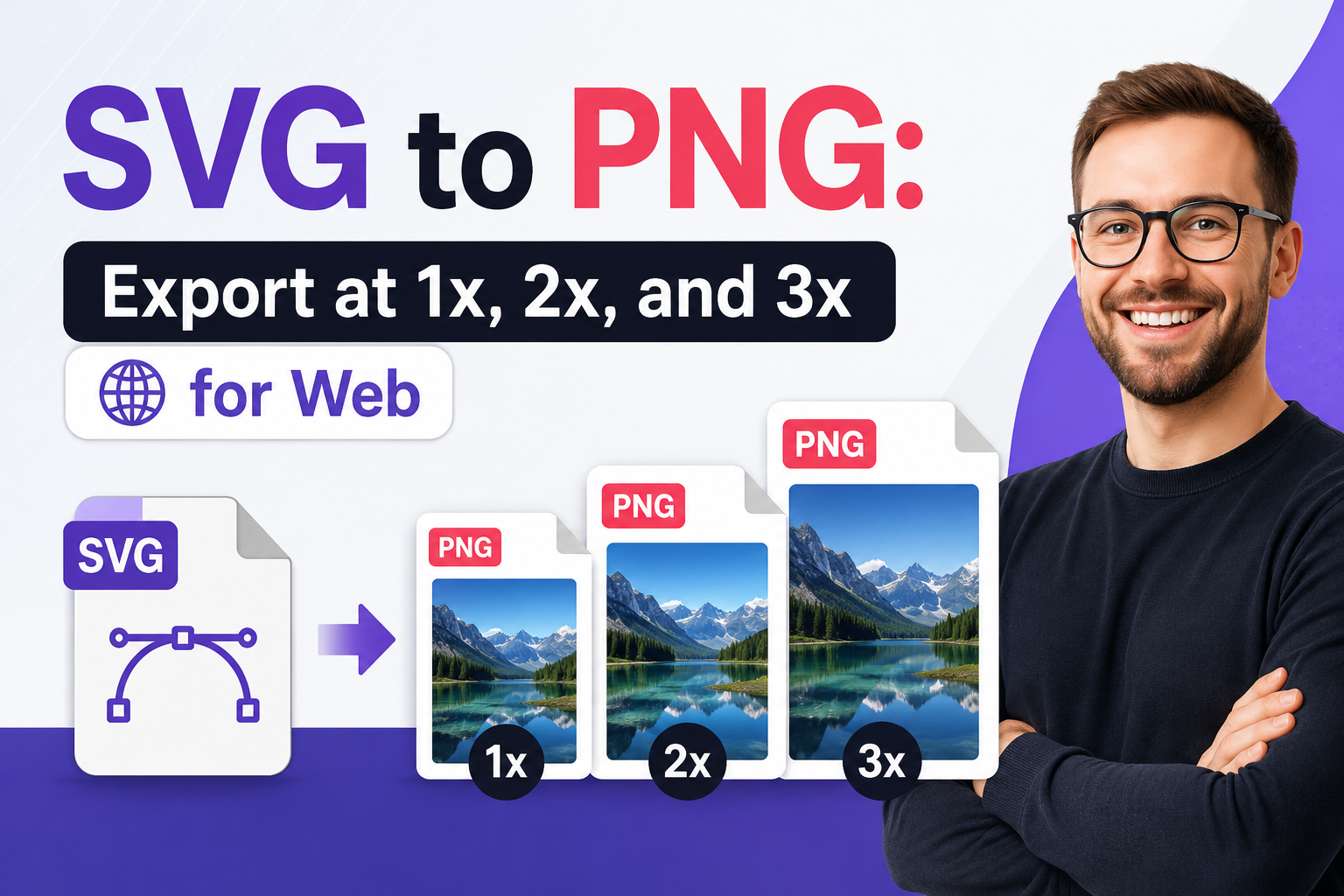
Creating multiple PNG versions at different scales (1x, 2x, 3x) ensures your graphics appear crisp regardless of screen pixel density. This approach prevents blurry upscaling that happens when browsers stretch small images.
High-DPI Display Optimization
Retina displays and other high-DPI screens pack more pixels into the same physical space. A 100x100 pixel image looks tiny and blurry on these displays unless you provide higher resolution versions.
The standard approach involves creating 2x and 3x versions of your graphics. A 100x100 icon becomes 200x200 for 2x displays and 300x300 for 3x displays, maintaining visual sharpness across all screen types.
CSS media queries and the HTML srcset attribute let you serve appropriate image sizes automatically. Browsers download only the version they need, optimizing both visual quality and loading performance.
Mobile App and Icon Design Applications
Mobile app development requires icons and graphics at multiple scales for different device categories. iOS apps need icons at numerous sizes from 16x16 pixels for small interface elements up to 1024x1024 pixels for the App Store.
Android applications use density-independent pixels (dp) that scale automatically, but providing pre-rendered PNG assets at common densities (mdpi, hdpi, xhdpi, xxhdpi) ensures consistent appearance across devices.
Progressive web applications (PWAs) require manifest icons at specific sizes like 192x192 and 512x512 pixels. Converting your SVG logo to these exact dimensions creates the proper assets for web app installation prompts.
Social Media and Marketing Asset Creation
Social media platforms have strict requirements for image dimensions and formats. Facebook covers need 820x312 pixels, Twitter headers require 1500x500 pixels, and Instagram posts work best at 1080x1080 pixels.
Converting SVG graphics to these exact specifications prevents platform algorithms from cropping or resizing your images incorrectly. Most social platforms also compress uploaded images, so starting with the right dimensions maintains better quality.
Email marketing templates require precise image sizing to prevent layout breaks. Converting SVG logos and graphics to specific pixel dimensions ensures your emails display correctly across different email clients and screen sizes.
Advanced Dimension Control and Aspect Ratio Management
Precise dimension control becomes critical when creating graphics for specific contexts like website headers, social media posts, or print materials that require exact pixel measurements.
Aspect ratio management prevents distortion when resizing graphics. Locked aspect ratios maintain proportional scaling, while unlocked ratios allow custom dimensions that might stretch or compress the original design.
Custom Sizing for Specific Use Cases
Website design often requires graphics sized to fit specific layout constraints. A header logo might need exact dimensions like 250x60 pixels to fit properly within the navigation bar without causing layout shifts.
Print design requires different considerations. Business cards typically use 300 DPI resolution, so a 1-inch logo needs 300x300 pixels. Converting SVG graphics to these specific dimensions ensures proper print quality.
Banner advertisements have standardized sizes like 728x90 pixels for leaderboards or 300x250 pixels for medium rectangles. Creating PNG versions at these exact dimensions meets advertising platform requirements.
Maintaining Design Integrity During Scaling
Complex graphics with fine details may not scale well to very small sizes. Text elements, thin lines, and small icons can become illegible when reduced below certain dimensions, requiring design adjustments.
Large-scale conversions can reveal issues with gradient smoothness or pattern repetition. Testing your converted PNG at the intended display size helps identify problems before finalizing your graphics.
Color accuracy can shift during conversion, especially with gradients or transparent elements. Comparing the original SVG with the PNG output ensures color fidelity meets your design requirements.
Batch Processing and Workflow Optimization
Design workflows often require multiple versions of the same graphic at different sizes. Planning your size requirements in advance streamlines the conversion process and ensures consistency across all versions.
Naming conventions become important when managing multiple PNG versions. Using suffixes like "logo-1x.png", "logo-2x.png", and "logo-3x.png" helps organize files and makes them easier to reference in code.
Version control systems work better with binary PNG files than with SVG files that might have minor formatting differences. Converting to PNG creates stable, consistent files for team collaboration.
Background Transparency and Color Management
Background handling significantly impacts how your converted PNG graphics integrate with different design contexts. Transparent backgrounds offer maximum flexibility, while solid color backgrounds provide consistency.
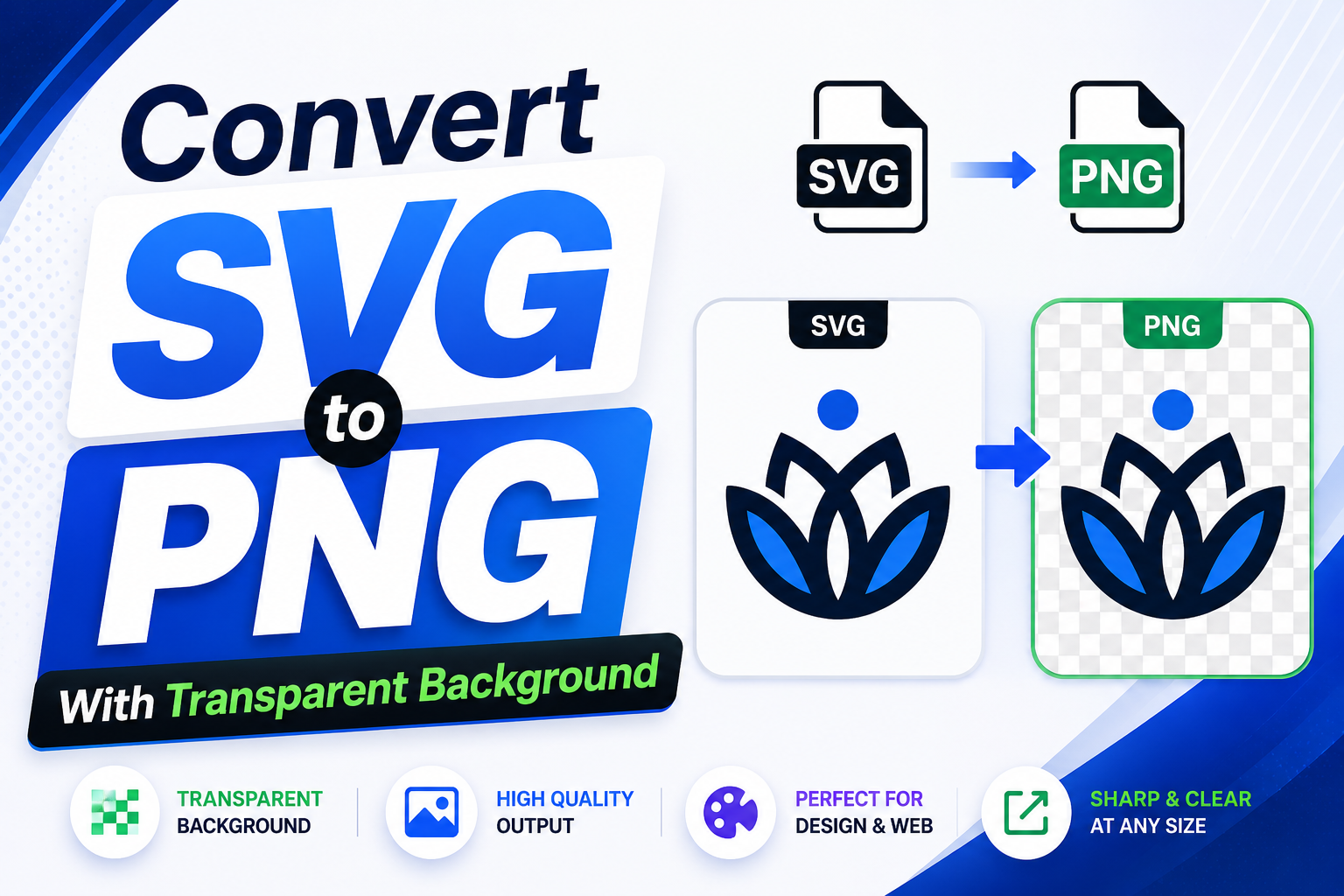
PNG format supports full alpha channel transparency, allowing graphics to overlay seamlessly on any background color or pattern. This flexibility makes PNG ideal for logos, icons, and decorative elements.
Transparent Background Benefits and Applications
Transparent PNG graphics adapt to any background color or image. Logos with transparent backgrounds can be placed on light websites, dark themes, or colorful marketing materials without visual conflicts.
Web developers prefer transparent PNGs because they integrate cleanly with responsive designs that might change background colors based on user preferences, seasonal themes, or brand updates.
Email templates benefit from transparent graphics because different email clients display messages against various background colors. Transparent logos ensure consistent appearance across all email platforms.
Custom Background Colors for Specific Contexts
Some applications require graphics with specific background colors. Social media profile images often work better with solid backgrounds that match platform color schemes or brand guidelines.
Print materials may require specific background colors to ensure proper contrast or to match brand color requirements. Converting with the exact brand color prevents color matching problems during printing.
Presentation graphics sometimes need backgrounds that complement slide designs. Adding appropriate background colors during conversion eliminates the need for additional image editing software.
Color Accuracy and Brand Consistency
Brand colors require precise color matching across all materials. Converting SVG graphics to PNG with exact hex color values ensures brand consistency in digital and print applications.
Color profiles affect how colors appear on different devices and in various applications. PNG files preserve color information more predictably than SVG files, which may render differently across browsers.
Testing converted graphics on different backgrounds helps identify color issues before final use. Some colors that look good on white backgrounds may have poor contrast on darker or colored backgrounds.
Troubleshooting Common Conversion Issues and Quality Problems
Conversion problems typically involve dimension errors, color shifts, or quality degradation. Understanding these issues helps you achieve better results and avoid time-consuming revisions.
Quality problems often stem from inappropriate sizing, incorrect settings, or complex SVG elements that don't translate well to raster format. Identifying these issues early prevents disappointing results.
Dimension and Scaling Problems
Very small output sizes can cause text and fine details to become illegible or disappear entirely. Increasing the minimum size or simplifying complex elements helps maintain visual clarity at small scales.
Extremely large output sizes may create unnecessarily large file sizes that slow down websites or exceed platform upload limits. Finding the optimal balance between quality and file size improves performance.
Aspect ratio problems occur when custom dimensions don't match the original SVG proportions. This can stretch or compress graphics in ways that make them look unprofessional or distorted.
Color and Transparency Issues
Color space mismatches can cause unexpected color shifts during conversion. SVG files use RGB color space, which translates well to PNG, but complex gradients might render differently than expected.
Transparency problems occur when SVG elements have complex opacity settings or blend modes. These effects might not translate perfectly to PNG's simpler transparency model, causing visual differences.
Background color issues happen when transparent areas in the SVG become opaque in PNG format, or when custom background colors don't match the intended design requirements.
File Size and Performance Optimization
Large PNG files can slow down website loading times and consume excessive bandwidth. Optimizing dimensions to match actual display sizes prevents unnecessary file bloat.
Complex SVG graphics with many gradients, filters, or effects may produce large PNG files. Simplifying the original design or using lower target resolutions can reduce file sizes significantly.
PNG optimization tools can further compress files without visible quality loss. However, starting with appropriate dimensions during conversion produces better results than post-processing optimization.
Security and Privacy Considerations for Graphics Conversion
File security involves protecting your original graphics and converted images from unauthorized access during processing. Browser-based conversion tools process files locally without uploading sensitive designs to external servers.
Privacy protection becomes important when handling proprietary designs, unreleased products, or confidential brand materials. Local processing eliminates concerns about data transmission and storage on third-party servers.
Protecting Intellectual Property During Conversion
Local processing ensures your original SVG files and converted PNG images never leave your device. This approach protects proprietary designs, unreleased products, and confidential marketing materials from potential data breaches.
Metadata removal happens automatically during conversion, eliminating embedded information about creation software, editing history, and file origins that might reveal sensitive business information.
Version control for sensitive graphics works better with local tools that don't create audit trails on external servers. This approach particularly benefits businesses handling confidential rebranding or product launch materials.
Corporate Data Security Best Practices
Enterprise environments often have strict policies about uploading files to external services. Browser-based conversion tools that work offline comply with these security requirements without compromising functionality.
Network security becomes less critical when file processing happens locally. This reduces concerns about man-in-the-middle attacks, unsecured connections, or data interception during transmission.
Compliance requirements for industries like healthcare, finance, or government may prohibit external file processing. Local conversion tools help organizations maintain compliance while still accessing needed functionality.
File Integrity and Quality Assurance
Output verification ensures converted PNG files contain only expected graphic content without embedded scripts, malware, or corrupted data that could cause problems in downstream applications.
Clean conversion processes remove potentially problematic elements from source files while preserving visual content, creating PNG images that are safe for sharing in professional and personal contexts.
File validation helps identify conversion errors or quality issues before finalizing graphics for important applications like marketing campaigns, product launches, or brand presentations.
Frequently Asked Questions
What dimensions should I use when converting SVG to PNG for web use?
Choose dimensions based on your actual display needs. For responsive web design, create multiple versions: 1x for standard displays, 2x for Retina screens, and 3x for high-DPI devices. Common web sizes include 24x24, 48x48, and 96x96 pixels for icons, scaled appropriately for each device density.
Should I use transparent or custom background colors for PNG conversion?
Transparent backgrounds offer maximum flexibility for logos, icons, and graphics that will appear on various colored backgrounds. Use custom background colors only when you need specific brand colors or when the graphic will always appear on a consistent background color.
How do I maintain aspect ratios when converting to specific dimensions?
Enable aspect ratio locking to maintain proportional scaling when changing width or height values. This prevents distortion but may require adjusting your target dimensions to match the original SVG proportions. Unlock aspect ratios only when you specifically need non-proportional scaling.
Why do my converted PNG images look blurry or pixelated?
Blurriness typically results from converting to dimensions that are too small for the intended use, or from scaling up small PNG images in browsers. Always convert to the largest size you'll need, then scale down if necessary. For high-DPI displays, use 2x or 3x the standard dimensions.
Can I convert SVG files with complex gradients and effects to PNG?
Most SVG elements convert successfully to PNG, including gradients, shadows, and transparency effects. However, very complex effects or animations won't translate to static PNG format. Test your specific SVG file to ensure the conversion meets your quality requirements before using in production.